How to Clone a Boot Drive With Multiple EFI Partitions
Most Windows disks carry one EFI system partition. A refurbished or dual-boot machine can carry two or three, and each holds its own boot loader. Copying the wrong one produces a drive that refuses to start.
This guide explains how the extra partitions appear, how to map every boot entry before the copy, and how to clone the whole disk while keeping the boot order intact.
PAGE CONTENT
- How a Disk Gets More Than One EFI Partition
- Map the Partitions and Boot Entries
- Decide What to Keep Before the Copy
- Clone the Whole Disk with Qiling Disk Master
- Check the Boot Order After the Clone
- FAQs About EFI Partitions and Clones
- Back Up the Drive Before You Clone
How a Disk Gets More Than One EFI Partition
- A second OS was installed. Each installation can create its own EFI system partition on the same disk.
- A drive was moved between machines. An old partition stays behind when a new one is added.
- A recovery tool rebuilt the boot files. Some repair utilities create a fresh partition instead of reusing the first.
- The disk came from another system. Refurbished drives often keep the previous owner's layout.
- A manual partition restore duplicated it. Cloning only a volume instead of the disk can leave two copies.
Windows boots from the EFI partition that the firmware entry points to, not necessarily the first one on the disk. That is why a copy can look complete and still fail to start.
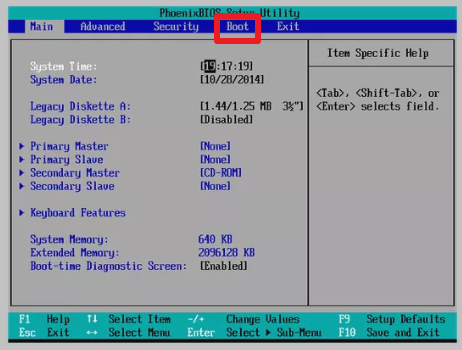
Map the Partitions and Boot Entries
- Use Disk Management or DiskPart. Both list every partition, its type, and its size on the disk.
- Look for the FAT32 volumes. EFI partitions are small, FAT32, and usually between 100 and 500 MB.
- Read the boot entries. The bcdedit /enum firmware command shows which partition each entry loads from.
- Check the disk signature. A copied entry can point at a disk number that changes after the swap.
- Write the mapping down. Note which EFI partition serves which Windows installation.
Run the mapping from an elevated prompt while the machine still boots. Once the drive is in the new position, the disk numbers shift and the old notes become harder to interpret.
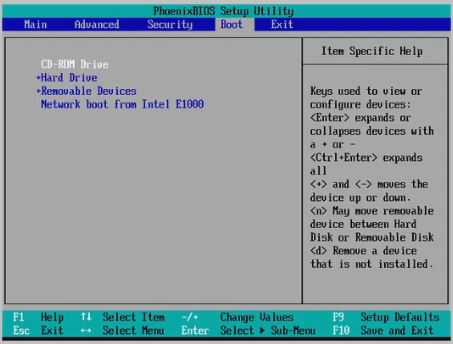
Decide What to Keep Before the Copy
- Keep every partition that boots. Deleting an EFI volume removes the loader for one installation.
- Remove abandoned installations. A dead Windows folder and its EFI entry can go, but only after a backup.
- Merge when possible. One EFI partition can serve several Windows installations on the same disk.
- Keep the recovery partition order. Recovery tools expect to find it in a fixed position.
- Do not convert the layout. A GPT disk must stay GPT so the firmware entries keep working.
A whole-disk clone keeps the layout exactly as it is, which is the safest choice with several boot partitions. A partition-level copy is the option that creates the confusion in the first place.
Clone the Whole Disk with Qiling Disk Master
Qiling Disk Master copies the disk block by block, so every EFI partition and its contents arrive on the new drive unchanged. Attach the target through USB or an internal bay, then run the task from Windows.
Watch the video tutorial below to clone the drive step by step with Qiling Disk Master.
Step 1. Open Qiling Disk Master, choose Clone, and then select Disk Clone.

Step 2. Select the disk that holds all the EFI partitions as the source and click Next.

Step 3. Select the target disk as the destination and confirm that its data will be replaced.

Step 4. Check that every EFI and recovery volume is ticked, then tick Optimize for SSD if the target is solid state.

Step 5. Click Proceed, wait for the copy to finish, and shut the machine down before you move the drive.

Check the Boot Order After the Clone
- Boot from the new disk only. Disconnect the old drive so the firmware cannot fall back to it.
- Open the boot menu. Confirm that the expected Windows Boot Manager entry is listed for the new disk.
- Repair the entry if needed. Bootrec and bcdboot can rebuild a loader that points at the old disk.
- Remove stale entries. Delete firmware entries that still name the removed drive.
- Test every installation. If two Windows versions share the disk, start each one once.
Duplicate entries usually appear because the firmware keeps the old device path. The repair command bcdboot C:\Windows /s S: /f UEFI rewrites the loader on the correct EFI partition.
FAQs About EFI Partitions and Clones
Does a disk clone copy every EFI partition?
Yes. A disk-level copy takes all partitions, including the ones Windows does not mount.
Can I delete a second EFI partition?
Only if no boot entry uses it. Check with bcdedit first, then keep a backup of the disk.
Why does the new drive boot the old Windows?
The firmware entry still points at the old disk number. Remove the extra entry or rebuild the loader.
Is a partition clone enough?
No, not when several partitions boot. Use a whole-disk clone so the layout and the entries stay matched.
Will BitLocker ask for the key?
It can. A disk change alters the measured boot state, so keep the recovery key within reach.
Back Up the Drive Before You Clone
A multi-partition boot disk is harder to rebuild than a normal one. Make a full system image first so the layout can be restored if the copy goes wrong.
Watch the video tutorial below to back up Windows and restore it if the clone fails.
Step 1. Open Qiling Disk Master and select System Backup to include the boot partitions.

Step 2. Save the image to a drive other than the target disk and start the backup.

Step 3. Click Proceed to start the system backup and wait patiently until it finishes. You can also tick Shut down the computer when the operation is completed to power off automatically.

Step 4. If the cloned drive will not start, restore the image to the original disk and check the boot entries again.

Conclusion
Multiple EFI partitions are a layout problem, not a cloning problem. Map every FAT32 boot volume and its firmware entry while the machine still starts, keep them all in the copy, and remove the old drive before the first boot. If an entry points at the wrong disk, rebuild the loader with bcdboot and delete the stale firmware record.
For more on boot structure, see How to Clone Windows 11 with the System Reserved Partition, How to Clone the Windows Recovery Partition to a New SSD, How to Clone an MBR Disk to a GPT SSD, and How to Clone Only the OS Partition to a New SSD.
Related Articles
- Cloned Drive Won't Boot? How to Fix It
Repair the loader when the copy refuses to start. - How to Clone a GPT Disk to an MBR Disk
See what changes when the layout does. - How to Clone a Disk with a Different Sector Size
Sector size affects how the copy is written. - How to Clone Windows 11 to an External SSD
Portable boot drives keep the same EFI rules. - How to Clone Windows 11 to a SATA SSD
A plain SATA target needs no special layout work.
Products
Articles & Tutorials
- Data Recovery
- Data Backup
- File Recovery
- File Backup
- System Backup and Restore
- Disk and Partition Clone
- Technical articles
- Mobile articles
- Disk Master Help
- Windows Data Recovery Tutorials
- Windows Secure Delete Tutorials
- Windows Partition Management Tutorials
- Windows File Backup and Restore Tutorials
- Windows System Backup and Restore Tutorials
- Windows Disk Backup and Restore Tutorials
- Windows Clone Tutorials