How to Clone a GPT Disk to an MBR Disk
Most modern PCs boot from GPT disks, but older boards, industrial controllers, and legacy operating systems still expect an MBR layout. Moving Windows between the two is a conversion, not a plain copy.
This guide explains when MBR is still required, the limits you must respect, and how to produce a copy that starts on a legacy BIOS machine.
PAGE CONTENT
- When an MBR Copy Is Still Needed
- Limits of an MBR Disk
- Choose the Conversion Order
- Clone the Disk with Qiling Disk Master
- Boot the Copy on Legacy BIOS
- FAQs About GPT to MBR Clones
- Back Up Windows Before You Clone
When an MBR Copy Is Still Needed
- The board has no UEFI. A legacy BIOS cannot read a GPT boot entry, so the disk must be MBR.
- Windows is 32-bit. Some older 32-bit editions boot only from a legacy MBR layout.
- The machine is industrial. Embedded controllers and kiosks often ship with legacy firmware.
- A diagnostic tool needs MBR. DOS-based recovery and imaging utilities read only MBR partitions.
- An old OS must share the disk. DOS, Windows XP, and similar systems need MBR and primary partitions.
Converting is worth it only when the target machine truly cannot boot GPT. On a UEFI board, keep GPT and avoid the 2TB limit entirely.
Limits of an MBR Disk
- 2TB address limit. An MBR partition table cannot describe space beyond 2TB, so extra capacity is lost.
- Four primary partitions. The table holds four entries, and more volumes need an extended partition.
- One active partition. The firmware boots the partition marked active, which must contain the boot files.
- No EFI system partition. MBR boot uses a boot sector and a system reserved volume instead.
- Logical drives inside an extended partition. These work in Windows but some tools cannot boot from them.
Count the partitions before you convert. A GPT disk with EFI, MSR, recovery, and Windows volumes needs the first three merged into an MBR boot layout.
Choose the Conversion Order
- Back up the source first. Conversion deletes partitions, and a failed attempt needs a restore point.
- Note the GPT layout. Record every partition, its size, and whether it is EFI, MSR, recovery, or data.
- Convert an empty target disk. Windows can only convert to MBR after every partition is deleted.
- Decide where the conversion happens. Converting the target before the clone keeps the source untouched.
- Check the partition count. Four or fewer volumes fit as primaries; more require an extended partition plan.
Do not convert the running system disk in place. Build the MBR layout on the new disk, then copy the volumes into it, so a failure leaves the original bootable.
Clone the Disk with Qiling Disk Master
Qiling Disk Master writes the selected volumes onto the MBR target. Initialize the new disk as MBR in Disk Management before you start the clone.
Step 1. Open Qiling Disk Master, choose Clone, and then select Disk Clone.

Step 2. Select the GPT source disk and click Next.

Step 3. Select the MBR target disk as the destination and confirm that its data will be replaced.

Step 4. Review the layout, keep the total size under 2TB, and confirm the boot volume is the first primary partition.

Step 5. Click Proceed, wait for the copy to finish, then shut down and set the new disk as the boot device.

Boot the Copy on Legacy BIOS
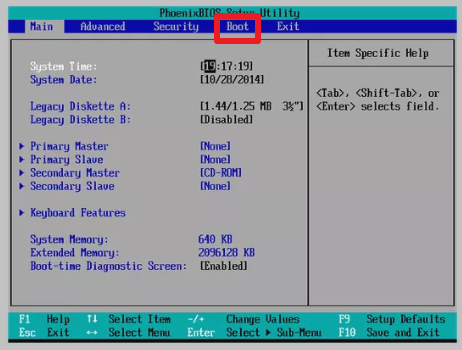
- Enable legacy boot. Turn on CSM or legacy support in the firmware and disable UEFI-only mode.
- Mark the boot partition active. Use diskpart to set the system reserved or boot volume active.
- Repair the master boot record. Run bootrec /fixmbr and /fixboot from Windows recovery media.
- Turn off Secure Boot. Legacy boot and Secure Boot do not combine on most boards.
- Check the 2TB boundary. Confirm that no partition extends past the limit the MBR table supports.
If the machine reports a missing operating system, the active flag or MBR code is wrong. The repair steps in Cloned Drive Wont Boot Fix cover both.
FAQs About GPT to MBR Clones
Can I convert GPT to MBR without losing data?
Not in place. Windows requires an empty disk for conversion, so copy the volumes to a prepared MBR target instead.
Does an MBR disk support Windows 11?
Windows 11 requires UEFI and GPT. An MBR copy is for older Windows versions or legacy-only hardware.
Why is only 2TB visible after the clone?
The MBR table cannot address space beyond 2TB. The remaining capacity stays unusable on that disk.
Can I keep five partitions?
Only by placing extras inside an extended partition as logical drives, and some tools cannot boot from those.
Will the EFI partition be copied?
It has no role on MBR. Create a system reserved volume for the boot files instead of copying the EFI partition.
Back Up Windows Before You Clone
Before changing drives or partition styles, create a full system backup. Qiling Disk Master creates an image you can restore from.
Step 1. Open Qiling Disk Master and select System Backup to include Windows and the boot partitions.

Step 2. Save the image to a drive other than the target disk and start the backup.

Step 3. Click Proceed to start the system backup and wait patiently until it finishes. You can also tick Shut down the computer when the operation is completed to power off automatically.

Step 4. If the copy will not start, restore the image to a spare drive and boot from it.

Conclusion
A GPT to MBR move is a layout conversion with hard limits. Confirm that the target machine truly needs legacy boot, count the partitions against the four-entry table, and keep the data under 2TB. Convert an empty target disk, copy the volumes into it, then mark the boot partition active and repair the master boot record. Keep the original GPT disk untouched until the legacy machine starts cleanly.
For more on partition styles and boot repair, see How to Clone an MBR Disk to a GPT SSD, Cloned Drive Wont Boot Fix, How to Clone a Hard Drive to a Larger Hard Drive, and How Long Does a Disk Clone Take.
Related Articles
- How to Clone Windows 11 with the System Reserved Partition
Hidden boot volumes differ between GPT and MBR disks. - How to Clone Only the OS Partition to a New SSD
Partition copies still need a working boot path. - Migrate Windows 10 from One PC to Another
Hardware changes affect boot mode and activation. - When Should I Replace My HDD
Decide whether the old drive is worth converting at all. - How to Clone a Disk with a Different Sector Size
512e and 4Kn drives need matching offsets to boot.
Products
Articles & Tutorials
- Data Recovery
- Data Backup
- File Recovery
- File Backup
- System Backup and Restore
- Disk and Partition Clone
- Technical articles
- Mobile articles
- Disk Master Help
- Windows Data Recovery Tutorials
- Windows Secure Delete Tutorials
- Windows Partition Management Tutorials
- Windows File Backup and Restore Tutorials
- Windows System Backup and Restore Tutorials
- Windows Disk Backup and Restore Tutorials
- Windows Clone Tutorials