When Should I Replace My HDD? You May Noticed Signs...
About HDD
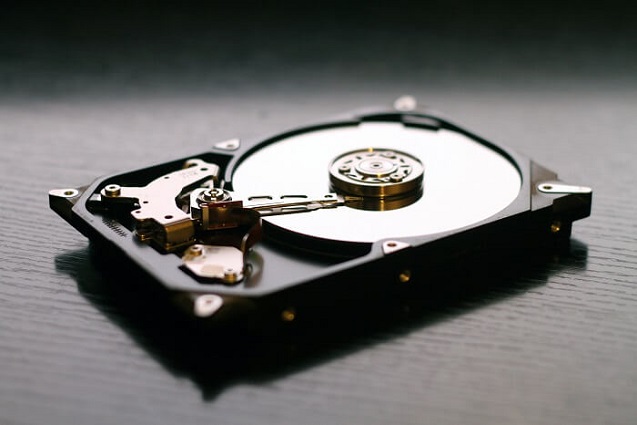
A hard disk drive (HDD), also known as a hard drive (HD), is a type of non-volatile data storage medium for computers. Internally installed in a computer, they are connected to the disk controller of the motherboard. Composed of aluminum plates coated with a magnetic element, hard drives store data in a circular plane configuration.
A hard drive stores information on one or more spinning platters that are enclosed in an air-sealed casing. A magnetic head quickly moves over the platters as they spin, disbursing information to them. This storage device holds essential data such as the operating system, personal files, and installed software.
* You may be interested in USB Flash Drive & External Hard Drive - Everything You Should Know
History of HDD
In 1956, IBM created the first hard drive, which was roughly the size of a refrigerator, and had a storage capacity of 5 MB. It featured two heads for reading disks, but was not removable as it was integrated into the computer.
In 1970, a smaller, portable hard disk drive was introduced, with a storage capacity of 60 MB, featuring low-mass read or write heads and an 8-inch size, making it more portable.
In the 1980s, IBM created the first Gigabyte hard drive, a significant storage milestone. Later, Seagate introduced a 9 GB capacity hard drive, followed by an 18 GB capacity model that transferred data at 61 MB per second. In 2010, Seagate developed a 4 TB capacity hard drive, which transferred data at an impressive 1 GB per second. This marked a major leap in storage capacity and speed.
HDD Lifespan
The lifespan of a hard disk drive (HDD) is influenced by several factors, including the brand, type, environment, size, and usage. A reputable brand tends to produce more reliable hardware, which can extend the lifespan of the hard drive. The amount of data written to the disk can also impact its lifespan, as well as environmental factors such as dust and electrical issues. On average, a standard hard drive can be expected to last for three to five years.
HDD Popularity in Modern Computers
Solid-state drives (SSDs) have largely replaced traditional hard disk drives (HDDs) in modern computers due to their superior speed. While HDDs offer greater storage capacity, they are slower than SSDs when reading and writing data. As a result, SSDs have become the preferred choice for primary storage in contemporary computers.
In modern computers, HDDs are typically used as secondary storage for files such as documents, audio and video files, and downloads, while the primary storage is usually occupied by an SSD containing the operating system and installed software.
What's The Time to Replace HDD?
Your hard drive may be failing and in need of replacement if it's reached the end of its lifespan (typically 3-10 years) or is experiencing malfunctions, impacting system performance. Additionally, if you're running low on free disk space, it's likely time to consider replacing your hard drive to maintain optimal system functionality.
If your PC or laptop is experiencing symptoms such as frequent crashes, slow performance, or unusual noises, it may be a sign that the hard drive (HDD) is nearing the end of its lifespan and is due for replacement.
- Hard Drive Failure: If your hard drive is making strange grinding or clicking sounds, overheating, freezing frequently, and displaying a blue screen of death, it's likely failing.
- Hard Drive Corruption: When you access the hard drive, it may display a warning about corrupted data, bad sectors, or malware, and may crash or display disappearing files, indicating it's likely corrupted and needs to be replaced.
- Hard drive Disk Space Exhausted: When your PC is slow due to excess clutter, it may be a sign that your hard drive is full and needs to be cleaned up or replaced, freeing up space to run programs and access documents smoothly.
How to Replace HDD without Reinstalling Windows
Replacing a hard disk drive (HDD) with a solid-state drive (SSD) without reinstalling Windows is a straightforward process. Simply clone the entire content from your PC's HDD to the SSD, and then swap out the original HDD with the new SSD. This approach allows you to retain all your files, programs, and settings on the new SSD, eliminating the need for a fresh Windows installation.
To clone your HDD to SSD, install a third-party disk cloning software such as Qiling Disk Copy, which will safely and effectively perform the cloning exercise.
Qiling Disk Copy is a simple and effective cloning software for Windows PCs that allows you to make a complete copy of your HDD to SSD without losing any data. It can clone HDDs or SSDs of different brands and is compatible with all Windows systems.
This tool thoroughly examines all features of your device's hardware and guarantees a 100% exact replica of the original data to a new drive, ensuring no alteration to existing data.
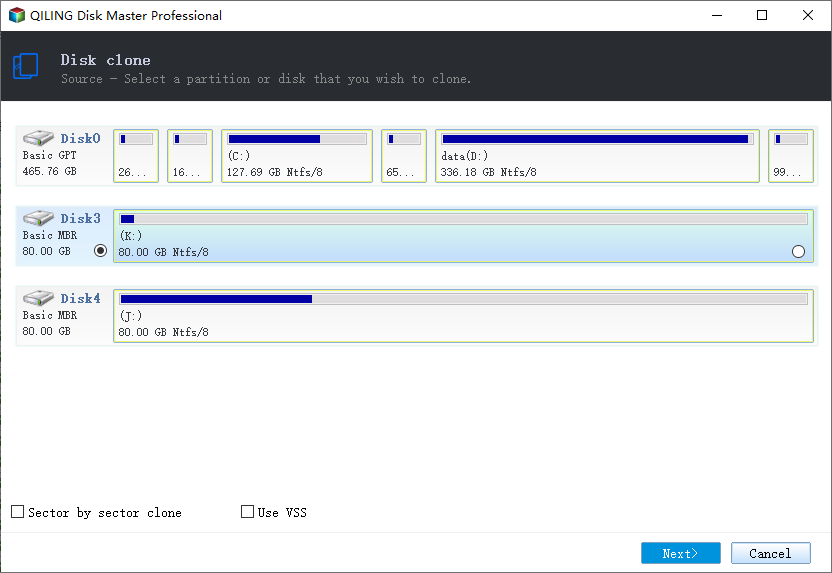
Step 1: In the Disk layout section, choose the hard drive (HDD) that you want to clone.
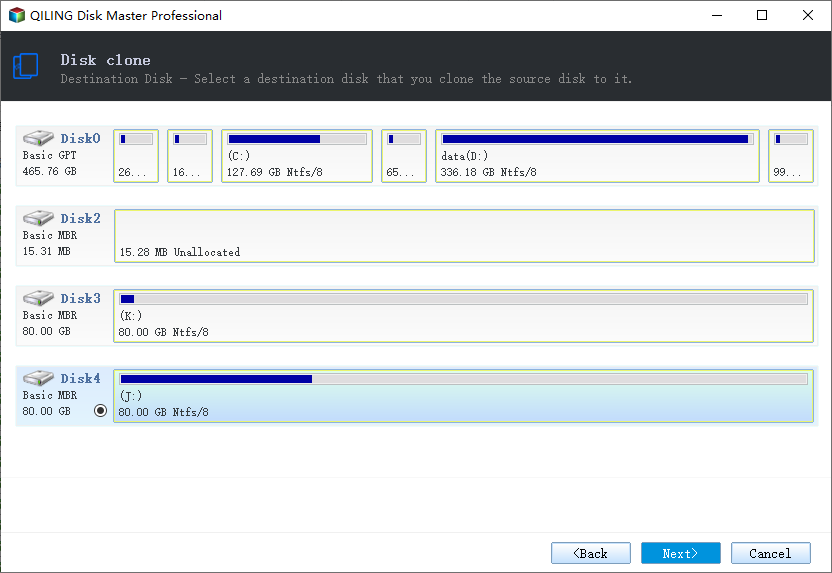
Step 2: Select the SSD as your destination.
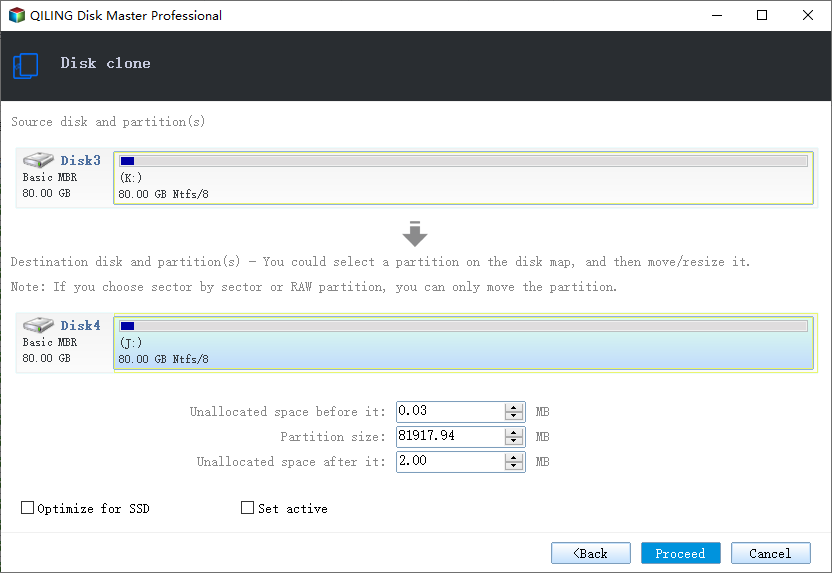
Step 3: Edit the disk layout and then click "Proceed" to continue.
When copying data to an SSD, it's recommended to enable the "Check the option if the target is SSD" option to ensure optimal performance and longevity of the drive.
Step 4: Wait for the process to complete.
A warning message says that the data on the SSD will be erased. Click "OK" to proceed if there's no important data on the destination disk.
Final Thoughts
HDDs have greater storage capacity but can become outdated and lead to information loss or system issues. In contrast, SSDs are faster and more efficient, making them a better option. To upgrade from an HDD to an SSD, I recommend using the Qiling Disk Copy software for cloning. This will help ensure a smooth transition and minimize potential disruptions.
Related Articles
- Best Microsoft Cloning Software for Windows 11/10/8/7
- 2022 Step-by-step Guide | How to Clone Hard Drive to SanDisk SSD
- Clone OS from HDD to Smaller SSD Without Reinstallation
- [Solved] How to Move OS to Another Drive Without Reinstalling Windows and Applications
- Easily Move Windows Server 2012 to New Hard Drive without Boot Issues (Two Ways)
No matter you want to move entire Windows Server 2012 hard drive, or just migrate Windows Server 2012 operating system partition to a new disk, Qiling Disk Master Server can make it easy to move Windows Server 2012 to new hard drive. - Freeware: SSD to SSD Clone in Windows 11, 10, 8, 7
With the Qiling Disk Master, you can perform SSD to SSD clone for free in Windows 11, 10, 8, 7. Only several clicks can make it done.
Products
Articles & Tutorials
- Data Recovery
- Data Backup
- File Recovery
- File Backup
- System Backup and Restore
- Disk and Partition Clone
- Technical articles
- Mobile articles
- Disk Master Help
- Windows Data Recovery Tutorials
- Windows Secure Delete Tutorials
- Windows Partition Management Tutorials
- Windows File Backup and Restore Tutorials
- Windows System Backup and Restore Tutorials
- Windows Disk Backup and Restore Tutorials
- Windows Clone Tutorials