How to Clone a BitLocker-Encrypted Drive
A BitLocker-protected system disk encrypts every sector, and a clone tool reads sectors rather than files. The copy therefore captures ciphertext bound to the old drive, which cannot be unlocked on new hardware without the original key protector.
This guide explains why the encryption must be paused, how to save the recovery key, and how to clone the drive so the new SSD still starts Windows.
PAGE CONTENT
- Why BitLocker Blocks a Clone
- Save the Recovery Key and Suspend Protection
- Prepare the Target Drive
- Clone the Encrypted Drive with Qiling Disk Master
- Re-Enable BitLocker on the New Drive
- FAQs About Cloning BitLocker Drives
- Back Up Windows Before You Clone
Why BitLocker Blocks a Clone
- Every sector is encrypted. A clone copies raw blocks, so it reproduces ciphertext instead of readable files.
- The key protector is bound to hardware. The TPM seals the unlock key to the old motherboard and drive.
- A copied disk may ask for recovery. Even a correct clone can stop at the BitLocker recovery screen on first boot.
- Suspended protection makes blocks readable. The volume stays encrypted but is unlocked with a clear key while protection is off.
- Cloning without pausing is risky. The copy can be unreadable and the original may need the recovery key to start.
Suspend, not disable, is the short step that keeps the clone readable without decrypting the whole volume.
Save the Recovery Key and Suspend Protection
- Open BitLocker settings. Use Control Panel or Settings and find the drive that holds Windows.
- Back up the recovery key. Save it to your Microsoft account or print it before touching anything.
- Choose Suspend protection. This turns off the key protector for one reboot while the volume stays encrypted.
- Restart as requested. The wizard may ask for a reboot so the clear key takes effect.
- Do not resume protection early. Leaving it suspended until the clone finishes avoids a half-readable copy.
Keep the recovery key somewhere other than the drive being cloned, since the copy will not carry it.
Prepare the Target Drive
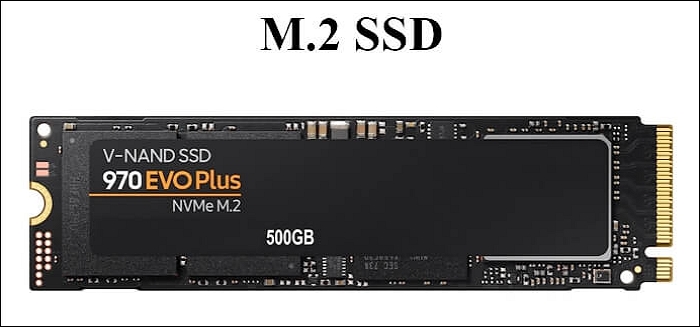
- Connect the new SSD. Use a free SATA port, an M.2 slot, or a USB enclosure.
- Check the capacity. The new drive must hold all partitions, including the recovery volume.
- Note the firmware mode. A UEFI system needs GPT, while an older BitLocker install may sit on MBR.
- Close other programs. Stop sync clients and editors that lock files during the copy.
- Plug in AC power. A laptop on battery can sleep in the middle of a long clone.
A target with enough room and a stable connection is all the clone needs before it starts.

Clone the Encrypted Drive with Qiling Disk Master
Qiling Disk Master clones the whole disk, so the boot, system, and recovery partitions move together. Download and install it while protection is suspended.
Step 1. Open Qiling Disk Master, choose Clone, and then select Disk Clone.

Step 2. Select the encrypted system disk as the source and click Next.

Step 3. Select the new SSD as the destination and confirm that its data will be replaced.

Step 4. Review the layout, keep every partition, and tick Optimize for SSD if the target is a solid-state drive.

Step 5. Click Proceed, wait for the copy to finish, then shut down before swapping the drives.

Re-Enable BitLocker on the New Drive
- Boot the new drive first. Expect a recovery prompt, and enter the key you saved earlier if it appears.
- Resume protection. Open BitLocker settings and turn protection back on for the new volume.
- Clear the old protector. Windows may list the previous drive; remove it once the new one works.
- Confirm the TPM seal. A new drive often needs a fresh key protector before automatic unlock works.
- Keep the old drive for a week. Leave it untouched until the new installation has started cleanly several times.
If the recovery screen keeps returning, the steps in Cloned Drive Wont Boot Fix cover the boot and firmware side.
FAQs About Cloning BitLocker Drives
Do I have to decrypt the drive to clone it?
No. Suspending protection keeps the volume encrypted but readable, so the clone works without a full decryption pass.
Will the cloned drive keep BitLocker enabled?
The copy carries the encrypted volume, so protection is still on. You may need the recovery key once, then resume normally.
What if I lose the recovery key?
The copy cannot be unlocked. Save the key to your Microsoft account before suspending protection, not afterwards.
Can I clone a BitLocker drive to a larger SSD?
Yes. The clone copies every partition, and you can extend the system volume into the extra space after boot.
Does suspending protection leave the drive unprotected?
It leaves the volume encrypted but unlocked until you resume. Finish the clone quickly and turn protection back on.
Back Up Windows Before You Clone
Before changing drives or partitions, create a full Windows backup. Qiling Disk Master creates a system image you can restore from.
Step 1. Open Qiling Disk Master and select System Backup to include Windows and the boot partitions.

Step 2. Save the image to a drive other than the system disk and start the backup.

Step 3. Click Proceed to start the system backup and wait patiently until it finishes. You can also tick Shut down the computer when the operation is completed to power off automatically.

Step 4. If the clone prompts for a recovery key you no longer have, restore the image and start again.

Conclusion
A BitLocker drive clones cleanly once protection is suspended and the recovery key is safe. Save the key first, pause protection instead of decrypting the volume, then clone the whole disk with Qiling Disk Master so the boot and recovery partitions travel with the system partition. On the first start, enter the recovery key if Windows asks, resume protection, and refresh the key protector for the new drive. Keep the old disk until the copy has booted several times, and take a system image before you begin.
For more on moving a protected system, see How to Clone Windows 11 to an External SSD, How to Clone an NVMe SSD to a Larger NVMe SSD, Cloned Drive Wont Boot Fix, and Does Cloning a Hard Drive Copy Windows.
Related Articles
- How to Clone an MBR Disk to a GPT SSD
A GPT target with an EFI partition is what modern firmware expects. See how the layout changes during a clone. - 4K Alignment When Cloning to an SSD
Alignment affects speed on every solid-state target. Learn how to keep the partition offsets correct. - Windows 11 SSD Clone Without Reinstall
Clone Windows 11 to new storage and keep the old drive until the copy boots. - How to Replace an Old SSD with a New SSD
Swapping an internal SSD takes one clone and a short hardware step. See the checks after boot. - Replace a Hard Drive with an SSD Without Reinstalling Windows
Keep applications and settings by cloning instead of reinstalling. Follow the swap and boot order.
Products
Articles & Tutorials
- Data Recovery
- Data Backup
- File Recovery
- File Backup
- System Backup and Restore
- Disk and Partition Clone
- Technical articles
- Mobile articles
- Disk Master Help
- Windows Data Recovery Tutorials
- Windows Secure Delete Tutorials
- Windows Partition Management Tutorials
- Windows File Backup and Restore Tutorials
- Windows System Backup and Restore Tutorials
- Windows Disk Backup and Restore Tutorials
- Windows Clone Tutorials