How to Clone an Acer Laptop HDD to SSD
Acer Aspire and Swift laptops usually ship with a hard drive even though the platform supports much faster storage. A disk clone moves the entire Windows setup onto an SSD in one pass.
This guide covers the bay and slot check, the InsydeH2O BIOS settings, and the clone steps that keep Acer Care Center and recovery intact.
PAGE CONTENT
- Why Upgrade an Acer Laptop
- Check the Bay, Slot, and Caddy
- Prepare Acer BIOS and Windows
- Clone the HDD with Qiling Disk Master
- First Boot on the Acer Laptop
- FAQs About Acer SSD Upgrades
- Back Up Windows Before You Clone
Why Upgrade an Acer Laptop
- Boot time falls sharply. An Aspire with a 5400 rpm drive can take a minute to reach the desktop.
- Everyday apps respond faster. Browsers, Office, and file searches stop waiting on the platter.
- Battery life improves. An SSD idles with lower power draw than a mechanical drive.
- Acer tools stay in place. Recovery and Care Center remain on the cloned disk.
- An extra bay may exist. Some models have an optical bay that accepts a 2.5-inch caddy.
A clone keeps the original Windows licence and all installed programs. A clean install is only needed when the existing system is already unstable.
Check the Bay, Slot, and Caddy
- Identify the model. Aspire, Swift, and Nitro families differ in drive bays and M.2 availability.
- Confirm the 2.5-inch bay. Most Aspire models accept a 7 mm SATA SSD in place of the HDD.
- Look for an M.2 slot. Some Swift and Nitro models add an M.2 slot for a faster NVMe drive.
- Check the optical bay. A caddy can hold the old HDD as a second drive when the laptop has a DVD bay.
- Match the firmware mode. Note whether the BIOS boots in UEFI or legacy mode before you copy.
A caddy adds storage but not speed. Put the SSD in the main bay and move the HDD to the caddy if you keep both.
Prepare Acer BIOS and Windows
- Update the BIOS. A current InsydeH2O build recognizes modern SSDs without detection issues.
- Suspend BitLocker. Pause protection so the new disk starts without a recovery key prompt.
- Disable Fast Startup. A full shutdown removes hibernation data tied to the old drive.
- Use a SATA-to-USB adapter. Clone the SSD before you open the laptop to reduce downtime.
- Check the used space. The SSD must fit the data plus the EFI and recovery partitions.
If the BIOS is set to legacy mode with an MBR disk, keep that layout for the clone. Changing to UEFI at the same time as the drive swap adds avoidable failure points.
Clone the HDD with Qiling Disk Master
Qiling Disk Master copies the whole Acer disk, so the EFI partition, recovery volume, and boot store all land on the SSD together.
Step 1. Open Qiling Disk Master, choose Clone, and then select Disk Clone.

Step 2. Select the Acer HDD as the source and click Next.

Step 3. Select the new SSD in the USB adapter as the destination and confirm that its data will be replaced.

Step 4. Review the partitions, keep the EFI and recovery volumes, and tick Optimize for SSD.

Step 5. Click Proceed, wait for the copy to finish, then shut down and swap the drives.

First Boot on the Acer Laptop
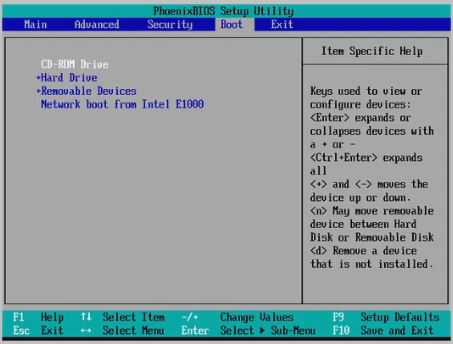
- Open the firmware menu. Press F2 at the Acer logo for BIOS setup, or F12 for the boot menu.
- Keep the boot mode. Leave UEFI or legacy exactly as it was during the clone.
- Set the SSD first. Move the new drive or Windows Boot Manager to the top of the boot order.
- Install Acer drivers. Acer Care Center restores chipset and storage drivers after the swap.
- Extend the volume. Use Disk Management to use free space when the SSD is larger.
On legacy MBR disks, the system reserved partition must stay active or the firmware skips it. Cloned Drive Wont Boot Fix explains how to check and repair that flag.
FAQs About Acer SSD Upgrades
Can I keep the old HDD as a second drive?
Yes when the laptop has an optical bay. A 2.5-inch caddy replaces the DVD drive and holds the HDD.
Does Acer need a proprietary clone tool?
No. Any tool that copies the full disk with hidden partitions works, including Qiling Disk Master.
Will the recovery partition still work?
Yes when it is cloned. Test it from Advanced Startup after the first boot.
Can I clone to a smaller SSD?
Yes if the used space fits. Shrink the C partition first and check the total of all partitions.
Why is the SSD not detected in BIOS?
The slot type or firmware mode is wrong, or the BIOS is out of date. Update it and confirm the key type.
Back Up Windows Before You Clone
Before changing drives or partitions, create a full system backup. Qiling Disk Master creates an image you can restore from.
Step 1. Open Qiling Disk Master and select System Backup to include Windows and the boot partitions.

Step 2. Save the image to a drive other than the target disk and start the backup.

Step 3. Click Proceed to start the system backup and wait patiently until it finishes. You can also tick Shut down the computer when the operation is completed to power off automatically.

Step 4. If the copy will not start, restore the image to a spare drive and boot from it.

Conclusion
An Acer upgrade is decided before the clone: does the model take a 2.5-inch drive, an M.2 module, or both? Confirm the bay and the firmware mode, suspend BitLocker, and copy the whole disk so recovery and boot files travel together. After the swap, press F2 or F12, keep the boot mode unchanged, set the SSD entry first, and restore Acer drivers through Care Center. Then extend the volume and keep the old HDD as a rollback.
For more laptop and desktop upgrades, see How to Clone a Lenovo Laptop HDD to SSD, How to Clone a Desktop Computer, Cloned Drive Wont Boot Fix, and How Long Does a Disk Clone Take.
Related Articles
- How to Clone a Dell Laptop HDD to SSD
Dell models add RAID mode to the usual slot checks. - How to Clone an ASUS Laptop HDD to SSD
ASUS firmware and M.2 keys decide the upgrade path. - How to Clone an MSI Laptop HDD to SSD
Gaming laptops often expose a second M.2 slot. - HP Laptop Hard Drive Replacement
HP models use similar bays with different firmware menus. - How to Clone an HDD to an SSD on Windows 10
A Windows 10 drive swap keeps programs and settings intact.
Products
Articles & Tutorials
- Data Recovery
- Data Backup
- File Recovery
- File Backup
- System Backup and Restore
- Disk and Partition Clone
- Technical articles
- Mobile articles
- Disk Master Help
- Windows Data Recovery Tutorials
- Windows Secure Delete Tutorials
- Windows Partition Management Tutorials
- Windows File Backup and Restore Tutorials
- Windows System Backup and Restore Tutorials
- Windows Disk Backup and Restore Tutorials
- Windows Clone Tutorials