How to Clone a Data Drive Without an Operating System
A drive that holds only photos, projects, or a media library has no boot files to protect. Copying it is simpler than copying Windows, but it still needs the right source selection and a check afterwards.
This guide explains how to identify a data-only disk, how to copy it without touching its partitions, and how to confirm the result before you erase anything.
PAGE CONTENT
- What Counts as a Data Drive
- Choose the Copy Method
- Prepare the Source and the Target
- Clone the Data Drive with Qiling Disk Master
- Verify the Copied Files
- FAQs About Data Drive Clones
- Back Up Windows Before You Clone
What Counts as a Data Drive
- It has no Windows folder. A data disk holds files but no system directory or boot loader.
- It carries no EFI partition. Without an EFI or reserved volume, the disk has nothing to boot from.
- It may be a single large volume. Media and archive drives are often one partition that fills the disk.
- It can use any file system. NTFS, exFAT, and ext4 all clone the same way at sector level.
- It may be external. USB and NAS drives count as data disks when nothing boots from them.
Confirm the classification in Disk Management before you start. A disk that quietly holds a recovery partition is not a pure data drive.
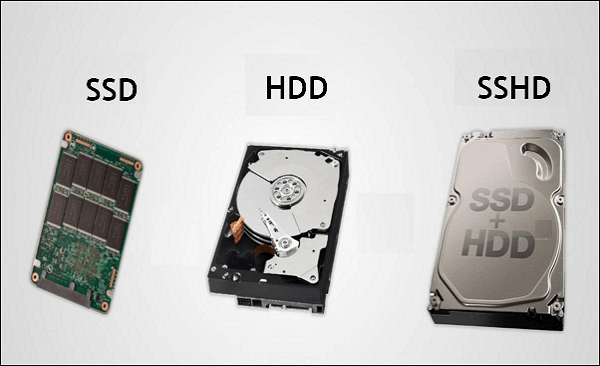
Choose the Copy Method
- Disk clone for an identical layout. The copy keeps every partition at the same offset and size.
- Partition clone for a smaller target. Copy only the volume that matters and leave unused space behind.
- File copy for a selective move. Drag and drop works, but it loses permissions and long paths.
- A disk image for an archive. An image file stores the whole disk in one compressed container.
- Skip the boot repair. A data disk needs no bcdboot or startup repair after the copy.
A disk clone is the safe default because it preserves hidden metadata as well as visible files. File copy is faster to start but weaker for anything with permissions attached.
Prepare the Source and the Target
- Close programs that write to the source. Backup agents and sync clients keep files open.
- Check the drive health. A data disk with reallocated sectors should be imaged before it fails outright.
- Empty the target. A disk clone replaces every partition on the destination.
- Size the target for the whole disk. A disk clone needs capacity for all partitions, not just used space.
- Connect both drives steadily. Use a rear USB port or an internal SATA cable rather than a hub.
If the source shows SMART warnings, do not run a normal clone first. Create an image with the sector-by-sector option, which keeps reading past weak areas instead of stopping.
Clone the Data Drive with Qiling Disk Master
Qiling Disk Master copies a data disk without asking for anything related to booting. Select the whole disk, confirm the partition list, and the copy runs while you keep working.
Watch the video tutorial below to clone the drive step by step with Qiling Disk Master.
Step 1. Open Qiling Disk Master, choose Clone, and then select Disk Clone.

Step 2. Select the data disk as the source and click Next.

Step 3. Select the target disk as the destination and confirm that its data will be replaced.

Step 4. Review the partition list and adjust the sizes if the new disk has a different capacity.

Step 5. Click Proceed, wait for the copy to finish, then eject or power down the target.

Verify the Copied Files
- Mount the new disk. Assign a drive letter and open the top-level folders.
- Compare folder counts. The number of items at each level should match the source.
- Open a few large files. Play a video or open a project to prove the copy is readable.
- Check hidden folders. System folders hold the metadata that a plain file copy would miss.
- Keep the source until the check passes. Do not format the old disk on the same day.
File count and free space are the quickest checks. A target that reports noticeably less used space than the source usually means a partition was skipped.
FAQs About Data Drive Clones
Do I need to boot from the copy?
No. A data drive is read through Windows or mounted, not started from firmware.
Can I clone a data drive to a smaller disk?
Only with a partition clone or a resized layout. A full disk clone needs room for every partition.
Will permissions survive the copy?
Yes with a disk or partition clone. A drag-and-drop copy drops NTFS permissions and owners.
Can I clone an external USB drive?
Yes. Windows sees it as a disk and the copy runs the same way.
Is a clone different from a backup?
A clone is a second live disk. A backup is a file you restore from, and it can hold several versions.
Back Up Windows Before You Clone
Large disk operations touch the machine that runs them. Create a system image of the working PC first, even when the drive being copied holds only data.
Watch the video tutorial below to back up Windows and restore it if the clone fails.
Step 1. Open Qiling Disk Master and select System Backup to include the boot partitions.

Step 2. Save the image to a drive other than the target disk and start the backup.

Step 3. Click Proceed to start the system backup and wait patiently until it finishes. You can also tick Shut down the computer when the operation is completed to power off automatically.

Step 4. If the machine misbehaves after the task, restore the image and return to the previous state.

Conclusion
A data drive clone skips everything about booting and keeps everything about storage. Check that the disk really holds no system volumes, close open files, and select the whole disk so the partitions and their metadata travel together. Verify folder counts and open a few files before the old drive leaves your desk.
For more on storage copies, see How to Clone a Hard Drive to a Larger Hard Drive, How to Clone a NAS Drive to a Larger Drive, How to Clone an External Hard Drive to an Internal SSD, and How to Copy a Hard Drive to SSD Easily.
Related Articles
- How to Clone Hard Drive to SanDisk SSD
A practical walkthrough for one popular brand. - How to Clone an SSD to an HDD
Archive flash storage onto a cheaper disk. - How to Clone a RAID Drive to a Single SSD
Data arrays need their own copy plan. - How to Clone a Failing HDD Before It Dies
Weak sectors change how the copy must run. - How to Clone an Xbox One Hard Drive to an SSD
Console storage is a data drive with rules.
Products
Articles & Tutorials
- Data Recovery
- Data Backup
- File Recovery
- File Backup
- System Backup and Restore
- Disk and Partition Clone
- Technical articles
- Mobile articles
- Disk Master Help
- Windows Data Recovery Tutorials
- Windows Secure Delete Tutorials
- Windows Partition Management Tutorials
- Windows File Backup and Restore Tutorials
- Windows System Backup and Restore Tutorials
- Windows Disk Backup and Restore Tutorials
- Windows Clone Tutorials