How to Clone a NAS Drive to a Larger Drive
A NAS usually fills up long before the hardware wears out. Replacing every drive at once is expensive, but cloning one disk at a time lets the array rebuild and grow without touching the shares.
This guide explains how a NAS stores its volumes, the order in which drives must be copied, and how to expand the storage pool once the larger disks are in place.
PAGE CONTENT
- When to Clone a NAS Drive
- Check the RAID Mode and Health
- Prepare the Larger Drive
- Clone the NAS Drive with Qiling Disk Master
- Swap and Rebuild in the NAS
- FAQs About NAS Drive Clones
- Back Up the Drive Before You Clone
When to Clone a NAS Drive
- The pool runs out of space. A larger disk buys room before shares start rejecting writes.
- The drives are ageing. Replacing disks one by one spreads the cost and the risk.
- The array must stay online. A clone avoids the long outage of a full rebuild.
- The model keeps the data. Settings, users, and packages stay on the system disk.
- Only one bay is free. Cloning a disk lets you grow without an empty enclosure.
A NAS does not store files like a single desktop disk. Each drive holds a slice of a RAID volume, so the copy must preserve the partition table and the file system metadata exactly.
Check the RAID Mode and Health
- Identify the array type. RAID 1, 5, 6, and SHR all handle a single disk swap differently.
- Read the SMART data. A disk with pending sectors should be replaced, not cloned.
- Confirm the rebuild order. Some models rebuild automatically; others need a manual step.
- Note the volume limits. Old file systems may cap a volume below the new disk size.
- Check the firmware. Update the NAS before you change any disk.
Write the bay number of every disk before you remove it. A disk returned to the wrong bay can force a full rebuild and hours of extra load.

Prepare the Larger Drive
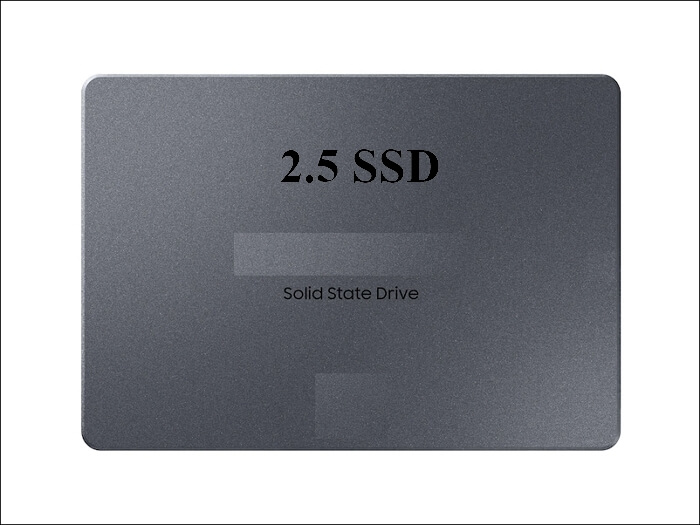
- Match the interface. Most NAS bays take SATA, while some compact models use 2.5-inch drives.
- Clear the new disk. Remove any old partition so the clone starts from a clean target.
- Attach it through USB. A SATA to USB adapter is enough for a one-disk copy.
- Do not format it. The clone writes the NAS partition layout over the empty disk.
- Keep the old disk intact. It is the rollback if the NAS refuses the copy.
Do not put the new disk in the NAS before the copy. The NAS may initialise an unknown disk on sight, which destroys the chance of cloning into it.
Clone the NAS Drive with Qiling Disk Master
Qiling Disk Master copies a disk block by block, so the RAID metadata and the ext4 or Btrfs volume survive the move. Run it on a Windows PC with both disks attached through SATA or USB.
Step 1. Open Qiling Disk Master, choose Clone, and then select Disk Clone.

Step 2. Select the NAS disk as the source and click Next.

Step 3. Select the larger disk as the destination and confirm that its data will be replaced.

Step 4. Review the partition layout, keep the system and data volumes, and leave the extra space unallocated for now.

Step 5. Click Proceed, wait for the copy to finish, then shut the PC down before you unplug the adapter.

Swap and Rebuild in the NAS
- Power the NAS down. Use the shutdown option in the admin page, not the power button.
- Install the copied disk. Put it in the original bay so the array keeps its order.
- Start the rebuild. Let the NAS repair the array before you touch another disk.
- Expand the pool. Grow the volume into the new space with the storage manager.
- Verify the shares. Open a file, check permissions, and test one backup job.
Replace one disk at a time and wait for the repair to finish before you clone the next. Two degraded disks during a rebuild can lose the whole array.
FAQs About NAS Drive Clones
Can I clone a NAS disk to a larger one?
Yes, as long as every partition is copied. The NAS then rebuilds the array and grows the volume.
Does the RAID rebuild happen automatically?
Most models start a repair on boot. Check the storage manager and start it manually if it waits.
Why is the extra space not visible?
The volume keeps its original size until you expand it in the storage manager.
Can I clone all the disks at once?
Only if the NAS is powered down. Cloning a mounted array on a running unit gives an inconsistent copy.
Is a clone faster than a rebuild?
For a single disk, yes. A full array rebuild reads every disk and can run for many hours.
Back Up the Drive Before You Clone
Before you change any disk, create a full image of the one you plan to remove. Qiling Disk Master can write an image that you restore if the rebuild fails.
Step 1. Open Qiling Disk Master and select System Backup, then add the NAS disk to the task.

Step 2. Save the image to a drive other than the target disk and start the backup.

Step 3. Click Proceed to start the system backup and wait patiently until it finishes. You can also tick Shut down the computer when the operation is completed to power off automatically.

Step 4. If the array will not start, restore the image to the original disk and rebuild from that copy.

Conclusion
A NAS upgrade is a one-disk-at-a-time job. Note each bay, read the SMART data, and clear the new disk before you attach it. Clone every partition block by block, then put the copy back in the same bay, let the array repair, and only expand the volume after the rebuild reports healthy. Keep the original disk until the shares and backups respond normally.
For more on expanding storage, see How to Clone a RAID Drive to a Single SSD, How to Clone a Hard Drive to a Larger Hard Drive, How Long Does a Disk Clone Take, and When Should I Replace My HDD.
Related Articles
- How to Clone a Windows Server System Disk
Array storage needs the same careful disk order. - How to Clone a Hard Drive with Bad Sectors
A weak disk should be imaged before it drops offline. - How to Clone a Failing SSD Before It Dies
Copy a weak drive before it stops answering reads. - How to Clone an External Hard Drive to an Internal SSD
USB adapters make a one-disk copy straightforward. - 4K Alignment When Cloning an SSD
Raw copies keep the original alignment intact.
Products
Articles & Tutorials
- Data Recovery
- Data Backup
- File Recovery
- File Backup
- System Backup and Restore
- Disk and Partition Clone
- Technical articles
- Mobile articles
- Disk Master Help
- Windows Data Recovery Tutorials
- Windows Secure Delete Tutorials
- Windows Partition Management Tutorials
- Windows File Backup and Restore Tutorials
- Windows System Backup and Restore Tutorials
- Windows Disk Backup and Restore Tutorials
- Windows Clone Tutorials