How to Clone an Xbox One Hard Drive to an SSD
An Xbox One with a stock 500 GB drive loads slowly and fills after a dozen games. An SSD fixes both problems, but the console pairs its internal drive with a key that makes the copy delicate.
This guide explains how the pairing works, when a clone is worth trying, and how to use an external SSD when you prefer a safe upgrade.
PAGE CONTENT
- Why an SSD Helps an Xbox One
- Check the Drive and the Console Pairing
- Prepare the SSD and the USB Adapter
- Clone the Xbox Drive with Qiling Disk Master
- Fit the Drive and Test the Console
- FAQs About Console Drive Clones
- Back Up the Drive Before You Clone
Why an SSD Helps an Xbox One
- Games load faster. Open-world titles stream assets from disk, and solid state cuts the waits.
- The dashboard feels quicker. Menus, updates, and store pages respond sooner on an SSD.
- Noise disappears. A spinning drive is the loudest part of the console during play.
- Heat drops. Solid state storage produces less heat inside a tight chassis.
- Capacity grows. A 1 TB or 2 TB SSD holds far more than the original drive.
An external USB 3.0 SSD is the simplest upgrade. The console formats it, games install there, and the internal drive can keep the system files. Internal replacement is the harder path.
Check the Drive and the Console Pairing
- Know the pairing rule. The console stores a key that matches the internal drive, so the copy must be byte for byte.
- Record the capacity. The new SSD must be at least as large as the original drive.
- Copy every partition. The system, update, and content partitions all belong to the pairing.
- Accept the risk. A rejected copy can leave the console needing an offline system update.
- Keep the original drive. It is the only reliable rollback if the SSD is refused.
Microsoft does not support internal drive replacement. Many consoles accept an exact clone, and some reject it with an error code. Plan for that outcome before you open the chassis.

Prepare the SSD and the USB Adapter
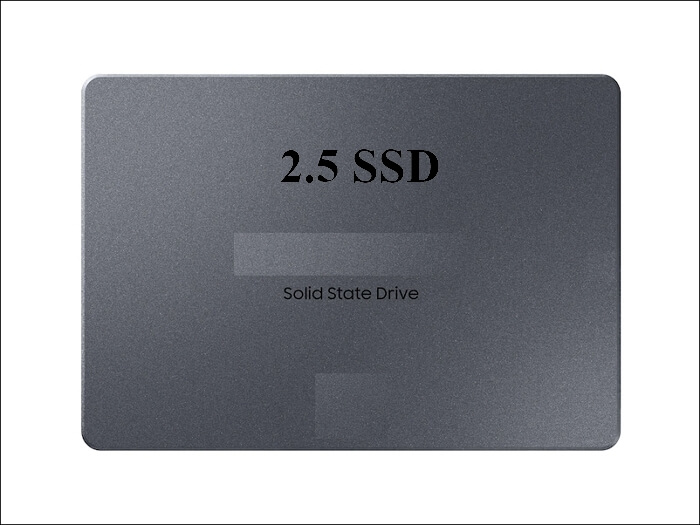
- Choose a 2.5-inch SATA SSD. The console bay does not accept NVMe modules.
- Use a SATA to USB adapter. Connect both drives to a Windows PC for the copy.
- Leave the SSD blank. Do not create partitions; the clone writes the console layout.
- Power the adapter well. A powered enclosure prevents dropouts during a long copy.
- Keep the console offline. Do not start it while the drive is being copied.
A 2.5-inch SSD of 9.5 mm or 7 mm thickness fits the bay. Thicker drives and adapters with metal frames will not close inside the chassis.
Clone the Xbox Drive with Qiling Disk Master
Qiling Disk Master copies a disk block by block, which is the only way to preserve the console pairing data. Run it on a Windows PC with both drives attached.
Step 1. Open Qiling Disk Master, choose Clone, and then select Disk Clone.

Step 2. Select the Xbox drive as the source and click Next.

Step 3. Select the new SSD as the destination and confirm that its data will be replaced.

Step 4. Review the partition layout, keep every console partition, and tick Sector by sector clone.

Step 5. Click Proceed, wait for the copy to finish, then shut the PC down before you unplug the adapter.

Fit the Drive and Test the Console
- Power the console down fully. Unplug it and wait for the light to go out before opening the case.
- Swap the drive. Use the original mounting screws and keep the drive flat in the bay.
- Start the console alone. Do not attach the old drive at the same time.
- Expect a system check. The console may verify storage before it loads the dashboard.
- Test one installed game. Launch a title and load a save before you delete anything.
If the console stops with a storage or update error, an offline system update from a USB stick often repairs it. If that fails, refit the original drive and use an external SSD instead.
FAQs About Console Drive Clones
Can I clone an Xbox One drive to an SSD?
It can work with an exact sector-by-sector copy, but Microsoft does not support the swap and some consoles reject it.
Is an external SSD safer?
Yes. The console formats a USB 3.0 SSD itself, and the internal drive keeps the system files untouched.
Must the new SSD be larger?
The target must be at least the size of the source. A larger drive leaves room for more games.
What if the console shows an error code?
Try an offline system update first. If the code persists, refit the original drive and use external storage.
Can I use the cloned drive in another console?
No. The pairing key belongs to the original console, so a second unit cannot read the copy.
Back Up the Drive Before You Clone
Before you open the console, create a full image of the original drive. Qiling Disk Master can write an image that you restore if the SSD is refused.
Step 1. Open Qiling Disk Master and select System Backup, then add the console drive to the task.

Step 2. Save the image to a drive other than the target disk and start the backup.

Step 3. Click Proceed to start the system backup and wait patiently until it finishes. You can also tick Shut down the computer when the operation is completed to power off automatically.

Step 4. If the console will not start on the SSD, restore the image to the original drive and try again.

Conclusion
An Xbox One SSD upgrade has two paths. External storage is supported, simple, and safe: the console formats the drive and games install there. Internal replacement needs a full sector-by-sector clone that keeps the console pairing data, and even then some units refuse it. Back up the original drive first, test one game after the swap, and keep the old drive until the console proves stable.
For more on console storage, see How to Clone a PS4 Hard Drive to an SSD, How to Clone a Bootable USB Drive to Another USB, How to Clone a Failing SSD Before It Dies, and How Long Does a Disk Clone Take.
Related Articles
- How to Clone a Steam Deck SSD
Console storage swaps follow the same raw copy rule. - How to Clone an External Hard Drive to an Internal SSD
Moving a drive inside the case needs the same care. - 4K Alignment When Cloning an SSD
Raw copies keep the original alignment intact. - How to Clone a Hard Drive to a Larger Hard Drive
Capacity upgrades need a larger target. - How to Clone an SD Card for a Raspberry Pi
Small flash media needs the same raw copy approach.
Products
Articles & Tutorials
- Data Recovery
- Data Backup
- File Recovery
- File Backup
- System Backup and Restore
- Disk and Partition Clone
- Technical articles
- Mobile articles
- Disk Master Help
- Windows Data Recovery Tutorials
- Windows Secure Delete Tutorials
- Windows Partition Management Tutorials
- Windows File Backup and Restore Tutorials
- Windows System Backup and Restore Tutorials
- Windows Disk Backup and Restore Tutorials
- Windows Clone Tutorials