How to Clone a Steam Deck SSD to a Larger SSD
A 64 GB Steam Deck runs out of space after a few large games, and shader caches fill the rest. A bigger 2230 SSD fixes the limit without wiping the SteamOS setup.
This guide explains the hardware check, the partition layout SteamOS uses, and how to copy the drive from a Windows PC with two USB-C enclosures.
PAGE CONTENT
- Why Upgrade the Steam Deck SSD
- Check the Drive and Tools
- Plan the SteamOS Copy
- Clone the Drive with Qiling Disk Master
- First Boot on the Steam Deck
- FAQs About Steam Deck Clones
- Back Up the Drive Before You Clone
Why Upgrade the Steam Deck SSD
- Game libraries outgrow 64 GB. A single modern title can exceed the base eMMC capacity.
- Shader caches need room. Proton writes compiled shaders that grow with every game you launch.
- Windows dual boot wants space. A second OS needs a partition that the small drive cannot spare.
- 2230 drives are affordable. Retail 2230 NVMe modules now match the console form factor.
- The clone avoids a redownload. Games, saves, and settings move with the copy.
Valve ships SteamOS with a recovery image, so a clean install is possible. A clone is faster when your library is large and the current install is healthy.
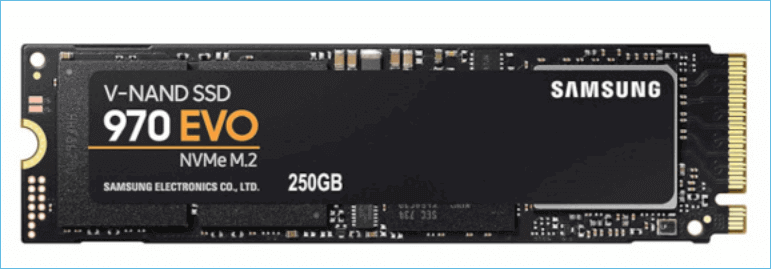
Check the Drive and Tools
- Use a 2230 module. The Steam Deck takes a single-sided M.2 2230 NVMe drive, not a 2280.
- Match the capacity. The new drive must be at least as large as the used space on the old one.
- Get two enclosures. One USB-C enclosure holds the source drive and another holds the target.
- Prepare a Windows PC. Clone tools run on Windows, so the drives are read through USB.
- Keep the charger ready. The Deck needs AC power for the first boot after a hardware change.
A single-sided 2230 drive is the safe choice. Double-sided modules can foul the shield and run hotter in the cramped interior.
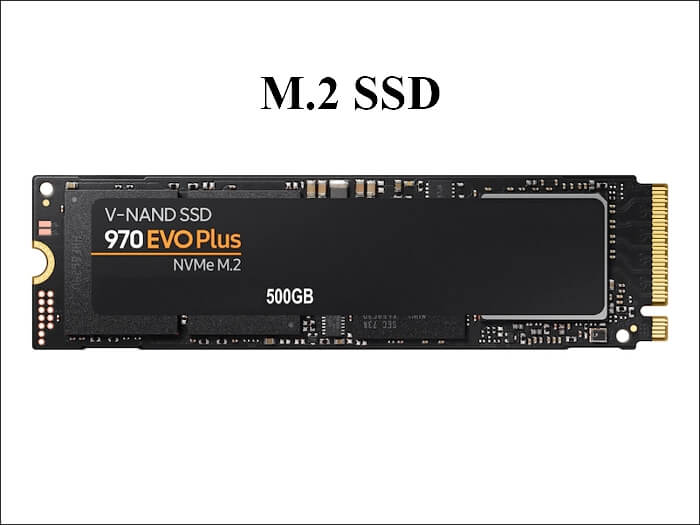
Plan the SteamOS Copy
- Clone the whole disk. SteamOS spreads across an EFI partition and several ext4 volumes, so a partition copy is risky.
- Expect a non-Windows file system. Windows cannot read ext4, but a sector-level copy still works on the raw device.
- Choose sector-by-sector mode. It copies every block and preserves the SteamOS partition table exactly.
- Leave resizing to SteamOS. Windows tools cannot safely grow ext4, so use the Deck tools after the first boot.
- Keep the original drive. Store it until the new drive has booted and played a game.
Sector-by-sector copying takes longer because empty blocks are copied too. For a 256 GB drive over USB, plan for a slow but predictable pass.
Clone the Drive with Qiling Disk Master
Qiling Disk Master works on a Windows PC with both drives attached through USB-C enclosures. It copies the raw disk, which keeps the SteamOS layout intact.
Step 1. Open Qiling Disk Master, choose Clone, and then select Disk Clone.

Step 2. Select the Steam Deck drive in the first enclosure as the source and click Next.

Step 3. Select the new 2230 SSD in the second enclosure as the destination and confirm the warning.

Step 4. Enable sector-by-sector clone so the ext4 and EFI partitions are copied exactly as they are.

Step 5. Click Proceed, wait for the copy to finish, then eject both enclosures safely.

First Boot on the Steam Deck
- Install the new drive. Open the back panel, swap the 2230 module, and reconnect the battery.
- Exit storage mode. If the Deck booted into battery storage mode, connect the charger to wake it.
- Check free space. SteamOS Settings should show the larger capacity on the home partition.
- Verify the library. Launch a game from each installed library folder to confirm the content is intact.
- Expand the partition. Use the SteamOS tools or a Linux live session to grow the home volume into free space.
If SteamOS drops to a recovery prompt, the copy may have missed a block. Reconnect the original drive and repeat the sector-by-sector clone.
FAQs About Steam Deck Clones
Can I clone SteamOS with Windows software?
Yes. A sector-level disk clone copies the raw blocks, so the ext4 partitions need no Windows driver.
Will my games need redownloading?
No when the copy is exact. Verify each library folder after the first boot.
Must the new SSD be 2230 size?
Yes. Only a single-sided M.2 2230 module fits and cools properly inside the Deck.
Can I clone to the same capacity?
Yes, but then you gain speed rather than space. Choose a larger drive if storage is the reason.
Will a Windows dual boot survive the clone?
Yes if the whole disk is copied. Both boot entries live on the same EFI partition.
Back Up the Drive Before You Clone
Before changing drives, create a full disk image. Qiling Disk Master can write an image of the source drive that you restore later.
Step 1. Open Qiling Disk Master and select System Backup to include the boot partitions.

Step 2. Save the image to a drive other than the target disk and start the backup.

Step 3. Click Proceed to start the system backup and wait patiently until it finishes. You can also tick Shut down the computer when the operation is completed to power off automatically.

Step 4. If the new drive will not start, restore the image to the original drive and try again.

Conclusion
A Steam Deck SSD upgrade is a raw disk copy, not a Windows migration. Use a single-sided 2230 NVMe module, attach both drives through USB-C enclosures, and clone sector by sector so the ext4 and EFI partitions stay intact. After the swap, connect the charger, confirm the capacity in SteamOS, and test a game from every library before you expand the home partition.
For more on copying removable media, see How to Clone an SD Card for a Raspberry Pi, How to Clone a Bootable USB Drive to Another USB, How to Clone a Dual-Boot Windows and Linux Drive, and How Long Does a Disk Clone Take.
Related Articles
- How to Clone an NVMe SSD to a Larger NVMe
Grow the partition after copying a bigger drive. - How to Clone an M.2 SSD When There Is Only One Slot
A USB enclosure solves the single-slot problem. - 4K Alignment When Cloning an SSD
Raw copies keep the original alignment intact. - How to Clone a Failing SSD Before It Dies
Copy a weak drive before it stops answering reads. - How to Clone a PS4 Hard Drive to an SSD
Copy a console drive while the encryption key stays in the machine.
Products
Articles & Tutorials
- Data Recovery
- Data Backup
- File Recovery
- File Backup
- System Backup and Restore
- Disk and Partition Clone
- Technical articles
- Mobile articles
- Disk Master Help
- Windows Data Recovery Tutorials
- Windows Secure Delete Tutorials
- Windows Partition Management Tutorials
- Windows File Backup and Restore Tutorials
- Windows System Backup and Restore Tutorials
- Windows Disk Backup and Restore Tutorials
- Windows Clone Tutorials