How to Clone a PS4 Hard Drive to an SSD
A PlayStation 4 keeps every game, save, and patch on one 2.5-inch drive. When that drive fills up or starts clicking, an SSD is the cheapest way to keep the console alive without losing the library.
This guide explains how the console protects its data, what to check before the copy, and how to clone the drive so the PS4 still recognises it.
PAGE CONTENT
- Why Put an SSD in a PS4
- Check Firmware and Drive Layout
- Prepare the SSD and Adapter
- Clone the PS4 Drive with Qiling Disk Master
- Test the First Boot in the Console
- FAQs About PS4 Drive Clones
- Back Up the Drive Before You Clone
Why Put an SSD in a PS4
- Loading times drop. Level loads, installs, and updates finish sooner on solid state.
- The old drive is noisy. An SSD removes the seek noise and heat of the stock drive.
- Patches fill the disk. Modern titles need far more space than the launch-day drive offered.
- Streaming stutters. A faster drive keeps texture streaming steady in open-world games.
- The drive may be failing. Clicking or repeated rebuilds point to a drive that should go.
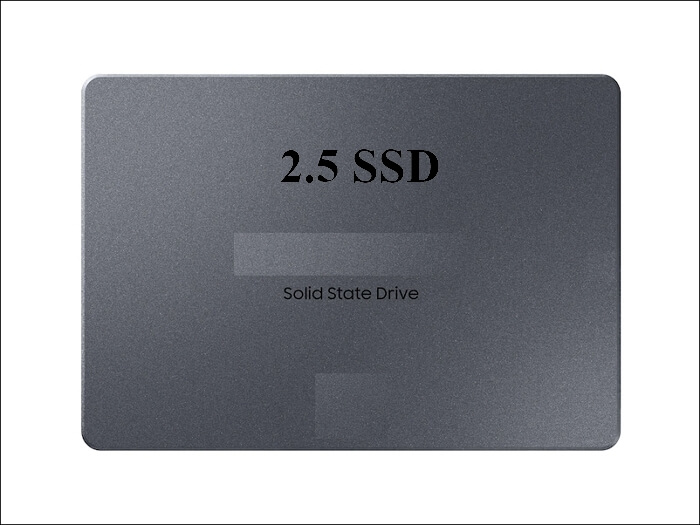
Every PS4 model stores its data on a single 2.5-inch SATA drive, so the console treats a replacement exactly like the original unit. A full clone keeps the encrypted layout intact and lets the console read the copy.
Check Firmware and Drive Layout
- Update the console first. Install the latest system update before you copy the drive.
- Record the drive size. A clone needs a target at least as large as the source capacity.
- Know the partition map. The PS4 uses several partitions, and all of them must be copied.
- Note the encryption. The drive key lives in the console, not on the drive itself.
- Keep the original drive. The stock drive is your rollback if the console rejects the copy.
Shut the console down completely instead of leaving it in rest mode before you remove the drive. Rest mode keeps the disk powered, and a copy that starts mid-write can miss blocks.

Prepare the SSD and Adapter
- Choose a 2.5-inch SATA SSD. The bay takes a SATA drive, not an NVMe module.
- Use a SATA to USB adapter. Connect both drives to a Windows PC for the copy.
- Leave the SSD blank. Do not create partitions; the clone writes the console layout.
- Check the adapter power. Some enclosures need external power for a stable copy.
- Use a direct USB port. A rear port avoids a hub that can drop during a long task.
Do not initialise or format the new SSD in Windows. Any partition Windows creates is overwritten by the clone, and a formatted drive can hide the capacity the console expects.
Clone the PS4 Drive with Qiling Disk Master
Qiling Disk Master copies a disk block by block, so the console partitions and their encrypted contents survive the move. Run it on a Windows PC with both drives attached.
Step 1. Open Qiling Disk Master, choose Clone, and then select Disk Clone.

Step 2. Select the PS4 drive as the source and click Next.

Step 3. Select the new SSD as the destination and confirm that its data will be replaced.

Step 4. Review the partition layout, keep every console partition, and tick Sector by sector clone.

Step 5. Click Proceed, wait for the copy to finish, then shut the PC down before you unplug the adapter.

Test the First Boot in the Console
- Fit the SSD in the bay. Use the original screws and the same mounting bracket.
- Keep the update file ready. Some consoles ask for firmware on a USB stick after a swap.
- Expect a database rebuild. The console may rebuild its game database on the first start.
- Check storage in settings. Confirm the console reports the full capacity of the SSD.
- Test one installed game. Launch a title and load a save before you delete the original.
If the console shows a storage error, the copy was incomplete. Reconnect the original drive and repeat the clone with the sector-by-sector option enabled.
FAQs About PS4 Drive Clones
Can I clone a PS4 drive to a larger SSD?
Yes. A full clone copies the used partitions, and the console accepts a drive larger than the original.
Does the PS4 need a firmware reinstall after the swap?
Usually not when the clone is exact. Keep the update file on a USB stick in case the console asks for it.
Why does the console not see the new drive?
The copy may have started in rest mode, or the adapter dropped mid-task. Redo the clone from a full shutdown.
Is the copied data readable in a PC?
No. The data stays encrypted with the key held in the console, which is why the copy works only in that unit.
Can I move the cloned drive to another PS4?
No. The key belongs to the original console, so a second console cannot decrypt the copy.
Back Up the Drive Before You Clone
Before you swap drives, create a full disk image. Qiling Disk Master can write an image of the source drive that you restore later.
Step 1. Open Qiling Disk Master and select System Backup, then add the console partitions to the task.

Step 2. Save the image to a drive other than the target disk and start the backup.

Step 3. Click Proceed to start the system backup and wait patiently until it finishes. You can also tick Shut down the computer when the operation is completed to power off automatically.

Step 4. If the console will not start on the copy, restore the image to the original drive and try again.

Conclusion
A PS4 SSD upgrade is a raw disk copy, not a Windows migration. Shut the console down fully, update it first, and keep the original drive as a rollback. Attach both drives to a PC through a SATA adapter, clone every console partition with the sector-by-sector option, then fit the SSD and confirm the reported capacity. Test one game and its save before you delete anything from the old drive.
For more on copying console and removable storage, see How to Clone a Steam Deck SSD, How to Clone a Bootable USB Drive to Another USB, How Long Does a Disk Clone Take, and How to Clone a Failing SSD Before It Dies.
Related Articles
- How to Clone an SD Card for a Raspberry Pi
Small flash media needs the same raw copy approach. - How to Clone an External Hard Drive to an Internal SSD
Move a USB drive into a bay without reinstalling anything. - 4K Alignment When Cloning an SSD
Raw copies keep the original alignment intact. - How to Clone an NVMe SSD to a Larger NVMe
Grow the partition after copying a bigger drive. - How to Clone a Hard Drive to a Larger Hard Drive
When capacity matters more than speed, size the copy first.
Products
Articles & Tutorials
- Data Recovery
- Data Backup
- File Recovery
- File Backup
- System Backup and Restore
- Disk and Partition Clone
- Technical articles
- Mobile articles
- Disk Master Help
- Windows Data Recovery Tutorials
- Windows Secure Delete Tutorials
- Windows Partition Management Tutorials
- Windows File Backup and Restore Tutorials
- Windows System Backup and Restore Tutorials
- Windows Disk Backup and Restore Tutorials
- Windows Clone Tutorials