How to Clone a USB Drive to an ISO or Image File
A USB drive or SD card can hold more than files: it can carry a boot sector, hidden partitions, and a layout that a plain file copy misses. To preserve it exactly, capture the whole device as a single image file, which can later be written back to another stick or card byte for byte.
This guide explains the difference between an ISO and a raw image, which tools capture the full device, and how to write the image back when you need it.
PAGE CONTENT
- ISO vs Raw Image File
- Choose a Tool to Capture the USB
- Capture the USB Drive as an Image
- Write the Image Back to Another Device
- Verify and Shrink the Image
- FAQs About USB to Image Files
- Back Up the USB with Qiling First
ISO vs Raw Image File
- An ISO is a file-system image. It represents a CD or DVD file system and is limited to that layout.
- A raw image captures every sector. It copies the whole device, boot code and partitions included.
- A bootable USB is usually not an ISO. Most live sticks use a different partition layout, so a raw image is the safer copy.
- Raspberry Pi images are raw. The .img files used for SD cards are raw sector images.
- Choose the format by purpose. Use ISO for optical layouts and raw images for full device backups.
For a USB drive, a raw image is almost always the right choice. It preserves the boot sector, the partition table, and every hidden area that a file copy would leave behind.
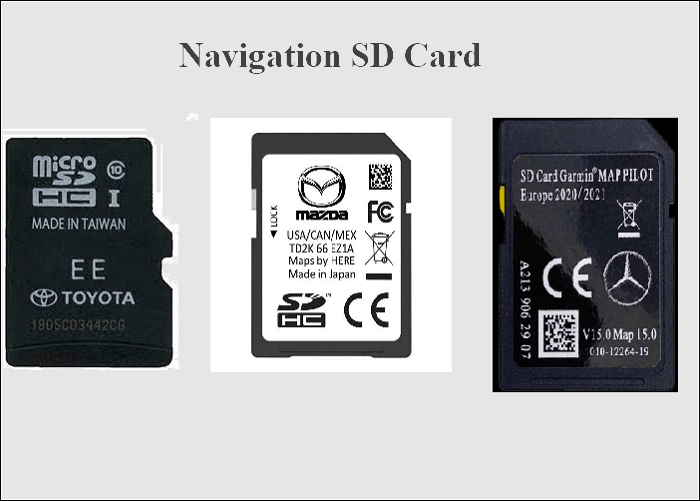
Choose a Tool to Capture the USB
- dd on Linux and macOS. The classic command copies a device to a file sector by sector.
- Win32 Disk Imager on Windows. A small GUI tool that reads an SD card or USB stick into an .img file.
- Rufus on Windows. Best for writing images, but it can also read a device in some versions.
- Qiling Disk Master. Its disk backup captures the whole USB drive and can restore it directly.
- Pick the tool by platform. Use dd on Unix-like systems and a GUI tool on Windows.
The goal is the same whatever the tool: read the entire block device into one file. The file is then an exact snapshot of the USB as it was at that moment.
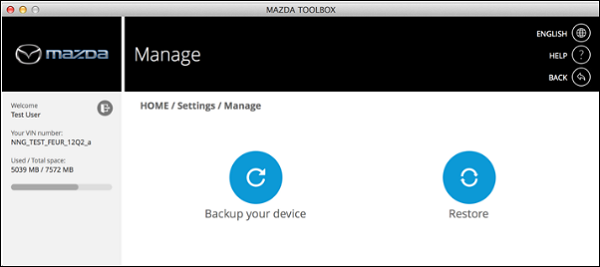
Capture the USB Drive as an Image
- Find the device name. On Linux, use lsblk; on Windows, look in Disk Management for the disk number.
- Unmount the drive. A mounted volume can change while the image is being read.
- Read the whole device. Capture the disk itself, not a single partition, so the boot sector is included.
- Write to a file on another drive. The image needs free space equal to the full capacity of the USB.
- Wait for completion. A large USB stick can take several minutes to read completely.
On Linux, the command is typically dd if=/dev/sdX of=usb-backup.img bs=4M status=progress, where sdX is the USB device. On Windows, Win32 Disk Imager picks the drive and writes the file in a few clicks.
Write the Image Back to Another Device
An image file is useful only if it can be restored. Writing it back to another USB stick or SD card rebuilds the original device exactly, including the ability to boot.
Watch the video tutorial below to clone the drive step by step with Qiling Disk Master.
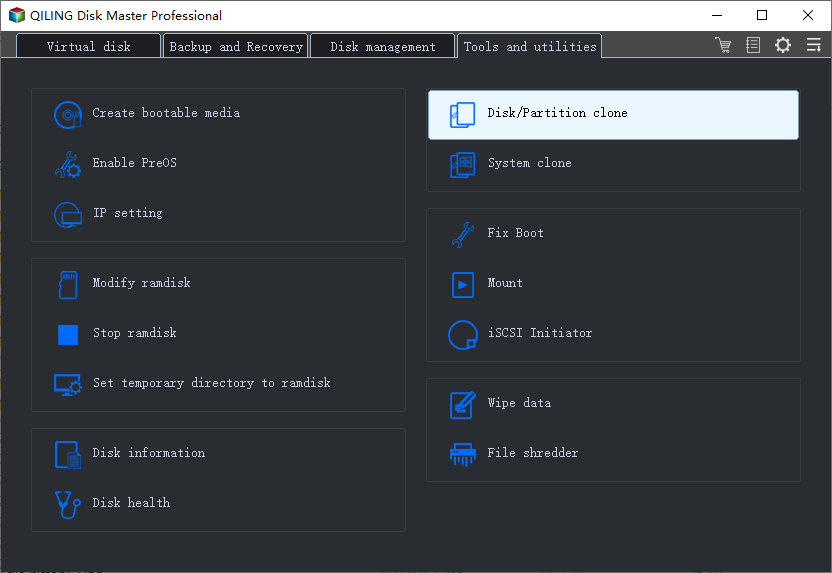
Step 1. Open Qiling Disk Master, choose Clone, and then select Disk Clone.
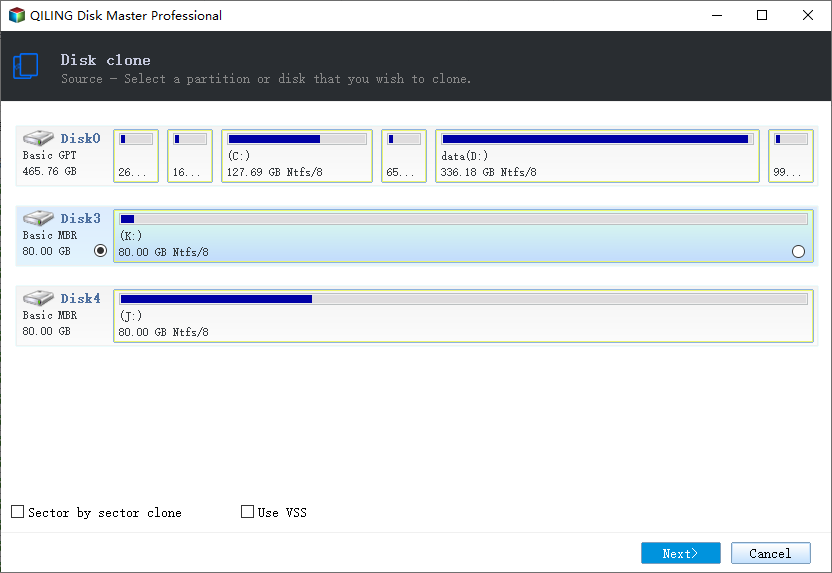
Step 2. Select the USB drive as the source and click Next.
Step 3. Select a destination disk or an image file and confirm that its data will be replaced.
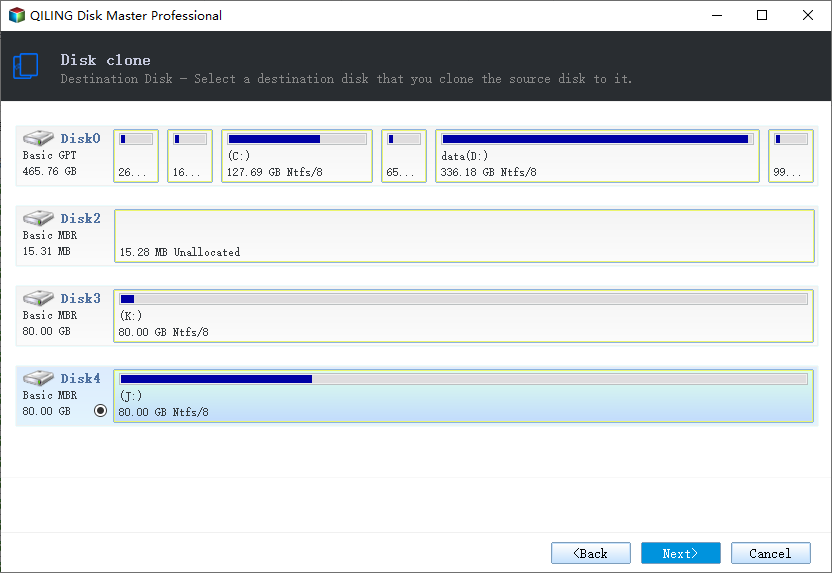
Step 4. Keep every partition, and confirm that the boot sector is part of the copy.
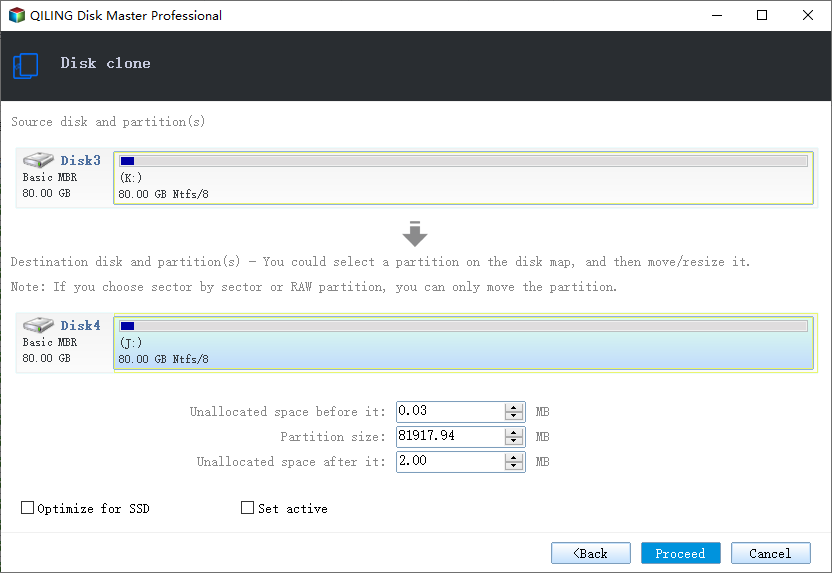
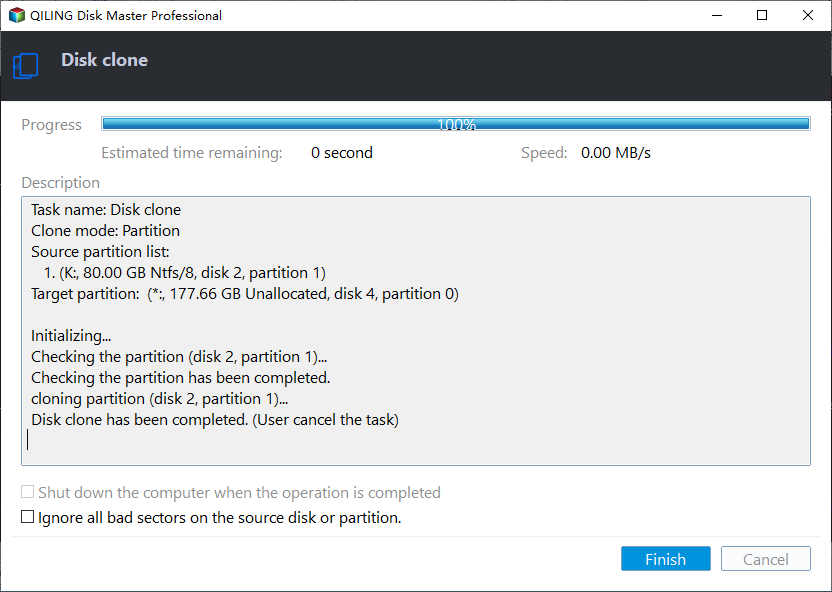
Step 5. Click Proceed, wait for the copy to finish, then safely eject the new device.
Verify and Shrink the Image
- Check the file size. A raw image equals the full capacity of the source device.
- Compare checksums. A matching SHA-256 confirms the image is bit-for-bit correct.
- Compress for storage. ZIP or gzip can shrink a mostly empty image dramatically.
- Shrink with PiShrink for SD cards. It resizes a Raspberry Pi image to the used space only.
- Keep the original device. Do not wipe the USB until the restored image boots correctly.
A raw image of an empty 32 GB stick is still 32 GB. Compression removes most of that empty space, but the image must be expanded again before it is written back.
FAQs About USB to Image Files
Is an ISO the same as a raw image?
No. An ISO represents an optical file system, while a raw image captures every sector of the device, including the boot code.
Can I just copy the files from the USB?
Not for a bootable device. A file copy misses the boot sector and hidden partitions, so the copy will not start.
How do I read a USB on Linux?
Use dd with the device path, for example dd if=/dev/sdb of=usb.img bs=4M status=progress.
Can I restore the image to a smaller drive?
Only if the image is shrunk first. A raw image fits exactly on a drive of the same size or larger.
Does Qiling capture the boot sector of a USB?
Yes. Qiling's disk backup reads the whole device, so the boot code and partition table are included.
Back Up the USB with Qiling First
Capturing a USB drive as an image carries risk, and a bad write can corrupt the original. Create a full backup first, so a mistake costs nothing but time.
Watch the video tutorial below to back up Windows and restore it if the clone fails.
Step 1. Open Qiling Disk Master and select Disk Backup to include every partition and the boot sector.
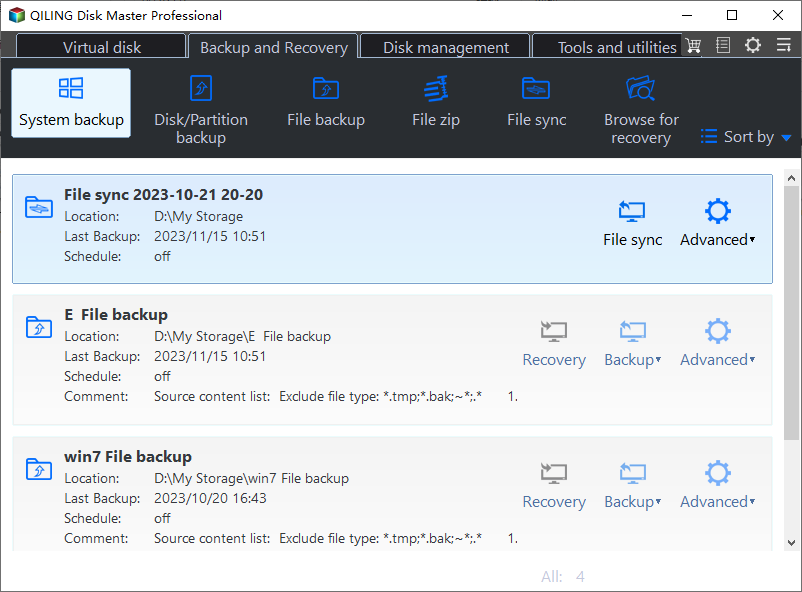
Step 2. Save the image to a drive other than the source USB and start the backup.
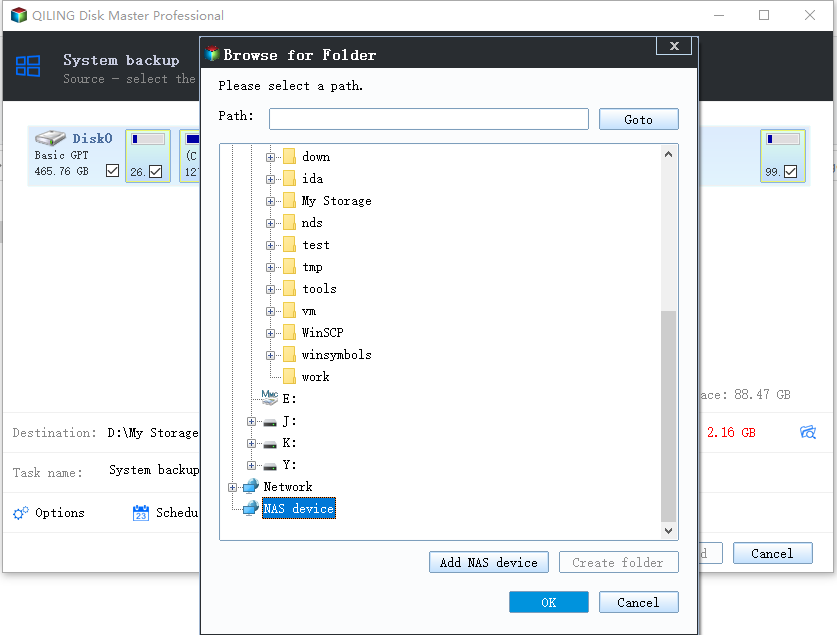
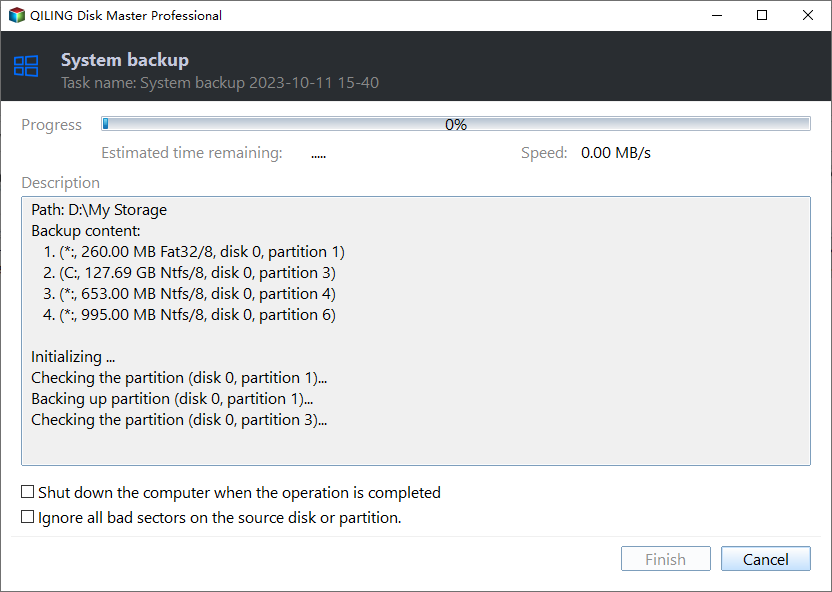
Step 3. Click Proceed to start the system backup and wait patiently until it finishes. You can also tick Shut down the computer when the operation is completed to power off automatically.
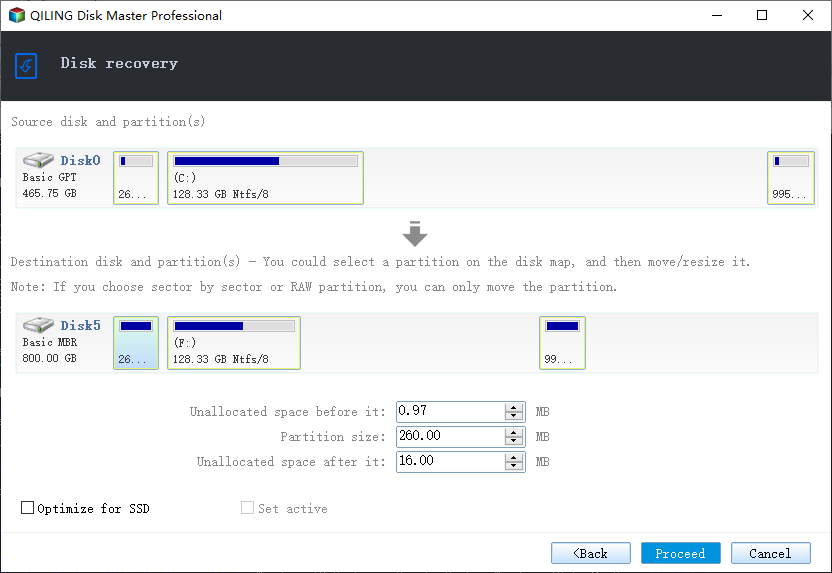
Step 4. If the image fails to restore, use the Qiling backup to rebuild the USB on another stick.
Conclusion
A USB drive should be captured as a raw image, not an ISO, because only a sector copy preserves the boot code and the full partition layout. Use dd on Linux, Win32 Disk Imager on Windows, or Qiling Disk Master for a backup that can restore the device exactly. Verify the image, compress it for storage, and keep the original until the restored device boots.
For more on full-disk backups, see How to Clone a Raspberry Pi SD Card, How to Clone a Hard Drive to a Smaller SSD, Does Cloning a Hard Drive Copy Windows, and How to Migrate OS to SSD Without Reinstalling Windows.
Related Articles
- How to Clone a Raspberry Pi SD Card
Back up and duplicate a Pi system card. - Win32 Disk Imager: Clone or Image a Drive
Write and read raw images for USB drives, SD cards, and ISO files. - Does Cloning a Hard Drive Copy Windows
What actually travels with the system drive. - How to Migrate OS to SSD Without Reinstalling Windows
Compare migration with a full disk clone. - How to Clone Windows 11 to a Smaller SSD
Step-by-step shrink for Windows 11.
Products
Articles & Tutorials
- Data Recovery
- Data Backup
- File Recovery
- File Backup
- System Backup and Restore
- Disk and Partition Clone
- Technical articles
- Mobile articles
- Disk Master Help
- Windows Data Recovery Tutorials
- Windows Secure Delete Tutorials
- Windows Partition Management Tutorials
- Windows File Backup and Restore Tutorials
- Windows System Backup and Restore Tutorials
- Windows Disk Backup and Restore Tutorials
- Windows Clone Tutorials