How to Migrate OS to SSD Without Reinstalling Windows
An OS migration moves Windows and everything installed on it to a new drive, and then leaves the old disk free for storage. The difference from a full disk clone is the scope: only the system and its boot partitions travel, so extra data partitions can stay where they are.
This guide explains when migration is the better choice, how it differs from a disk clone, and how to run the transfer with Qiling Disk Master.
PAGE CONTENT
- Why Migrate the OS Instead of Reinstalling
- OS Migration vs Full Disk Clone
- Prepare Windows and the Target SSD
- Migrate the OS with Qiling Disk Master
- Boot from the New SSD and Verify
- FAQs About OS Migration to an SSD
- Back Up Windows Before You Migrate
Why Migrate the OS Instead of Reinstalling
- A clean install means setting everything up again. Every program, driver, and account has to be installed and configured from scratch.
- Profiles and settings stay intact. Desktop layout, browser data, and application preferences travel with the system.
- Activation survives the move. Windows keeps its licence because the installation itself is copied, not rebuilt.
- The old drive becomes spare storage. Once the system runs from the new SSD, the previous disk can hold backups or files.
- It finishes in one pass. No installation media, no product key entry, and no repeated restarts.
Migration is worth the effort when the current installation is healthy. If Windows already crashes, or the registry is badly damaged, a clean install is the more reliable starting point.
OS Migration vs Full Disk Clone
- Scope differs. Migration copies Windows and its boot partitions; a disk clone copies every partition on the drive.
- Speed differs. Less data moves during migration, so the task finishes sooner.
- The destination is the same. Both methods need an empty target disk, because everything on it is replaced.
- Data partitions can stay behind. Migration leaves a second volume on the old disk untouched, ready to be read later.
- Layout rules differ. A full clone reproduces the original partition order, while migration rebuilds only what Windows needs to start.
Choose migration when the old drive also holds a large data partition that should stay in place. Choose a full disk clone when the new disk must match the old layout exactly, including every data volume.
Prepare Windows and the Target SSD
- Free space on C: first. The system partition has to fit inside the new drive with room left for updates.
- Turn off hibernation. Running powercfg /h off removes hiberfil.sys and can release several gigabytes.
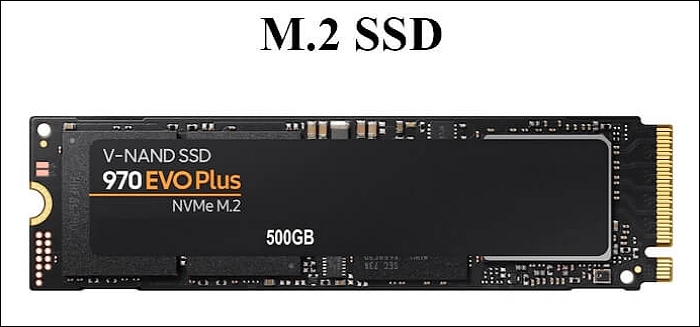
- Connect the new SSD. Fit the SATA or NVMe drive, then check that the firmware lists it.
- Back up before you start. A full system image costs little and covers a failed migration.
- Close every program and stay on mains power. A laptop running on battery may sleep in the middle of the copy.
The target must be empty, so move any files on the new SSD to another location before the migration starts. Also confirm the drive is detected in Disk Management, because a drive that the firmware cannot see will not appear in the tool either.
Migrate the OS with Qiling Disk Master
Qiling Disk Master copies the Windows system and its boot partitions to a new SSD, and it can resize the destination layout in the same task. The destination is overwritten, so confirm it holds nothing you still need.
Watch the video tutorial below to clone the drive step by step with Qiling Disk Master.
Step 1. Open Qiling Disk Master, choose Clone, and then select Disk Clone.

Step 2. Select the disk that holds Windows as the source and click Next.

Step 3. Select the new SSD as the destination and confirm that its data will be replaced.

Step 4. Keep the EFI, MSR, and recovery partitions, tick Optimize for SSD, and adjust the partition sizes to the new capacity.

Step 5. Click Proceed, wait for the copy to finish, then shut the machine down before you remove any cable.

Boot from the New SSD and Verify
- Set the boot order. Choose the new SSD in firmware or in the one-time boot menu.
- Confirm the drive letter. The system partition should come up as C: without a manual change.
- Check activation. Open Settings, then System, then Activation, and confirm Windows reports itself as active.
- Run Windows Update once. The first boot after a drive change may install storage drivers.
- Keep the old drive untouched. Leave it as it is until the new disk has run for a week.
If Windows stops with a boot device error, the boot files may sit on a partition that was left out of the migration. Reconnect the original drive and review the layout with How to Clone Windows 11 with the System Reserved Partition.
FAQs About OS Migration to an SSD
Is OS migration the same as cloning a disk?
No. Migration copies Windows and its boot partitions only, while a disk clone copies every partition on the drive.
Do I have to reinstall programs after migrating?
No. The registry and program files travel with the system, so applications keep working as before.
Will Windows stay activated on the new SSD?
Yes, in most cases. The hardware identity does not change, so the digital licence still matches the machine.
Can I migrate to an NVMe drive on an older PC?
Only if the board can boot from NVMe. On a board without that support, the migrated drive is not visible to the firmware at start-up.
What happens to the old drive after migration?
It keeps its files and can be reused as storage, but it should not stay connected as a second boot device.
Back Up Windows Before You Migrate
Copying a system drive carries risk, and a failed migration can leave neither disk bootable. Create a full system backup first, so a mistake costs nothing but time.
Watch the video tutorial below to back up Windows and restore it if the clone fails.
Step 1. Open Qiling Disk Master and select System Backup to include the boot partitions.

Step 2. Save the image to a drive other than the target disk and start the backup.

Step 3. Click Proceed to start the system backup and wait patiently until it finishes. You can also tick Shut down the computer when the operation is completed to power off automatically.

Step 4. If the migrated drive will not start, restore the image to the original drive and try again.

Conclusion
An OS migration is mainly about scope. Confirm that Windows is healthy, free enough space on C:, connect an empty SSD, and copy the system with its boot partitions. Then set the new drive first in the boot order, check activation, and let the old disk rest for a week before you reuse it.
For more on moving Windows, see Migrate Windows 10 to NVMe or M.2 SSD, Replace the Hard Drive with an SSD Without Reinstalling Windows, Does Cloning a Hard Drive Copy Windows, and How to Clone Only the OS Partition to a New SSD.
Related Articles
- Migrate Windows 10 to NVMe or M.2 SSD
Move an older system onto a faster bus. - Replace the Hard Drive with an SSD Without Reinstalling Windows
Keep the old installation on new hardware. - How to Clone Only the OS Partition to a New SSD
Copy the system volume and leave data behind. - Does Cloning a Hard Drive Copy Windows
What actually travels with the system drive. - 4K Alignment When Cloning to an SSD: Why It Matters
Alignment decides how fast the new drive feels.
Products
Articles & Tutorials
- Data Recovery
- Data Backup
- File Recovery
- File Backup
- System Backup and Restore
- Disk and Partition Clone
- Technical articles
- Mobile articles
- Disk Master Help
- Windows Data Recovery Tutorials
- Windows Secure Delete Tutorials
- Windows Partition Management Tutorials
- Windows File Backup and Restore Tutorials
- Windows System Backup and Restore Tutorials
- Windows Disk Backup and Restore Tutorials
- Windows Clone Tutorials