M.2 Slot Disabled: SATA Port Lane Sharing Fix
Quick Navigation:
- Why an M.2 Drive Disables SATA Ports
- Find the Shared Ports on Your Board
- Move the Drive and Restore the Port
- Migrate the System Disk with Qiling Disk Master
- Frequently Asked Questions
A drive that disappears after an M.2 SSD is installed is usually not broken. On a large number of boards the M.2 slot shares lanes with two SATA ports, and fitting a drive there switches those ports off inside the chipset. Windows cannot see a port that has no link, so the missing disk never appears as an error.
Why an M.2 Drive Disables SATA Ports
A desktop chipset provides a fixed number of PCI Express and SATA lanes. When a board routes four lanes to an M.2 slot, it often takes them from a controller that also serves two SATA ports, so populating the slot disables those ports in hardware rather than in software.
That is why the missing drive does not appear in Disk Management, does not raise an error, and does not respond to a rescan. There is nothing to detect, because the port has no link at all.
Two patterns are common. A board disables SATA ports 5 and 6 when the second M.2 slot is used, or it disables one port and drops a PCIe slot from four lanes to one. The manual for the exact board revision is the only reliable source, because vendors change the routing between revisions without changing the model name.
Find the Shared Ports on Your Board
Open the printed manual or the PDF for your revision and look for a table headed M.2 and SATA configuration, storage configuration, or shared bandwidth. It lists which ports remain usable for each combination of slots.
Compare that table with the ports in use. Write down which physical port each drive occupies, because the labels printed on the board rarely match the order Windows reports.
Check the firmware settings as well. Some boards expose a switch that trades a SATA port for M.2 support, and that setting is often hidden under an advanced storage menu rather than on the main page.
Move the Drive and Restore the Port
The cheapest fix is to move the SATA cable to a port that is not shared. Most boards leave at least four ports independent, which is enough for a boot SSD, a data drive, and an optical drive.
If every port is occupied, move the M.2 drive to the slot that shares fewer ports, or fit a PCIe SATA card. A card adds ports but needs a free slot with enough lanes of its own.
After the change, enter the firmware setup and confirm that every drive is listed before Windows starts. A drive that appears there but not in Windows points to a partition or driver problem instead of lane sharing.
Migrate the System Disk with Qiling Disk Master
Moving a cable is safe, but replacing a SATA boot disk with an M.2 drive is not, because the new disk needs a copy of the system first. Qiling Disk Master clones the running installation to the M.2 drive while Windows keeps working, so you can move the boot disk without reinstalling anything.
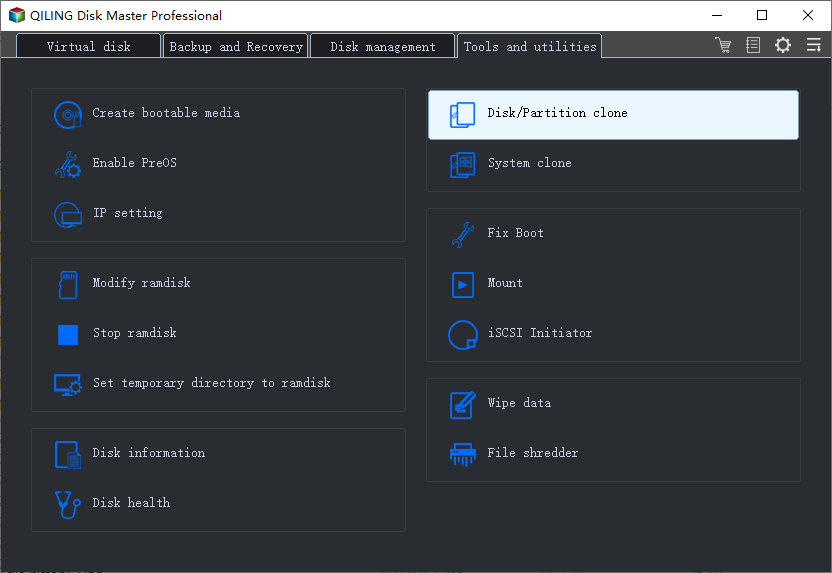
Step 1. Choose Disk Clone
Open Clone on the left of the program and select Disk Clone. Confirm that the M.2 drive is visible in the disk list before you continue; if it is not, resolve the slot problem first.
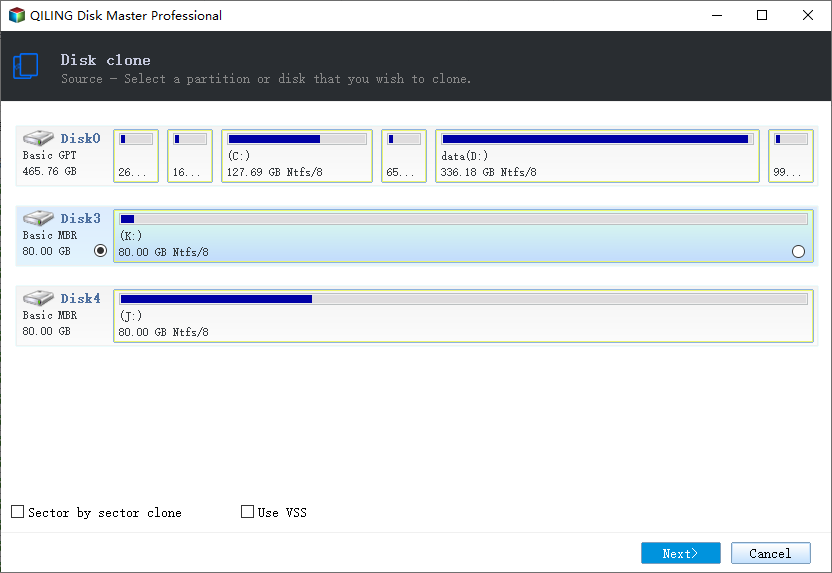
Step 2. Select the SATA System Disk
Choose the disk that currently boots Windows and check its capacity and model. The boot disk normally holds the EFI or system reserved partition as well, and both must be included.
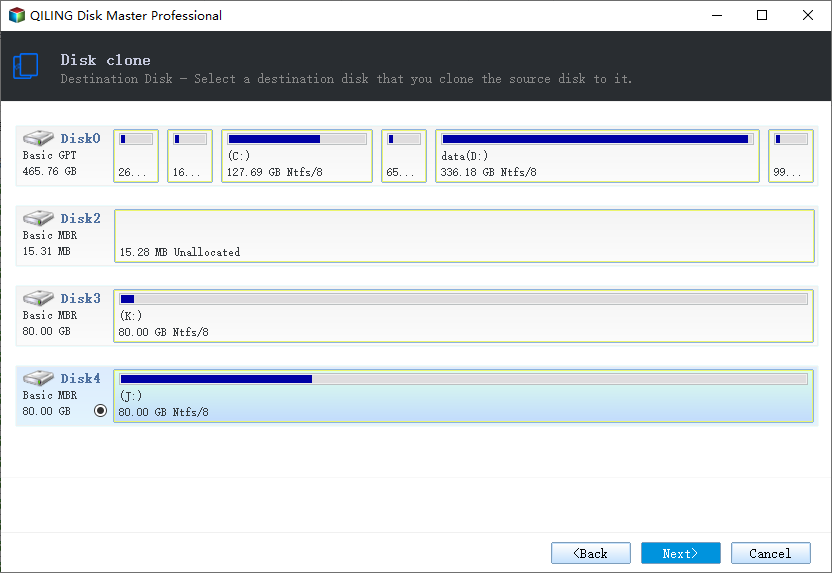
Step 3. Select the M.2 Destination
Pick the new M.2 drive and compare capacities. Any data already on it will be replaced, so copy it out first if the drive has been in use.
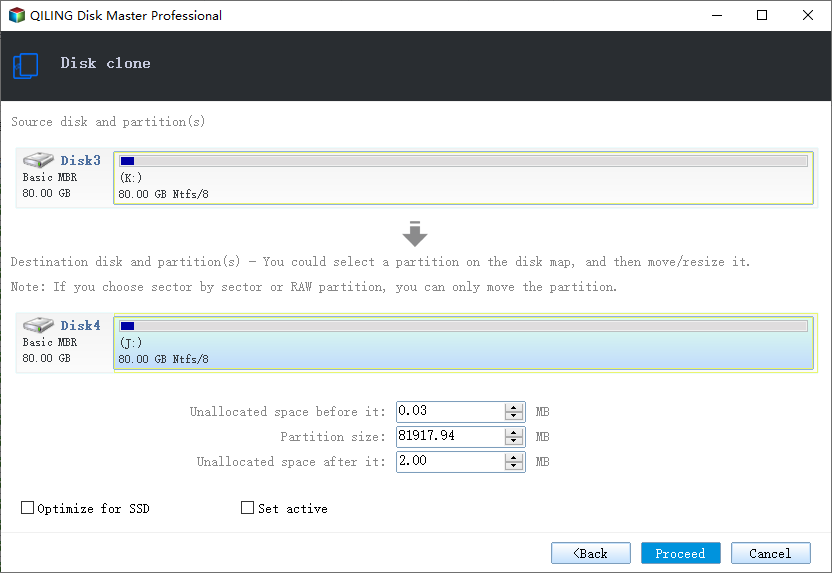
Step 4. Preview and Proceed
Review the pending operations list to confirm that every partition is mapped to the new disk, then click Proceed. A drive that is in use is handled at restart, so save your work before you allow the reboot.
Step 5. Boot from the M.2 Drive
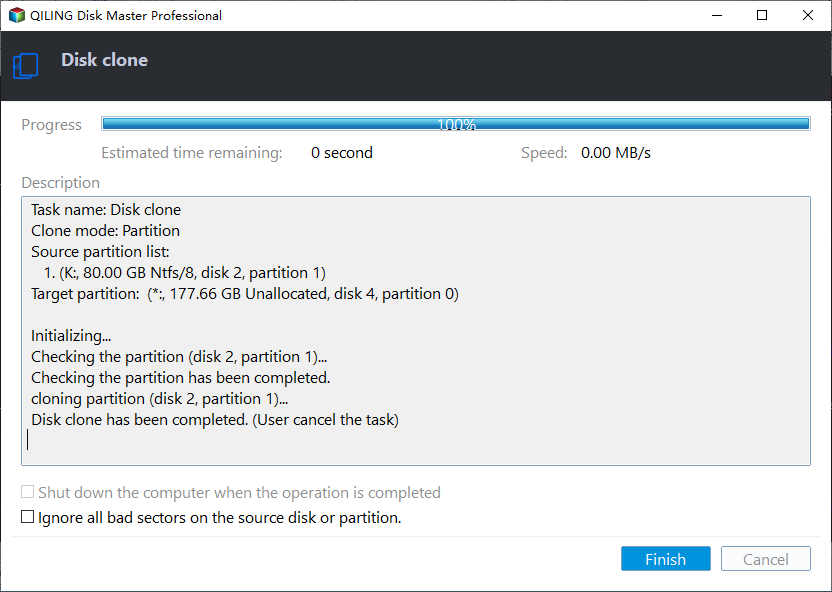
Wait for the progress bar to complete, shut the machine down, and select the M.2 drive in the boot menu. Keep the SATA disk connected until Windows starts from the new drive and every application opens normally.
Frequently Asked Questions
Can I re-enable the disabled SATA ports in Windows?
No. The port is switched off by the chipset when the M.2 slot is populated. No driver or registry setting can bring it back.
Will moving a SATA drive to another port change its drive letter?
It can. Letters are assigned during boot, and a drive that moves may receive a different one. Note the letter before another tool depends on it.
Does the second M.2 slot always disable SATA ports?
No. It depends on the chipset and the board design. Some boards share lanes with a PCIe slot, and some add a controller so that nothing is lost.
Is it safe to clone to an M.2 drive in a shared slot?
Yes. Cloning only needs the disk to be visible. The sharing decides which other ports work, not the speed or the reliability of the copy.
For the wider comparison of clone tools on this site, see the best free disk cloning software.
Related Articles
- Clone Windows 11 to a Smaller SSD
- Best Free Disk Cloning Software for 2026
- How to Check an NVMe SSD for Health
- Failed to Format a Write Protected NVMe Drive
- Recover Files After a Failed Disk Clone
Products
Articles & Tutorials
- Data Recovery
- Data Backup
- File Recovery
- File Backup
- System Backup and Restore
- Disk and Partition Clone
- Technical articles
- Mobile articles
- Disk Master Help
- Windows Data Recovery Tutorials
- Windows Secure Delete Tutorials
- Windows Partition Management Tutorials
- Windows File Backup and Restore Tutorials
- Windows System Backup and Restore Tutorials
- Windows Disk Backup and Restore Tutorials
- Windows Clone Tutorials