Recover Files After a Failed Disk Clone
Quick Navigation:
- Which Disk Actually Lost Data
- Stop Using Both Disks
- Confirm the Surviving Disk Is Usable
- Scan the Overwritten Disk with Qiling Deep Data Recovery
- Frequently Asked Questions
A clone reads one disk and writes another, so the damage depends on which disk was written and how far the job got. The common accident is a destination chosen by capacity rather than by name, which overwrites the disk that held the only copy. The second is a clone that stops halfway and leaves both disks in an incomplete state.
Which Disk Actually Lost Data
Compare the two disks by capacity, model, and serial number. The disk that received the clone now holds a partial or complete copy of the other one, and whatever it held before is no longer addressable through the file system.
If the clone was started in the wrong direction, the source is the damaged disk. If it failed partway, the destination holds an incomplete copy and the source is usually still intact.
Write down which is which before you touch anything. Every later step depends on not mixing the two up again, and the labels on the disks are more reliable than their drive letters.
Stop Using Both Disks
Disconnect the disk that was overwritten and leave it disconnected until the recovery is finished. Booting from it, or letting Windows mount it, gives the operating system a chance to write logs, index files, or update timestamps.
If the machine boots from the surviving disk, that is fine; just keep the damaged disk out of the system. Use a USB adapter or an external dock only when you are ready to scan.
Do not run a repair, a check, or a defragmentation on the damaged disk. All three write, and the files you want are in the space those tools consider free.
Confirm the Surviving Disk Is Usable
Start the machine from the disk that was not overwritten and verify that it boots and that the applications open. A clone that looks complete but does not boot is a common halfway state.
Check the boot partition count as well. A disk clone that copied only the Windows volume leaves the machine unbootable, while the data on the destination is still readable when attached elsewhere.
Once the surviving disk is confirmed, make a copy of it before any further experiment. A backup taken now is what lets you try a second recovery attempt without risking the only good disk.
Scan the Overwritten Disk with Qiling Deep Data Recovery
Qiling Deep Data Recovery scans the damaged disk for file records that survived the overwrite. Blocks that the clone already replaced are gone, but a partial clone often leaves most of the old disk untouched.
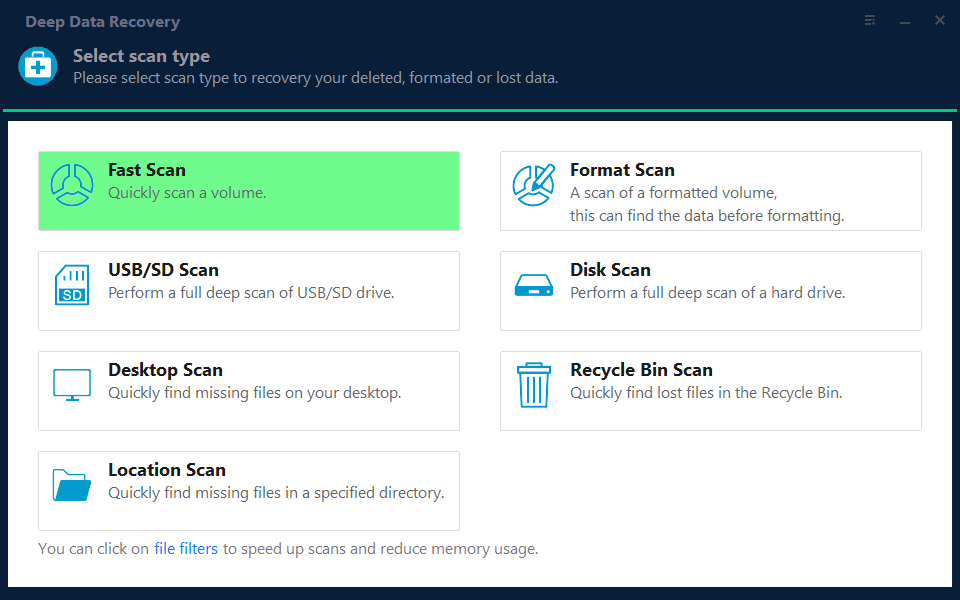
Step 1. Choose the Recovery Mode
Use Format Scan when the clone replaced the partition table, which is the usual result. Fast Scan only applies if the old volume is still mountable.
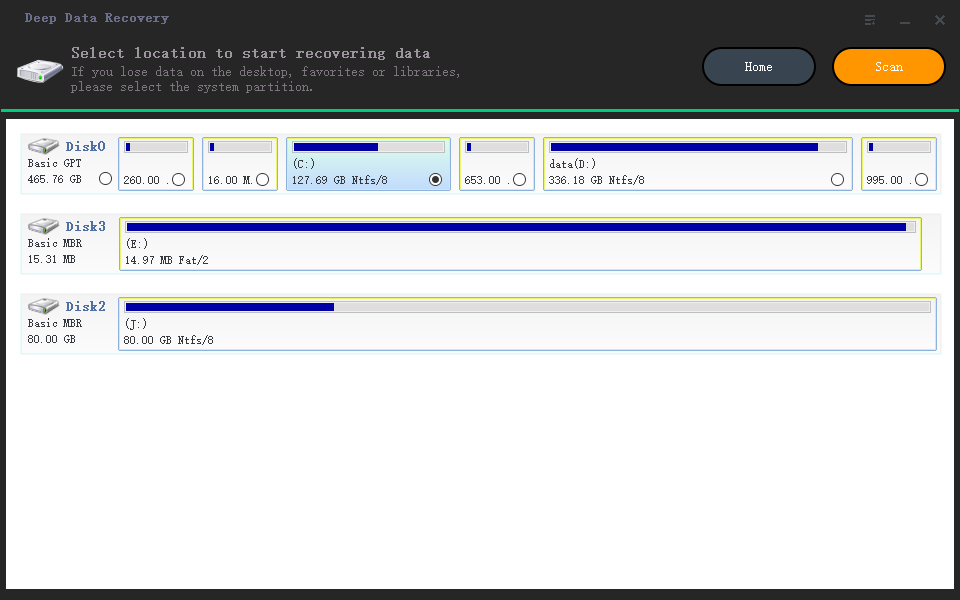
Step 2. Select the Damaged Disk
Pick the disk by serial number, not by letter, because the clone may have kept the original letter on a different device.
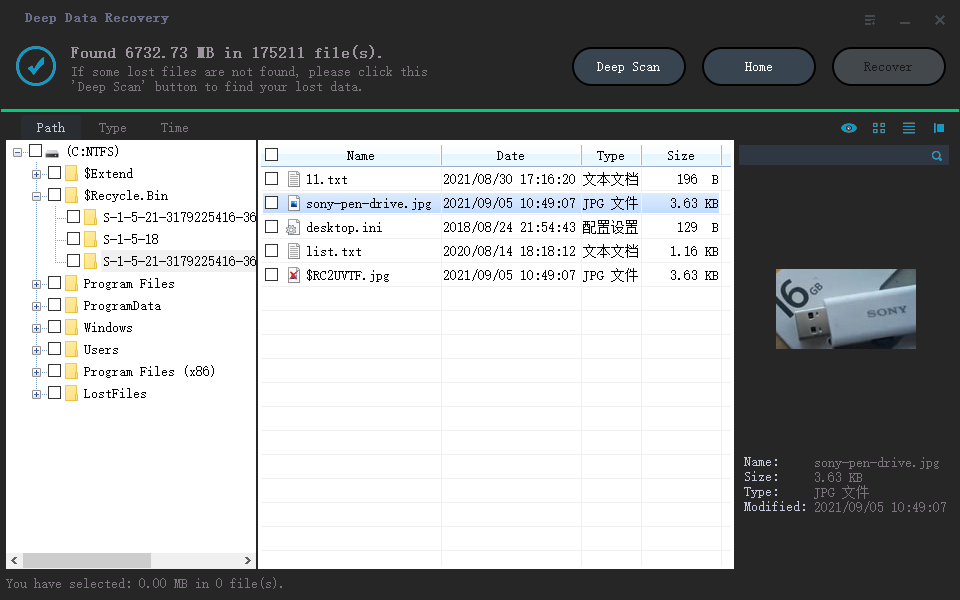
Step 3. Run the Deep Scan
Let the deep scan complete and then sort the results by type and date. Files created before the clone date are the ones worth previewing first.
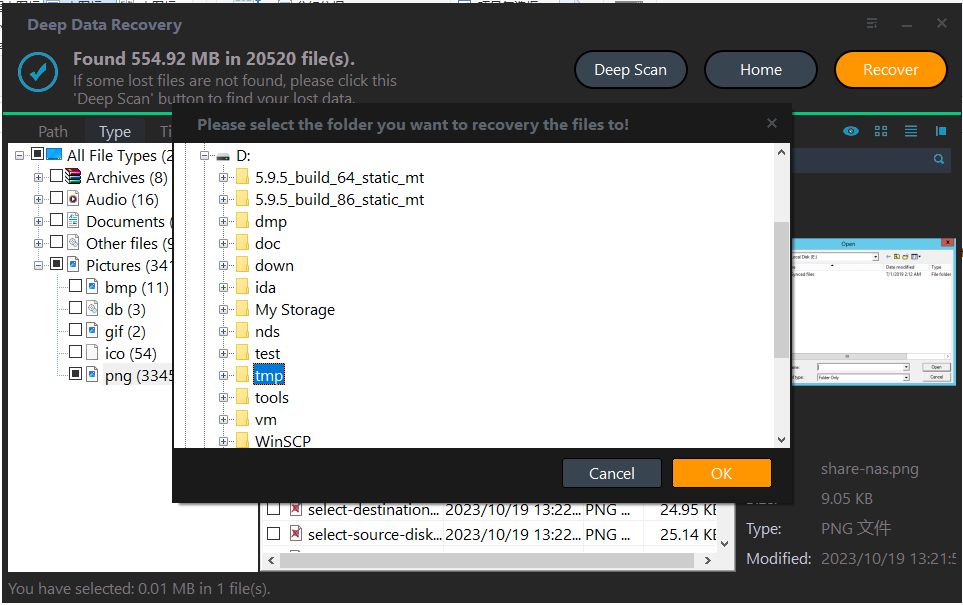
Step 4. Save to a Third Disk
Write the results to a disk that was not part of the clone at all. Using either of the two original disks risks another overwrite of the same area.
Frequently Asked Questions
Can a clone overwrite the source disk?
Not in a correctly configured job. It happens when the wizard asks for a destination and the user selects the source again, or when a tool is run with the arguments in the wrong order.
How much can be recovered after an overwrite?
It depends on how far the clone ran. A job that failed early often leaves most of the old data intact; a completed clone leaves only the unallocated area.
Should I finish the failed clone first?
No. Finish it only after the data from the damaged disk has been copied, because completing it writes over more of the original content.
Will the recovered files keep their names?
Often, yes, when the old file records survive. A deep scan that relies on signatures recovers content with generated names, which is why previews matter.
For the clone procedure itself, see the best free disk cloning software.
Related Articles
- Best Free Disk Cloning Software for 2026
- Clone a 4Kn or 512e Sector Size Disk Safely
- Disk Cloning Software for Windows 10
- Use a Disk Imager to Clone a Disk
- Perform a RAW Drive Recovery
Products
Articles & Tutorials
- Data Recovery
- Data Backup
- File Recovery
- File Backup
- System Backup and Restore
- Disk and Partition Clone
- Technical articles
- Mobile articles
- Disk Master Help
- Windows Data Recovery Tutorials
- Windows Secure Delete Tutorials
- Windows Partition Management Tutorials
- Windows File Backup and Restore Tutorials
- Windows System Backup and Restore Tutorials
- Windows Disk Backup and Restore Tutorials
- Windows Clone Tutorials