How to Add/Remove Google Account on iPhone
If you've imported your Google account to your iPhone but no longer want to keep the data, you can easily remove it. Sometimes, people have different contacts or email addresses on their Apple and Google accounts, and importing the Google account to iPhone is a convenient option. However, if you want to delete your Google account from your iPhone, you can find the easiest method to do so in this article.
Before removing an account, consider creating an iPhone backup with or without iTunes and iCloud.
How to add Google Account on iPhone
Step 1. Unlock your iPhone and open Setting App.
Step 2. Find Contacts, Mail, or Calendars, and tap one of them.
Step 3. Tap the option Account on the top, and choose Add account.
Step 4. To sync Google calendars to your iPhone, choose Google Account and log in, then enable the switch on the screen. This allows you to sync your Google calendars with your iPhone.
Step 5. Close the Setting app and check the results. You should have already added Google Account on this iPhone.
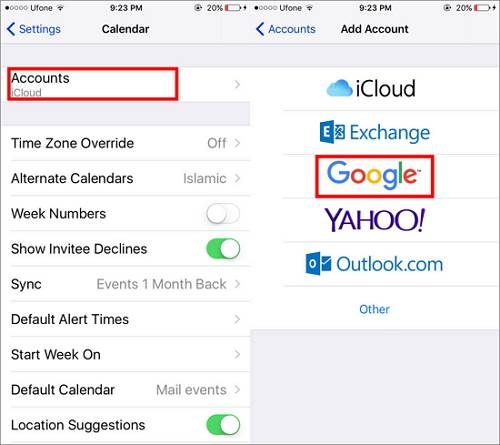
How to remove Google Account on iPhone
Step 1. Go to Settings > Mail, Contacts or Calendars.
Step 2. Tap the option Account on the top, and choose Add account.
Step 3. To remove a Google account from an iPhone, go to Settings, then tap on "Accounts" and choose "Google Account". Log in to the account, then toggle off all the switches on the screen to disable Google services.
Related Articles
- [Quick Fix]iPhone X/iPhone 8 Not Vibrating? Useful Fixes Here!
- [Solved] Black Screen After Cloning Disk
This article will help you solve the problem of Windows 11/10/8/7 black screen after cloning. You won't encounter boot errors if you use the best disk cloning software - Qiling Disk Master. - Bootable Hard Drive Eraser Freeware Download (Windows PC)
Looking for the bootable hard drive eraser freeware or bootable hard drive format tool? The free Qiling Disk Master Standard is the best choice. - [Tutorial] 2 Ways to Breaking 2TB File System Limit
In this post, you are going to learn how to break 2TB file system limit, including using Disk Management and a powerful third-party tool.
Products
Articles & Tutorials
- Data Recovery
- Data Backup
- File Recovery
- File Backup
- System Backup and Restore
- Disk and Partition Clone
- Technical articles
- Mobile articles
- Disk Master Help
- Windows Data Recovery Tutorials
- Windows Secure Delete Tutorials
- Windows Partition Management Tutorials
- Windows File Backup and Restore Tutorials
- Windows System Backup and Restore Tutorials
- Windows Disk Backup and Restore Tutorials
- Windows Clone Tutorials