How to Add Ringtones to iPhone X/11/12/13 in 5 Ways
Quick Navigation:
- Method 1. Download iPhone X Ringtones from Websites
- Qiling MobiMover
- Method 2. How to Add a Ringtone to iPhone X with GarageBand
- Method 3. How to Make a Ringtone for iPhone
- Method 4. How to Add Ringtones to iPhone X/11/12 with iTunes
- Method 5. Buy Ringtones for iPhone X/11/12 in iTunes Store
- Bonus Tip: How to Set Custom Ringtone on iPhone X
- The Bottom Line
In today's life, many people want to personalize their mobile ringtones to show their personality and improve their mood. To start, you can easily add ringtones to your iPhone using one of the following methods.
Method 1. Download iPhone X Ringtones from Websites
To add a new ringtone to your iPhone, you can't directly download one from a website and transfer it to your device. Instead, you'll need to download the ringtone from a website and then use a transfer tool to add it to your iPhone's library. This is because iPhones don't allow users to add new ringtones directly, unless you purchase them from iTunes or create them using Garageband.
First of all, get your wanted ringtones from these sites:
- https://www.zedge.net/ (most popular)
- https://cellbeat.com/
- https://www.melofania.club/
- https://www.mobile9.com/ (Registration Required)
To add ringtones to your iPhone or iPad, you can use the iPhone data transfer software Qiling MobiMover, which is 100% safe and free of viruses and malware.
Step 1. Connect your iPhone X to your computer, tap "Trust" on the iPhone X screen, and click "Allow" on Qiling MobiMover to access the device. Then, on the Qiling MobiMover interface, select "Audio" and choose "Ringtones" to proceed.
Step 2. To add ringtones to an iPhone X without using iTunes, click on "Ringtones" in the iPhone's settings and select "Add Contents" to browse and add ringtones from your computer to the iPhone. This allows you to easily transfer ringtones from your computer to your iPhone X.
Step 3. To add custom ringtones to your iPhone X, browse to select the ringtones saved on your PC and click "Open" to add them to your iPhone X. You can select and add multiple ringtones at one time. Once the process is complete, go to Settings on your iPhone X, tap Sounds & Haptics, and select Ringtone to change the ringtone.
Qiling MobiMover
- iOS data management - Manage your iOS data effectively.
- 1-click transfer - Transfer iPhone data between different devices.
- Flexible backup - Back up your iPhone data selectively.
- WhatsApp manager - Transfer WhatsApp to a new iPhone.
- File converter - Batch converts HEIC pictures to JPG.
Method 2. How to Add a Ringtone to iPhone X with GarageBand
To add a ringtone to your iPhone using GarageBand, you can generate a ringtone without a computer by using the app, or even use a song downloaded from Safari or Google. You can then directly push the generated ringtone to your ringtone library and set it as your ringtone.
Since we've already explained how to make a song your ringtone in a previous guide, we won't repeat the steps here. If you're interested in using this method, you can refer to that guide for detailed instructions.
Method 3. How to Make a Ringtone for iPhone
Many users find it complicated to make their own ringtone using GarageBand or iTunes. As a result, they often avoid these methods. However, there is a more flexible and easier way to create a custom ringtone for your iPhone - using the Qiling Ringtone Editor, which allows you to add your own personalized ringtones.
This program is very easy to use. Simply import the songs you want to edit, make the desired changes, and then export the final product to your iPhone or iPad.
If you're interested in downloading the software, you can do so by following the on-screen instructions once it's installed on your computer. It's a straightforward process that should take no time at all.
Method 4. How to Add Ringtones to iPhone X/11/12 with iTunes
You can also use iTunes to create custom ringtones for your iPhone X/11/12 without installing a third-party app. Simply use a song you like to make a ringtone, then sync it to your device. While the process may be a bit more involved, following the steps can help you successfully create a personalized ringtone for your iPhone.
To put ringtones on iPhone X/11/12 using iTunes:
Step 1. Connect your iPhone X/11/12 to your computer and launch iTunes.
Step 2. If the song you want to make a ringtone from isn't in your iTunes library, add the song to your library by going to "File" > "Add File to Library".
Step 3. Go to the device settings, click on "Summary," and toggle the option "Manually manage music and videos" to enable it.
Step 4. Click the "Back" button and go to "Songs" > "Library.".
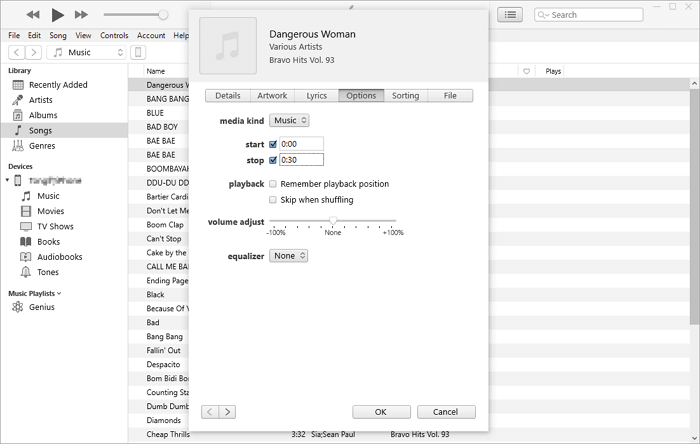
Step 5. Right-click the target song and choose "Song Info," then tap the "Options" tab in the new window.
Step 6. Set the start and stop points of the ringtone to a duration of less than 30 seconds.
Step 7. To create an AAC version of a song clip in iTunes, select the original song, go to "File" and choose "Convert" then "Create AAC Version". This will load the song clip into iTunes.
Step 8. Right-click on the cut song and choose "Show in Windows Explorer" (or "Show in Finder" on Mac).
Step 9. Copy and paste the song to your desktop and change the extension from .m4a to .m4r. Confirm your change.
Step 10. Delete the shortened version of the song from the iTunes Library by right-clicking on it, choosing "Delete from Library" and then confirming the deletion by selecting "Delete Song" and "Move to Recycle Bin".
Step 11. To add a custom ringtone to your iPhone X, tap the "Tones" tab in iTunes, then drag and drop the desired ringtone from your desktop into iTunes, effectively adding it to your iPhone X.
Method 5. Buy Ringtones for iPhone X/11/12 in iTunes Store
You can download or create ringtones on your computer using the first three methods. Alternatively, you can purchase ringtones from the iTunes Store and download them directly to your iPhone X/11/12, making it a more convenient option. This way, you can add ringtones to your iPhone without needing a computer or any third-party software.
To download ringtones on iPhone X/11/12:
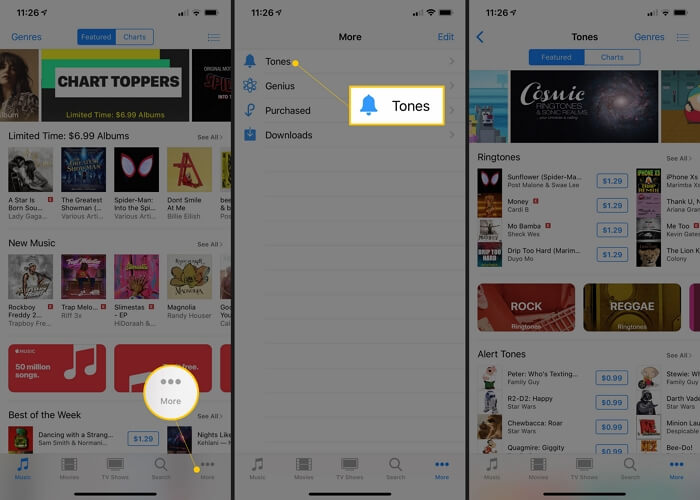
Step 1. Go to the iTunes Store on your iPhone X.
Step 2. Tap "More" > "Tones."
Step 3. To purchase a ringtone, tap the price to buy it, and it will be downloaded to your iPhone. You can then access it by going to "Settings" > "Sounds".
Step 4. You can set the chosen song as your default ringtone, default text tone, or set it later, depending on your preference.
Bonus Tip: How to Set Custom Ringtone on iPhone X
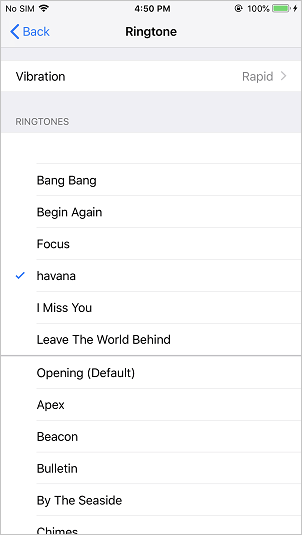
To set a custom ringtone on your iPhone, follow these steps: after adding the custom ringtones to your iPhone, go to the Settings app, where you can select the desired ringtone from the list of available options and set it as your ringtone.
Step 1. Go to "Settings" on your iPhone.
Step 2. Scroll down to choose "Sounds & Haptics" > "Ringtone."
Step 3. Click the tone you like to set it as your ringtone for your iPhone.
The Bottom Line
This article provides a detailed guide on how to add ringtones to iPhone X/11/12. By following the steps outlined, you can easily set any song as your iPhone ringtone. Additionally, if you want to transfer more files from your PC to your iPhone or vice versa, you can use Qiling MobiMover, a software that can transfer various file types, including photos, videos, and songs, between devices. For further assistance, you can refer to the guide on how to transfer music from iPhone to iPhone.
Related Articles
- How to Transfer Data from Android to iPhone in 5 Ways
- How to Batch Convert HEIC to JPG in 4 Ways
- How to Clone BitLocker Encrypted Hard Drive [Proven Way]
To clone BitLocker drive in Windows 11/10/8/7, you can use Qiling Disk Master. - Clone HDD to OCZ SSD with Free Clone Software
Is there any better OCZ SSD clone software to clone HDD to OCZ SSD easily while OCZ SSD utility occur the error no drive available? Below the words will show you how to clone safely.
Products
Articles & Tutorials
- Data Recovery
- Data Backup
- File Recovery
- File Backup
- System Backup and Restore
- Disk and Partition Clone
- Technical articles
- Mobile articles
- Disk Master Help
- Windows Data Recovery Tutorials
- Windows Secure Delete Tutorials
- Windows Partition Management Tutorials
- Windows File Backup and Restore Tutorials
- Windows System Backup and Restore Tutorials
- Windows Disk Backup and Restore Tutorials
- Windows Clone Tutorials