Tips for Android 7.0 | Android N Update
Quick Navigation:
- What's new in Android 7.0/N?
- Tips for Android 7.0 | Android N update
- How to Update to Android 7.0 | Android N?
Summary
Android 7.0, also known as Android N, is now available for Android fans following the Google I/O 2016 event. If you're looking to update your phone or tablet to the new system, here are some tips to help you do so without losing any data. Follow these instructions to update to Android 7.0 with ease.
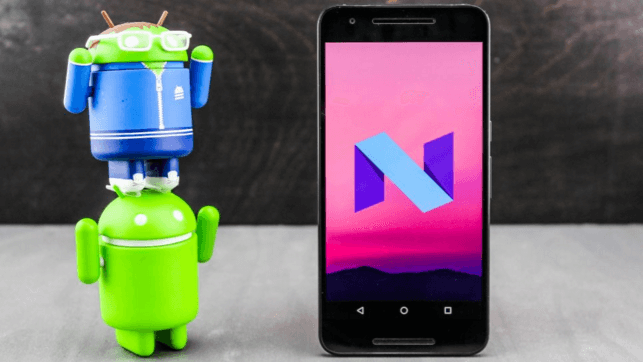
What's new in Android 7.0/N?
Android 7.0, also known as Android N, is worth trying on your Android device because it offers a range of new features and benefits. With Android N, you'll enjoy improved performance, security, and battery life, as well as new features like multi-window mode, improved notifications, and a more intuitive interface. Additionally, you'll benefit from enhanced security features, such as improved encryption and better protection against malware. Overall, upgrading to Android 7.0 is a worthwhile upgrade.
1. Google has introduced a new virtual reality (VR) service called Daydream, which will be available to Android N/7.0 users with compatible hardware.
2. This service reduces the time for phone to shut down for system update, allowing systems or apps to install or update in the background and do a quick reboot afterwards.
3. Newly fixed bugs and improved system performance.
4. Split screen display for apps allows users to view multiple apps simultaneously, with the Task Manager button located in the bottom-right corner of the screen. By tapping this button, users can see a list of all running apps, enabling them to easily switch between them or view them side-by-side.
Tap and hold the app you want to split, then drag it to the top of the screen.
With this, you can watch a movie or do some shopping on your phone while also browsing for something interesting at the same time.
5. The newly upgraded notification feature allows you to gain instant notification, which enables you to gain and reply faster and more conveniently.
The addition of new features like a new folder feature and new emojis can enhance the user experience and make an Android phone more engaging and user-friendly, giving it a more human-like touch.
Tips for Android 7.0 | Android N update
To get your Android devices ready for the Android 7.0 (N) update, follow these tips before starting the update process. Your Android phones, mobiles, or tablets should be fully prepared for the new system.
1. Make sure that your Android devices supports the new system.
It seems that now Android 7.0/N is only available for some new devices produced by Google Nexus, Samsung, Sony, HTC and Xiaomi etc.
If your devices are not available for the new system, please wait patiently.
2. Ensure your Android device is connected to a WiFi network, which will allow it to download the installation files.
3. Leave at least 2-3GB of free space on your phone to ensure a successful installation of Android 7.0/N.
4. Be sure that the cellphone has more than 40% battery.
5. Backup important personal data before Android 7.0 update.
How to Update to Android 7.0 | Android N?
Get ready to update your Android devices to Android 7.0! To do so without losing any data, simply follow the tutorial steps to update to Android 7.0/N now.
Step 1. Backup Android data before update to Android 7.0/N
It's recommended to create backups for important personal Android data, such as contacts, photos, and messages, to ensure their safety. This can be done by backing up data into a Cloud account or by transferring it to a PC, which is considered a safer option than Cloud storage. This is because Cloud accounts can be hacked or compromised, whereas a PC is a more secure and controlled environment for storing personal data. By backing up Android data to a PC, users can have peace of mind knowing that their important information is safe and easily accessible.
When system updates delete or move data from Android devices due to lack of space or perceived danger, it's essential to backup your data to a PC. A professional Android data extractor software like Qiling MobiSaver for Android can help you achieve this in just 3 steps. This software supports Android 7 data backup and also allows you to restore lost data caused by accidental deletion, system updates, or virus attacks.
Connect your Android device to your PC, launch Qiling MobiSaver for Android, let it scan your device, and then preview and restore your important data to your PC as backups.
To update your Android to 7.0, first choose a safe location on your PC to save your data, then follow the next steps. If you've already updated and lost data, you can use Qiling MobiSaver for Android to help you restore lost data with ease.
Step 2. Update to Android 7.0/N
To update your Android device to Android 7.0, follow these steps:
To check for updates on your phone, go to Settings, then About Phone, followed by System Updates. From there, select Check for Update, then Download, and finally Update now.
Once you've installed Android 7.0, simply reboot your phone and you'll be able to enjoy the new features without losing any data. You can then import your old data back into your device and continue using it as usual. If you're ready to update, follow these steps and get started right away.
Related Articles
- [Fixed] Android Error INSTALL_FAILED_INSUFFICIENT_STORAGE Without Losing Data
- How to Recover Data from Android Internal Storage
- How to fix error 'Sorry, this media file doesn't exist on your SD Card/internal storage'
- Steps to Do Android Contacts Recovery
Products
Articles & Tutorials
- Data Recovery
- Data Backup
- File Recovery
- File Backup
- System Backup and Restore
- Disk and Partition Clone
- Technical articles
- Mobile articles
- Disk Master Help
- Windows Data Recovery Tutorials
- Windows Secure Delete Tutorials
- Windows Partition Management Tutorials
- Windows File Backup and Restore Tutorials
- Windows System Backup and Restore Tutorials
- Windows Disk Backup and Restore Tutorials
- Windows Clone Tutorials