Fix Sorry, This Media File Does Not Exist on SD Card
Quick Navigation:
- How to fix error 'Sorry, this media file doesn't exist on your SD Card/Internal Storage'
- Step 1. Copy the missing media files to the original Whatsapp folder
- Step 2. Try to recover the missing Whatsapp media files with special recovery software
Summary
If you're getting an error message saying "Sorry, this media file doesn't exist on your SD Card" or similar messages "Sorry, this media file doesn't exist on your internal storage" while trying to access WhatsApp videos or pictures, this page provides troubleshooting steps to help you fix the issue and recover the missing media files.
WhatsApp media file missing, how to recover?
"My Whatsapp saved media like videos photos, etc keeps on disappearing. Every time when I try to open them on Whatsapp, it flashes the error message 'Sorry, this media file doesn't exist on your SD Card'. Is there any fix helps to get back my data?"
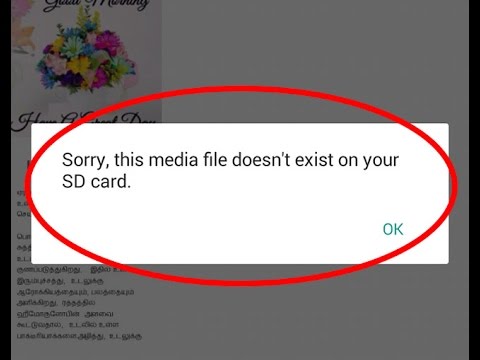
Users reported that when trying to access WhatsApp to view videos or pictures, they got an error message stating that the media file doesn't exist on their SD card or internal storage, despite the files being blurred and seemingly missing.
Are you one of those victims? Here we offer some troubleshooting steps and a reliable WhatsApp media recovery solution to help!
Why This Media File Error Appears
This error usually appears when WhatsApp media has been moved, deleted, hidden, or disconnected from the SD card or internal storage path.
How to fix error 'Sorry, this media file doesn't exist on your SD Card/Internal Storage'
Recover Missing WhatsApp Media Files
Step 1. Copy the missing media files to the original Whatsapp folder
When you receive media files like images and videos on WhatsApp, they are automatically saved to your phone's Gallery under a WhatsApp folder. If you get an error message saying the file doesn't exist on your SD card or internal storage, check if the file is in the Gallery, and if it is, it might have been moved to another folder.
To fix the issue of missing images and videos in WhatsApp, try accessing the media files in your phone's memory, copy and paste them into the WhatsApp folder, and then attempt to open them again in WhatsApp. This should resolve the problem.
Step 2. Try to recover the missing Whatsapp media files with special recovery software
If you're unable to find the missing WhatsApp media files on your phone, it's possible that they've been corrupted or deleted. In this case, you can try using special Android recovery software to retrieve them back.
Step 1. Connect your Android device to your PC, launch Qiling Android recovery software, and click the "Scan" button to proceed.
Note: To make the software recognize and connect your phone or tablet, please ensure that the device has been rooted.
Step 2. The software should first scan the device to locate all the lost data.
Step 3. Preview all recoverable WhatsApp pictures and videos, select the desired ones, and click the "Recover" button to restore them.
To avoid the 'Sorry, this media file doesn't exist on your SD Card' error, ensure your SD card is properly inserted and recognized by your device. Check for any errors or issues with your SD card, and consider formatting it if necessary.
1. Make sure there is enough free space on your SD card to save WhatsApp media files.
2. To save WhatsApp media files on your SD card, ensure that your SD card is not set to read-only mode. This allows you to save files on the card.
3. To ensure your SD card is healthy and works properly, check its condition by inserting it into a computer or other device and verifying that it's being recognized. If the SD card is corrupted, it may not save any files to it. A corrupted SD card can be caused by various factors, including physical damage, software issues, or improper formatting.
Related Articles
- Samsung data recovery crack with license key
- 2 Methods to Recover Lost Data due to Factory Reset Android 7.0/6.0 Phone
- How to Recover Deleted Voicemail from Android and iPhone
- How to Recover Data After Android 7.0 N Update
Products
Articles & Tutorials
- Data Recovery
- Data Backup
- File Recovery
- File Backup
- System Backup and Restore
- Disk and Partition Clone
- Technical articles
- Mobile articles
- Disk Master Help
- Windows Data Recovery Tutorials
- Windows Secure Delete Tutorials
- Windows Partition Management Tutorials
- Windows File Backup and Restore Tutorials
- Windows System Backup and Restore Tutorials
- Windows Disk Backup and Restore Tutorials
- Windows Clone Tutorials