The Most Simple Way to Browse Files on iPad for Well File Management
Quick Navigation:
The process of browsing and managing files on Apple devices like iPhone and iPad is much more challenging compared to Google Android users. However, with the release of iOS 11, the Files app has been introduced, which serves as a central place to access all files on the device, in iCloud, and on third-party storage services like Dropbox. This feature allows users to easily find, organize, open, and delete files as needed, making the iPad a likely candidate to become a mobile computer.
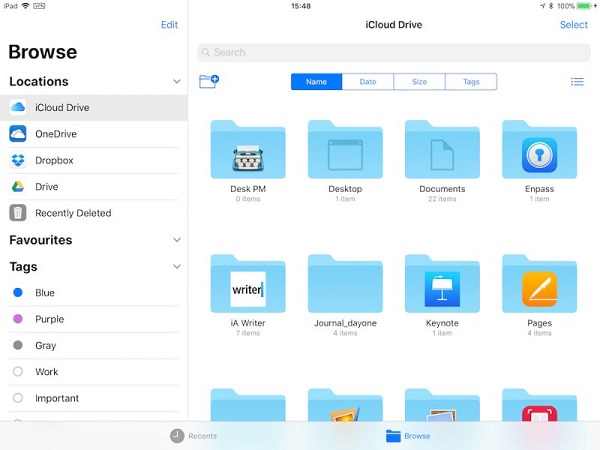
How to browse files on iPad with Files
The Files app on iPad has a main interface divided into two parts: a left column showing file locations, favorites, and tags, and a right area listing files and folders by name, date, size, and tags. Tapping on a file opens it, while long-pressing on a file or folder brings up a popover with options like copy, rename, move, delete, share, and tags. The app's drag and drop feature, exclusive to iOS 11, allows for easy management of multiple files.
How to browse files on iPad with Qiling MobiMover
If you're using iOS 11, the new Files app is useful, but if you're on an earlier version or hesitant to upgrade due to data loss concerns, you'll need an alternative to browse files on your iPad. Qiling MobiMover, a free iOS data management software, allows you to browse and manage over 10 file types on your iPhone or iPad, enabling you to sync, backup, transfer, add, download, and delete files on your device. If you need help with backing up your iPad without iTunes or adding contents to your iPad with MobiMover, you can check online guides for assistance.
Step 1.Connect your iPhone/iPad to your computer using a USB cable, then open Qiling MobiMover, select "Content Management" and choose the desired category to browse.
Step 2.After choosing a category, you can view all existing items on your iPhone/iPad from your computer. From there, you can transfer files from PC to your device, back up iPhone data to computer, sync content between iOS devices, or remove files from your device.
Step 3.To delete unwanted files, select the items and click "Delete", then confirm your deletion by tapping "Yes".
Qiling MobiMover is a good alternative to Files app to browse files on iPad, allowing Apple users to manage files in a free and easy way. It also provides a convenient option for transferring files from a PC to an iPad using a USB connection.
Related Articles
- How to Access iPhone Folders with Free iPhone Data Manager
- How to Sync Google Contacts to iPhone X/iPhone 8/iPhone 7 in iOS 11
- Fix Guide of Recovery Blue Screen on Windows 10
Here's a fix guide of recovery blue screen on Windows 10 to provide suitable solutions for users to repair different blue screen errors. - How to Remove OEM Partition in Windows 10, 8, 7?
You can remove OEM partition on Dell or Lenovo with the help of diskpart or Qiling Disk Master if you don't need it any more.
Products
Articles & Tutorials
- Data Recovery
- Data Backup
- File Recovery
- File Backup
- System Backup and Restore
- Disk and Partition Clone
- Technical articles
- Mobile articles
- Disk Master Help
- Windows Data Recovery Tutorials
- Windows Secure Delete Tutorials
- Windows Partition Management Tutorials
- Windows File Backup and Restore Tutorials
- Windows System Backup and Restore Tutorials
- Windows Disk Backup and Restore Tutorials
- Windows Clone Tutorials