[Solved] Can't Delete Apps on iPad Pro/Mini/Air in iOS 11
Quick Navigation:
- Quick solutions to fix can't delete apps on iPad in iOS 11
- Tip 1. Lightly touch and press the app instead of holding hard
- Tip 2. Restart your iPad
- Tip 3. Enable Restrictions for Deleting Apps on iPad
- Tip 4. Delete apps from iPad Settings
- Tip 5. Delete apps on iPad by using iTunes on PC or Mac
The user is experiencing an issue where the "X" delete button doesn't appear when trying to delete downloaded apps on their iPad, despite the apps wiggling when the home screen is pressed and held. The problem started after downloading some magazines, and the user is unable to access their Mac to delete the apps from iTunes. The user has tried restarting and resetting the iPad, but the issue persists. The user is looking for a solution to delete the unwanted apps using the "X" feature.
Many users have been experiencing an issue with their iPad after updating to iOS 11, where they are unable to delete apps. When trying to delete an app, the "X" that typically appears in the upper-left corner of the icon does not appear, making it impossible to delete the app. This issue has been reported on various iPad models, including the iPad Pro, iPad Mini, and iPad Air. To resolve this issue, users can try various solutions.
Quick solutions to fix can't delete apps on iPad in iOS 11
Tip 1. Lightly touch and press the app instead of holding hard
To delete an app on iOS 11, lightly touch and hold the app icon you want to delete for about 2 to 3 seconds. This should prompt the "X" to appear, allowing you to delete the app. After deleting, press the Home button to return to the normal Home screen.
Tip 2. Restart your iPad
You can't delete an app on your iPad in iOS 11 because you have two identical icons for the same app on your home screen. After deleting one of them, the other remains, but no X appears on it. Simply restarting your iPad can resolve this issue.
- To turn off your iPad, press and hold the Sleep/Wake button on your device until you see the "slide to power off" prompt, then release the button and slide the slider to the right.
- Slide right to power down your iPad.
- If your iPhone won't turn on, try pressing and holding the Sleep/Wake button for about 15 seconds. If that doesn't work, try turning it on again by pressing and holding the Sleep/Wake button. If this still doesn't solve the issue, move on to the next method.
Tip 3. Enable Restrictions for Deleting Apps on iPad
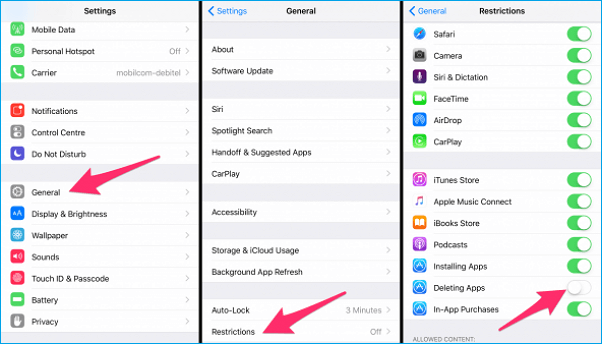
Another reason you can't delete apps on your iPad in iOS 11, even when there's no "X" to click, is that you may have restrictions set that prevent deleting apps. If this is the case, you won't be able to remove any app from your iPad.
- Go to "Settings" > tap "General" > Choose "Restrictions".
- Enter the password set for restrictions as required.
- To delete apps, go to Settings, find "Deleting Apps" and turn it on, then return to your home screen to test it.
Tip 4. Delete apps from iPad Settings
If you're unable to delete apps on your iPad by tapping the X, you can still try deleting them through the Settings app. Note that some built-in apps, such as Notes, Newsstand, and Calendar, cannot be removed regardless of the method.
- Go to "Settings" > "General" > "iPhone Storage".
- To delete an app from your iPad, select the app you no longer want, tap it, and then tap "Delete App" to remove it.
Tip 5. Delete apps on iPad by using iTunes on PC or Mac
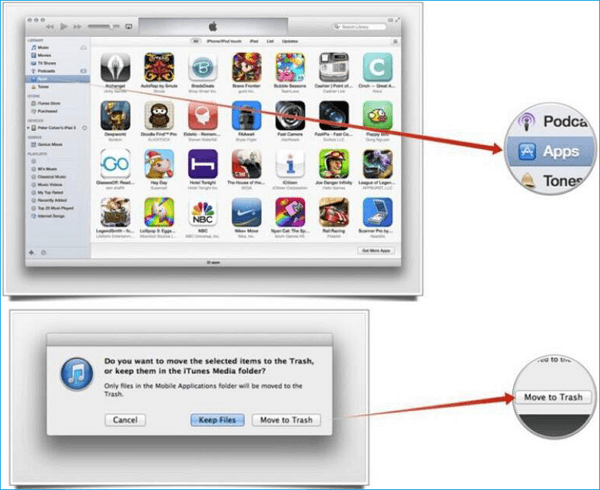
If none of the previous tips can solve the issue of being unable to delete apps on an iPad, the last resort is to use iTunes on a PC or Mac to remove apps.
- Note
- Apple has discontinued app management in iTunes with version 12.7, so if you still have an earlier version, you can use it to delete apps on your computer.
- Connect your iPad to your computer using a USB cable that is compatible with both devices.
- Open iTunes, click the iPad device button, then click "Apps" under "Summary".
- To delete unwanted apps, select the apps you want to remove, press the "Delete" key on your keyboard, and confirm the deletion by clicking the "Move to Trash" button.
Related Articles
- How to Fix iPhone Calendar not Syncing to Computer
- Erase an iPhone with iTunes Alternative Quickly and Free
- [Fixed]iPhone Photos Not Showing Up on Mac? Real Solutions Here!
- [iOS 11] iPhone 8/iPhone X Keeps Restarting? Fixes Here!
Products
Articles & Tutorials
- Data Recovery
- Data Backup
- File Recovery
- File Backup
- System Backup and Restore
- Disk and Partition Clone
- Technical articles
- Mobile articles
- Disk Master Help
- Windows Data Recovery Tutorials
- Windows Secure Delete Tutorials
- Windows Partition Management Tutorials
- Windows File Backup and Restore Tutorials
- Windows System Backup and Restore Tutorials
- Windows Disk Backup and Restore Tutorials
- Windows Clone Tutorials