Can't Sign Out of Apple ID as Sign Out Is Not Available Due to Restrictions
Quick Navigation:
- Part 1. Why "Sign Out" Is Greyed out in Settings
- Part 2. Disable Screen Time Enabled by You
- Part 3. Remove Screen Time Set by Your Family
- Conclusion
I tried to sign out of my Apple ID for testing purposes, but the "Sign Out" option was greyed out with a note saying "Sign out is not available due to restrictions." I was unable to sign out of my Apple ID, and after searching online, I found that many others had encountered the same issue. I've collected information to help identify the cause and solution to this problem. Would you like to discuss further?
Part 1. Why "Sign Out" Is Greyed out in Settings
When the "Sign Out" option is greyed out on your iPhone, check if Screen Time is enabled. If it is, you won't be able to sign out of your Apple ID, as Screen Time overrides the sign out option.
To turn off Screen Time on your iPhone, you can either do it yourself or have your parents enable it. If you want to turn it off, you can follow the steps to disable it, and at the same time, you can also sign out of your Apple ID.
Part 2. Disable Screen Time Enabled by You
To disable Screen Time, turn it off by going to Settings > Screen Time > Turn Off Screen Time. If a passcode is set, enter it and then tap Turn Off Screen Time. If no passcode is set, simply tap Turn Off Screen Time. The feature will be disabled.
If there is no Screen Time passcode or you remember the passcode.
Step 1. Go to Settings on your iPhone.
Step 2. To disable Screen Time, tap on Screen Time, then find "Turn Off Screen Time" at the bottom of the page and tap on it, and finally confirm the action. This will disable Screen Time.
Step 3. To turn off Screen Time, tap "Turn Off Screen Time" and enter the Screen Time passcode when prompted, then confirm again to disable Screen Time.
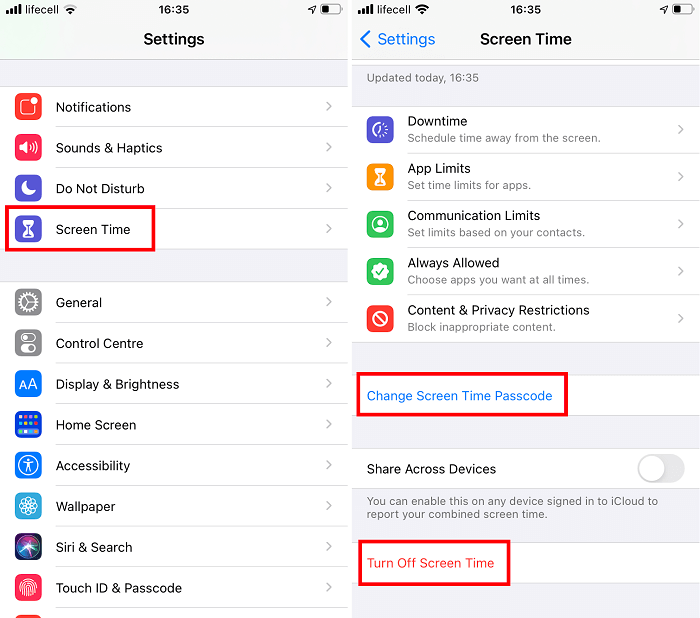
If you've forgotten your Screen Time passcode, you can remove it by going to Settings > Screen Time > Change Screen Time Passcode > Turn Off Screen Time Passcode, then tapping "Forgot Passcode?" and entering your Apple ID and password to reset it. This will allow you to continue using your device without the passcode.
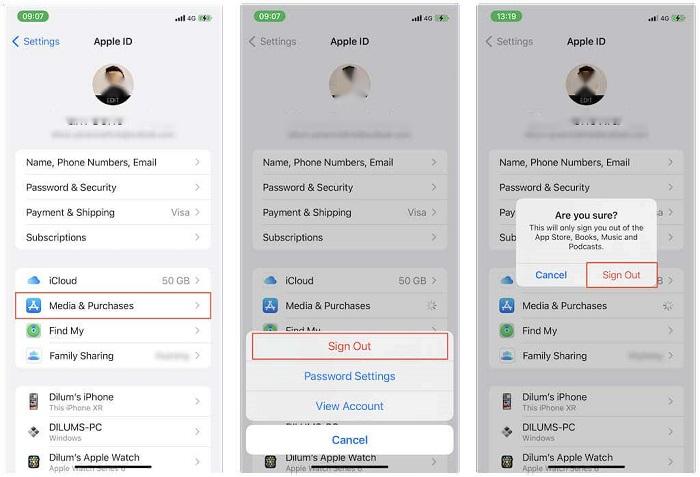
To log out of your Apple ID, go to Settings, then tap on your profile picture, and select "Sign Out" from the menu. This will log you out of your Apple ID on this device.
Step 1. To access the Settings app, tap on it. Then, tap on your Apple ID name.
Step 2. To sign out of the Apple ID, go to the bottom of the page and tap on "Sign Out", then enter your Apple ID password.
Step 3. Select data you want to keep a copy on this device and tap "Sign Out."
Part 3. Remove Screen Time Set by Your Family
You can use Screen Time to limit your iPhone usage and block certain services, but if your parent has set a Screen Time password, you can use Qiling MobiMover to unlock your iPhone and remove the Screen Time passcode without losing any data.
A Screen Time Password removal tool helps you get rid of the Screen Time passcode in just three steps, with on-screen instructions to follow. This tool offers additional useful functions beyond disabling the passcode, including various features.
- Unlock Screen Password - To remove the password from your iPhone, follow these steps:
- Unlock Apple ID - Remove Activation/iCloud Lock from iPhone/iPad/iPod Touch
- Unlock Screen Time Password - Disable Screen Time without a password
- iOS Password Manager - View and export password saved on iPhone
- Remove iTunes Backup Encryption - Remove iPhone backup password
Step 1. Start Qiling MobiUnlock on your PC, connect your iPhone to the PC with a USB cable, and trust this computer on your device screen if asked. Then, choose "Unlock Screen Time Passcode" to continue.
Step 2. Qiling MobiUnlock will recognize your iPhone/iPad and display its model. Then, please click "Unlock Now" to proceed to the next step.
Step 3. If the option is already off on your iOS device, skip this step. Then follow the instruction on the screen to turn off "Find My iPhone" or "Find My iPad." If the option is already off on your iOS device, skip this step.
Step 4. Qiling MobiUnlock will remove the Screen Time Passcode and turn off Screen Time, then you can set up your iPhone and find Screen Time disabled in Settings.
Conclusion
If you're having trouble signing out of your Apple ID, this article can help you identify the cause of the issue. One possible solution is to turn off Screen Time, which can be done in various ways, and we've outlined all the methods in this guide. By following these steps, you should be able to successfully sign out of your Apple ID.
Related Articles
- Fixed: Samsung SSD Clone Failed in Windows 11, 10, 8, 7
If your Samsung SSD clone failed, what can you do to safely fix the error? Here is the answer to save your SSD. - Seagate Cloning Software: Migrate Data to Seagate Drive Easily
This post will introduce you great and overall Seagate cloning software for Windows 10,8, 7, and show you how to complete disk copy under the help of it. - How to Create a Seagate Cloud Backup Efficiently | Two Ways
Running a Seagate cloud backup allows you to easily obtain photos, videos, and data on all devices, whether at home or out. This article introduces two ways for you. - Seagate NAS Backup Software for Windows 10/8/7
What Seagate NAS backup software can best suit your needs? Given the usage restrictions of tools like Seagate BlackArmor Backup and Backup Manager, you may need a more robust NAS backup software with higher compatibility.
Products
Articles & Tutorials
- Data Recovery
- Data Backup
- File Recovery
- File Backup
- System Backup and Restore
- Disk and Partition Clone
- Technical articles
- Mobile articles
- Disk Master Help
- Windows Data Recovery Tutorials
- Windows Secure Delete Tutorials
- Windows Partition Management Tutorials
- Windows File Backup and Restore Tutorials
- Windows System Backup and Restore Tutorials
- Windows Disk Backup and Restore Tutorials
- Windows Clone Tutorials