How to Clear History on iPhone 8 and iPhone 8 Plus for Free
Quick Navigation:
- How to clear history on iPhone 8/8 Plus from Settings
- How to clear history on iPhone 8/8 Plus within Safari
Safari is the default browser on iPhone and iPad, allowing users to browse the internet and access online content. However, each time you browse, your browsing history and website data are automatically saved on your device, taking up space and potentially compromising your privacy by storing account names and passwords. To free up space and protect your privacy, it's essential to clear your browsing history on your iPhone. This article will guide you through two effective and free methods to clear history on iPhone 8/8 Plus.
How to clear history on iPhone 8/8 Plus from Settings
To clear Safari history and website data on an iPhone 8 or 8 Plus, go to Settings, then tap on Safari, and scroll down to the bottom where it says "Clear History and Website Data". Tap on that to clear the history and website data.
1. Open your iPhone 8 or iPhone 8 Plus, then go to Settings. From there, tap on the "General" option, followed by "Software Update.
2. Scroll down until you see "Safari", then tap it.
3. Scroll down and to find "Clear History and Website Data".
4. To clear your browsing history on an iPhone, go to Settings, then Safari, and tap "Clear History and Website Data". A warning will appear, so tap "Clear History and Data" to confirm the deletion.
How to clear history on iPhone 8/8 Plus within Safari
Safari's history and website data can be cleared directly within the browser.
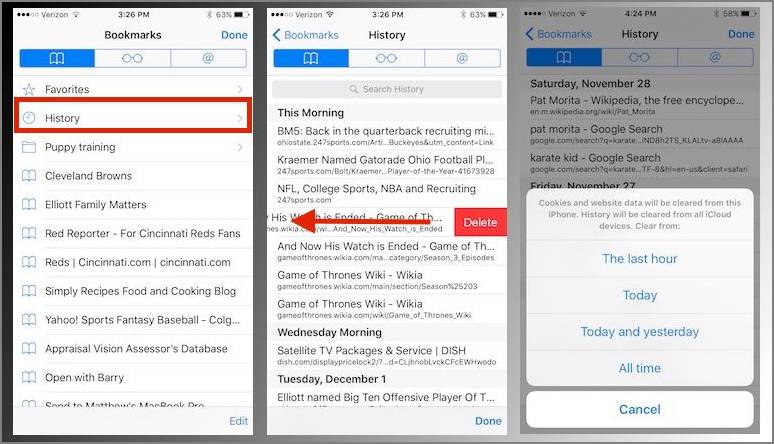
1. To access bookmarks on your iPhone 8 or iPhone 8 Plus, launch the Safari app and tap the book-like icon "Bookmarks" button located at the bottom of the screen.
2. Tap "History" and all the history records will be displayed.
3. To clear cookies and website data on an iPhone, tap the "Clear" option in the lower right corner of the screen, and select one of the available options - "The last hour, Today, Today and yesterday, or All time" - based on your desired level of data clearance.
Related Articles
- How to Pair Apple Watch to iPhone 8/iPhone X Automatically or Manually
- [Detailed Guide]How to Put iPhone 8/iPhone X in DFU Mode
- How to Access iPhone Folders with Free iPhone Data Manager
- How to Fix iPhone/iCloud Calendar Not Syncing with Mac in iOS 11
Products
Articles & Tutorials
- Data Recovery
- Data Backup
- File Recovery
- File Backup
- System Backup and Restore
- Disk and Partition Clone
- Technical articles
- Mobile articles
- Disk Master Help
- Windows Data Recovery Tutorials
- Windows Secure Delete Tutorials
- Windows Partition Management Tutorials
- Windows File Backup and Restore Tutorials
- Windows System Backup and Restore Tutorials
- Windows Disk Backup and Restore Tutorials
- Windows Clone Tutorials