How to Safely Downgrade Android 6.0 Marshmallow to 5.1 Lollipop
Quick Navigation:
- Why Downgrade Android OS from Marshmallow to Lollipop?
- Preparatory Work - Backup SMS, Contacts, Photos, Music, App Data, Call Log
- Guide to Downgrade to Lollipop 5.1 from Marshmallow 6.0 (Provided by android devices)
Summary
To downgrade Android 6.0 Marshmallow to Android 5.1 Lollipop, owners of Nexus, Samsung, LG, Motorola, HTC, and other brands should first take a full backup of their important data. Then, follow the instructions to revert back to Lollipop from Marshmallow.
Why Downgrade Android OS from Marshmallow to Lollipop?
The recent Marshmallow update for Android, following upgrades from Samsung, Nexus, LG, Motorola, and HTC, has been met with complaints, with many users likening it to the buggy Windows 10 rollout for PCs. Despite Google's release of Android 7.0 Nougat, the majority of users are now requesting to revert back to the familiar Android 5.0/5.1 Lollipop OS.
Many users are opting to downgrade from Android 6.0 Marshmallow to Android 5.0 Lollipop due to various issues with the former. The main reason is that Marshmallow has been plagued with bugs, glitches, and performance problems, leading to frustration and inconvenience among users.
- Data loss issue: Android Marshmallow update deleted photos, contacts, messages...
- WIFI Mac issue: In the latest Beta 3 release of Marshmallow 6.0, the WiFi MAC address changes after every reboot, which may cause issues with devices that rely on the stable MAC address. This change could potentially affect devices that use the MAC address for authentication or other purposes.
- Battery drain and heating issue: The Nexus 9's battery drains faster than expected, especially with the Marshmallow update, causing the device to overheat and further deplete the battery.
- Force close issue: It seems like you've installed a new operating system and some apps like Twitter and Google Play Services are experiencing force close issues. This could be due to a variety of reasons, such as corrupted data, incompatibility with the new OS, or even a bug in the app itself.
Preparatory Work - Backup SMS, Contacts, Photos, Music, App Data, Call Log
Techies and Android users have shared a guide on how to rollback to the previous Android OS from Marshmallow. To ensure data safety, they recommend using Qiling MobiSaver for Android to backup data to a PC before downgrading the OS. This allows users to take a full backup of their contacts, photos, call log, messages, and app data, and then apply the solutions to downgrade their Android from 6.0 to 5.1 without losing data.
STEP 1. Connect Android Phone to a Windows computer.
STEP 2. Run Qiling MobiSaver to scan all data on Android.
STEP 3. After the scan, save Android data to the computer.
Guide to Downgrade to Lollipop 5.1 from Marshmallow 6.0 (Provided by android devices)
STEP 1. Download Lollipop 5.1 OS.
STEP 2. Once downloaded, extract the folder on Desktop.
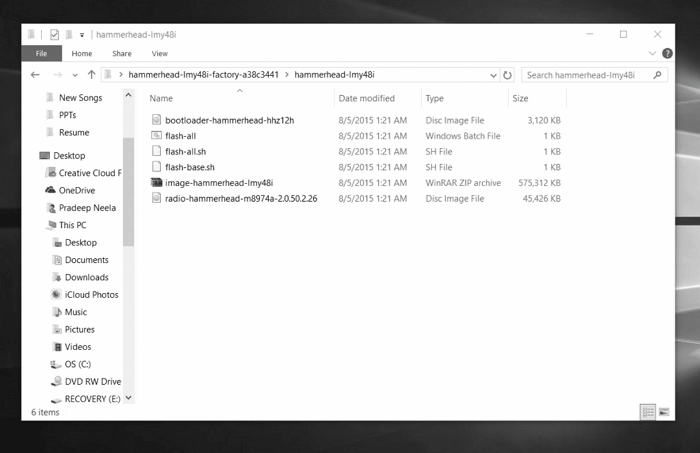
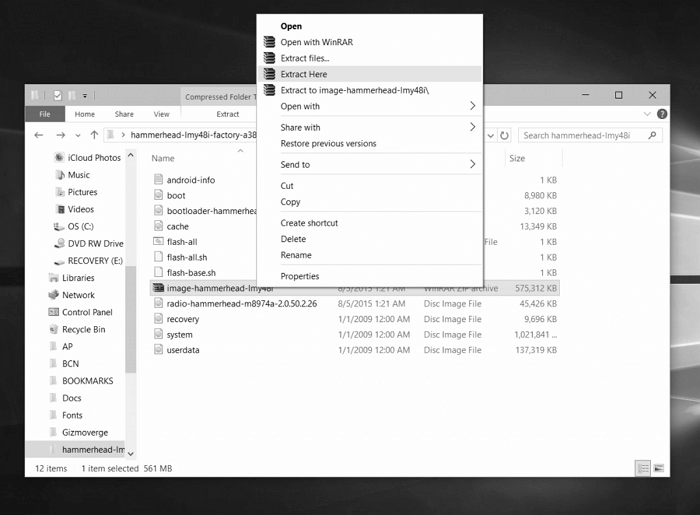
STEP 3. To extract the zip file, open the folder and follow the steps shown in the screen capture below.
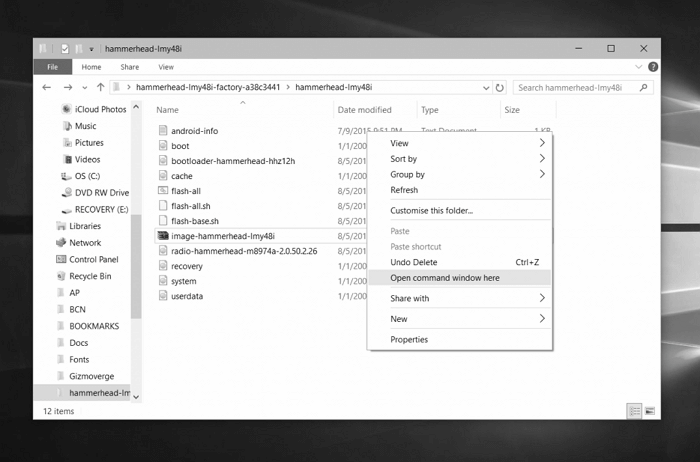
STEP 4. To access the Command Prompt on your Windows computer, press Shift + Right Click on the folder or directory you want to access, and select "Open Command Prompt here" from the context menu. This will open a Command Prompt window with the current directory set to the selected folder.
STEP 5. To enter bootloader mode on your Nexus device, turn it off, then press and hold the Volume Down button while powering it on with the Power button. This will allow you to access the bootloader mode.
STEP 6. Connect your device to a computer with the original USB cable and execute the below commands in sequence to downgrade the device to Lollipop OS.
fastboot flash recovery recovery.img
fastboot flash boot boot.img
fastboot flash cache cache.img
fastboot flash userdata userdata.img
fastboot flash system system.img
There are tutorials available to downgrade the Android OS on various devices, including Nexus devices, Samsung Galaxy S6 and S6 Edge, LG G3 and G4, and Moto G (2nd Gen), from Marshmallow to Lollipop.
Related Articles
- Recover Deleted Contacts & Messages from SIM Card
- Qiling MobiSaver for Android 5.0 with Crack Full Version
- Top 7 Best Android Data Recovery Software in 2022
- Recover Deleted Files from Samsung Galaxy S5
Products
Articles & Tutorials
- Data Recovery
- Data Backup
- File Recovery
- File Backup
- System Backup and Restore
- Disk and Partition Clone
- Technical articles
- Mobile articles
- Disk Master Help
- Windows Data Recovery Tutorials
- Windows Secure Delete Tutorials
- Windows Partition Management Tutorials
- Windows File Backup and Restore Tutorials
- Windows System Backup and Restore Tutorials
- Windows Disk Backup and Restore Tutorials
- Windows Clone Tutorials