How to Download Wistia Videos in 4 Ways
Quick Navigation:
- Method 1. Download Wistia Videos with a Video Downloader [Easy and Safe]
- Method 2. Download Wistia Videos without Any Tool
- Method 3. Download Wistia Video via an Extension
- Method 4. Download Videos from Wistia via an Online Wistia Downloader
- In Conclusion
Wistia is a user-friendly platform for creating, hosting, and sharing videos, offering a reasonable price point. However, despite its strengths, it has limitations, including not allowing users to save certain videos. If you're looking to save specific videos, you'll need to use some tips and tricks, which this guide will outline.
Method 1. Download Wistia Videos with a Video Downloader [Easy and Safe]
Using a desktop video downloader is recommended when downloading videos from Wistia, as opposed to online video downloaders. Desktop downloaders typically have a clear interface with no annoying ads and are less likely to be shut down for copyright issues, which often plague online downloaders. Additionally, desktop downloaders often come with extra features that can help streamline device management, making them a more convenient option.
To download videos from Wistia and other 1000 video-sharing websites, consider using Qiling MobiMover, a free video downloader that allows you to download videos directly to your device without any separate process. This software supports video downloads from popular platforms like Facebook, YouTube, and Instagram, making it a convenient tool for users.
To download Wistia videos, you can:
Step 1. Launch Qiling MobiMover, go to "Video Downloader" and select to download Wistia videos to your computer or mobile device.
Step 2. To download a Wistia video, you need to copy the URL of the video, paste it into the download bar, and then tap the "Download" button.
Step 3. Qiling MobiMover will quickly analyze the URL and download the Wistia video to the selected device, allowing you to enjoy it offline once the download is complete.
Method 2. Download Wistia Videos without Any Tool
The process of using this method is a little bit complex, but the good thing is that you don't have to use an extra tool. That means you can complete the whole process without downloading any third-party tools. Here are the steps to download Wistia videos without any tools.
Step 1. Open the video on a web browser on your computer.
Step 2. If you want to view the source of a webpage, you can press Ctrl+U on your keyboard. Alternatively, if the page is locked, you can try adding "view-source:" in front of the URL to view the source.
Step 3. To find a link that contains "embed/iframe/" or "embed/media/", look for a URL that resembles: https://fast.wistia.net/embed/iframe/c7n78uuycl?playerColor=FC1154. Press Ctrl+F to search.
Step 4. Copy the full link to a new tab and press Ctrl+U to view the source of this page.
Step 5. You can search for the first "https://" which ends with a ".bin" extension by using a search engine or a website's search function. This will help you find the first URL that meets the specified criteria.

Step 7. Copy and paste the link to a new tab and replace the ".bin" with ".mp4."
Step 8. To download a video, right-click on it and select "Save your video" or click the three dots and choose "Download" from the menu.

Method 3. Download Wistia Video via an Extension
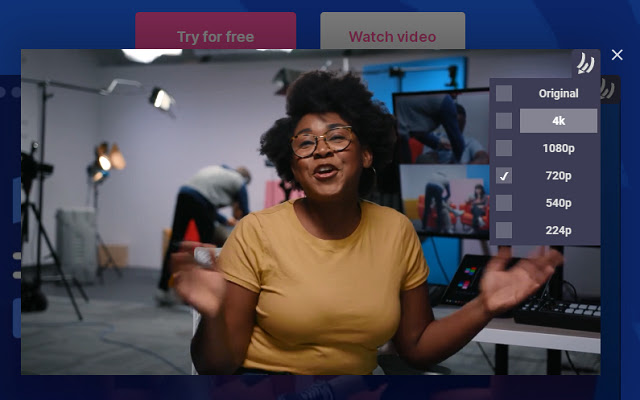
You can also download Wistia videos using the Wistia Video Downloader extension, which allows you to save videos without leaving the video page and even choose the resolution to download. This extension is easy to use, and you can add it to your Chrome browser to try it out.
Method 4. Download Videos from Wistia via an Online Wistia Downloader
Some online downloaders, such as TubeOffline, offer free Wistia video downloads, providing convenience and ease of use. These websites also often allow users to customize their downloads, such as changing the resolution or converting to audio. However, users should be cautious when using these services, as they may come with annoying ads that can potentially carry viruses.
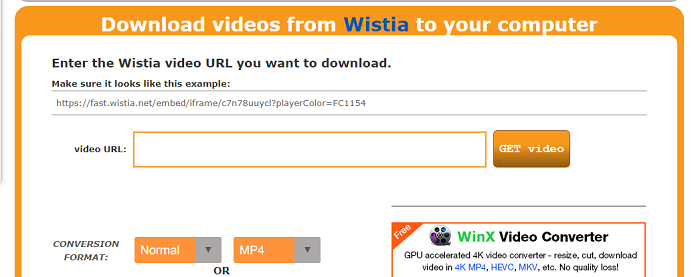
Note: To find the URL of a Wistia video, copy the URL from the browser's address bar after clicking on the video, or find it in the video's embed code. Make sure the URL looks like this: https://fast.wistia.net/embed/iframe/c7n78uuycl?playerColor=FC1154. If you're unsure, follow Steps 1-3 in Method 2 to locate the URL.
In Conclusion
You can download Wistia videos using various methods. Qiling MobiMover is a software that can download Wistia videos, as well as videos from YouTube, Twitter, and Facebook. If you don't want to use software, you can also use other methods such as copying the video link and pasting it into a browser, using a browser extension, or using a third-party website to download the video.
Related Articles
- How to Transfer Ringtone from iPhone 6/6s/7/8/X/XR/11/12 to Computer or iTunes
- 4 Free and Easy Methods to Delete All Music from iPhone
- Dynamic Disk Manager
Qiling Dynamic Disk Manager, a feature-rich dynamic volume management and powerful disk converter for Windows PCs and Servers. - How to Format an External Hard Drive with Reliable Software?
Free download powerful formatting tool to help you format an external hard drive excellently, easily and securely.
Products
Articles & Tutorials
- Data Recovery
- Data Backup
- File Recovery
- File Backup
- System Backup and Restore
- Disk and Partition Clone
- Technical articles
- Mobile articles
- Disk Master Help
- Windows Data Recovery Tutorials
- Windows Secure Delete Tutorials
- Windows Partition Management Tutorials
- Windows File Backup and Restore Tutorials
- Windows System Backup and Restore Tutorials
- Windows Disk Backup and Restore Tutorials
- Windows Clone Tutorials