How to Fix iOS 11 Flashlight Not Working on iPhone and iPad
Quick Navigation:
- 5 simple tips to fix flashlight not working on iOS 11 iPhone and iPad
- 1. Restart your iPhone
- 2. Reset All Settings
- 3. Update your iPhone to the latest iOS version
- 4. Restore your iPhone
- 5. Downgrade iOS 11 to iOS 10
Some iPhone users have reported that their camera and flashlight stopped working after updating to iOS 11. The flashlight button may appear faded and unresponsive, or it may be functional but not turn on when tapped. These issues are likely caused by software conflicts. Fortunately, there are some simple methods to resolve the problem, and we will outline five easy tips to fix the iOS 11 flashlight not working issue.
5 simple tips to fix flashlight not working on iOS 11 iPhone and iPad
Try these simple troubleshooting steps to fix the iOS 11 flashlight not working issue on your iPhone or iPad. Start by restarting your device, then reset all settings, update to the latest iOS version, restore your iPhone, or downgrade iOS 11 to iOS 10 as a last resort.
1. Restart your iPhone
Restarting your iPhone can fix common small problems caused by conflicts between the system and applications, such as notification issues, alarm not working, or screenshot problems.
To restart your iPhone, press and hold the sleep/wake button, and slide it off. Then, when you're ready to turn it back on, press and hold the sleep/wake button again.
2. Reset All Settings
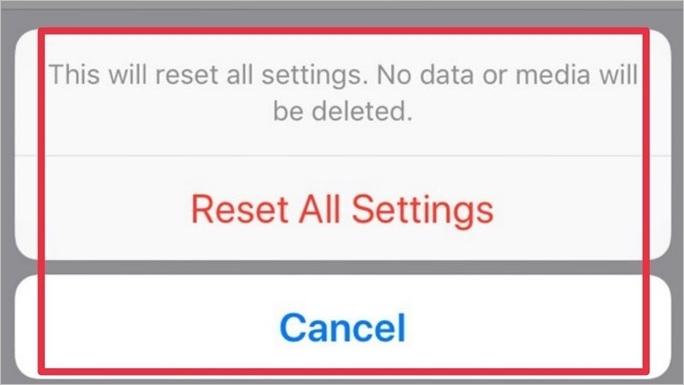
To reset all iPhone settings to their original option, go to Settings, General, tap on Reset, and choose Reset All Settings, which will restore the settings to their default state without deleting any documents, files, or installed apps.
To reset iPhone settings, go to Settings, then General, then Reset, and finally select Reset All Settings.
3. Update your iPhone to the latest iOS version
Apple has released iOS 11.0.3 to fix various bugs, including the issue of the flashlight not working, which can be resolved by updating to the latest system.
4. Restore your iPhone
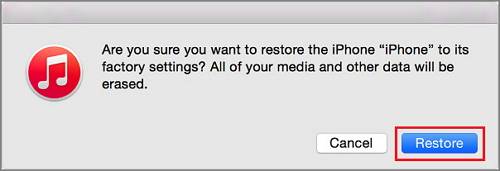
If all the above methods fail to resolve the iOS 11 flashlight not working issue, you can try restoring your iPhone to its factory settings using iPhonerestore. However, please note that this will result in data loss, so it's recommended to back up your iPhone data using a free iPhone data transfer software like Qiling MobiMover Free, which can export contacts, messages, notes, calendars, voice mails, books, Safari bookmarks & history, photos, videos, and audios to your computer. After restoring, you can use MobiMover Free to sync the backed up files back to your iPhone, including adding music to your iPhone without using iTunes.
To restore your iPhone with iTunes, download and install the latest version of the software, then connect your iPhone to the computer. Click on the "Summary" tab, followed by "Restore iPhone". Note that this process will erase all data on your iPhone, so make sure to back up your device before proceeding.
5. Downgrade iOS 11 to iOS 10
If you're fed up with the bugs in iOS 11, you have two options: either update to the latest version 11.01, which may resolve some issues, or downgrade to iOS 10, which is generally more stable and has fewer bugs. If you do decide to downgrade, it can be a bit tricky, but we have a detailed guide on how to do it, which you can find on our topic page.
Related Articles
- Notification Not Working in iOS 11 iPhone or iPad? Fixed Here!
- 10 Way to Fix OneDrive Not Syncing in Windows 10 or 11
This article introduces reasons and 10 solutions to OneDrive not syncing in Windows 7, 8, 10, and 11. So you can easily fix it and sync files! - How to Create QNAP to Dropbox Sync | 2 Free Tools
This tutorial provides two easy ways to perform QNAP to Dropbox sync. You can pick QNAP Cloud Drive Sync or free Qiling Disk Master to help you. - How to Sync My Documents with Network Folder Easily
Are you looking for an easy way to sync My Documents with network folder? Click on this article and learn the detailed steps to sync my documents.
Products
Articles & Tutorials
- Data Recovery
- Data Backup
- File Recovery
- File Backup
- System Backup and Restore
- Disk and Partition Clone
- Technical articles
- Mobile articles
- Disk Master Help
- Windows Data Recovery Tutorials
- Windows Secure Delete Tutorials
- Windows Partition Management Tutorials
- Windows File Backup and Restore Tutorials
- Windows System Backup and Restore Tutorials
- Windows Disk Backup and Restore Tutorials
- Windows Clone Tutorials