How to Transfer Photos from PC to iPhone 11/12/13 in 5 Ways
Transferring images from your PC to iPhone is a common task, whether it's for viewing photos, using them as wallpaper, or accessing maps. You can save your photo library in Apple's Photos app on your Mac and sync them to your iPhone. If you're a PC user, you'll need to explore alternative methods to transfer photos from your PC to your iPhone 11, XS, XR, X, or 8.
This article shows you five ways to send photos from your computer to your iPhone with or without iTunes, and the same method can also be applied to transfer photos from your iPhone to your PC if needed.
- Safe Way to Transfer Pictures from PC to iPhone without Data Loss [Recommended]
- Sync Photos from PC to iPhone 11 via iTunes [New iPhone]
- Sync Pictures from PC to iPhone 11 via iCloud Automatically
- Send Photos from PC to iPhone via Cloud Storage [Paid]
- Transfer Small Number of Pictures from PC to iPhone via Email
Method 1. Safe Way to Transfer Pictures from PC to iPhone without Data Loss [Recommended]
To protect your data from erasing when syncing iTunes, we recommend using Qiling MobiMover, a reliable iOS data transfer software that allows you to transfer data between iOS devices or between an iOS device and a computer without data loss. This software supports selectively moving photos and videos from a computer to an iPhone or iPad, making it a convenient and data-safe option for syncing your device.
- The platform supports transferring a wide range of data, including photos, videos, audio files, contacts, messages, and more.
- Qiling MobiMover allows you to access and manage iPhone content from your computer, making it easy to transfer files, backup data, and more.
- The app allows users to download videos from various websites, including YouTube and Vimeo, directly to their iOS devices.
Step 1. Connect your iPhone to your PC running Windows 7 or later, launch Qiling MobiMover, select "PC to Phone" on the main interface, and choose "Select Files" to continue.
Step 2. With MobiMover, you can transfer photos from your PC to your iPhone, as well as other data types, by selecting the files and clicking the "Open" button to load them.
Step 3. MobiMover will display the selected files on the screen. If any files are missed, you can click "Add Contents" to import them. Once all files are selected, click the "Transfer" button to initiate the transfer process.
Method 2. Sync Photos from PC to iPhone 11 via iTunes [New iPhone]
While iTunes is the default tool for transferring photos from a computer to an iOS device, it's not user-friendly for many users, as it will erase existing data on the iPhone. However, if you're buying a new iPhone and need to transfer files from your computer to it, you can follow these steps, making sure to turn off iCloud Photos on your iPhone beforehand.
Step 1. To transfer photos from your iPhone 11 to your computer, connect the phone to the computer using a USB cable. Then, open iTunes on your computer and click on the "Device" button.
Step 2. To transfer photos and videos from your old device to your new one, go to the "Sync Photos" option and select the photos and videos you want to transfer from the "Copy photos from" option.
Step 3. Click "Apply" to start syncing photos to the iPhone.
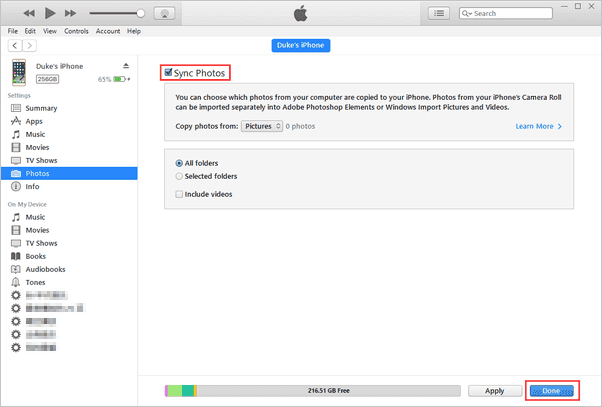
- Notice:
- To ensure that you have the latest version of iTunes installed on your computer, open iTunes, click on the "Help" menu, select "Check for Updates," and if an update is available, click on the "Update" button to download and install the latest version. Once the update is complete, restart your computer to ensure that the new version of iTunes is properly installed.
Method 3. Sync Photos from PC to iPhone via iCloud Automatically
If you've ever made a backup to iCloud, you can sync photos from your computer to your iPhone 11 via iCloud in two ways.
1. If you've had iCloud for Windows installed on your computer, you can easily transfer photos from your computer to your iPhone by enabling iCloud Photos on your iPhone. This allows your iPhone to sync with your computer's iCloud Photos, making it simple to transfer photos from your computer to your iPhone. Simply go to your iPhone's Settings, tap on your name, tap on "iCloud," and toggle on "iCloud Photos.
Step 1. On your iPhone 11, go to Settings > [your name] > iCloud, and enable "iCloud Photos" to sync your Windows iCloud photos to your iPhone.
Step 2. To set up iCloud Photo Library on your computer, open iCloud for Windows, click on "Options" next to Photos, and select "iCloud Photo Library" and "Upload new photos and videos from my PC" to enable automatic photo syncing. You can also choose the folder that contains the photos you want to move to your iPhone or iPad by clicking "Change".
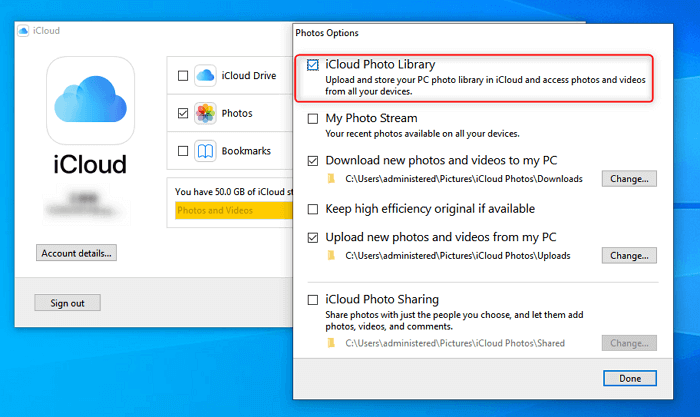
- Notice:
- The iCloud for Windows application requires a Windows 10 or higher version to run.
2. If you don't want to download Windows for iCloud on your computer, you can transfer photos from your PC to iCloud.com, and then sync them to your iPhone by enabling "iCloud Photos" on your device.
Step 1. To enable iCloud Photos on an iPhone 11, go to Settings, tap on your name, select "iCloud," then choose "Photos," and finally toggle the switch next to "iCloud Photos" to the "on" position.
Step 2. On your computer, open iCloud.com and enter your Apple ID and password.
Step 3. To upload photos from your PC to iCloud, go to the "Photos" section, click the "Upload photos" button in the top right corner, and select the images you want to transfer to iCloud.
Step 4. All photos and videos will be synced to your iPhone when there is Wi-Fi available.
- Notice:
- Apple offers 5GB of free iCloud storage, which can quickly fill up for users who sync many photos and videos to their iPhone or iPad. To expand storage, users can purchase an additional 50GB of iCloud space for $0.99 per month.
Method 4. Send Photos from PC to iPhone 11 via Cloud Storage [Paid]
You can also transfer photos from PC to iPhone using services like Google Drive, OneDrive, and Dropbox, although some may incur additional costs for uploading and downloading. For example, with Google Drive, you can upload your photos to your Google Drive account on your PC, and then access them on your iPhone using the Google Drive app.
Step 1. To upload photos to Google Photos, open the website https://photos.google.com/ on your computer, log in with your account, create a new album, and then select photos from your PC to upload.
Step 2. To set up Google Photos on your iPhone 11 or iPad, go to the App Store, install Google Photos, and log in with the same account you use on your computer.
Step 3. After syncing photos to Google Photos, they can be downloaded on your iPhone 11, iPad, or other iOS devices.
Method 5. Transfer Small Number of Photos from PC to iPhone via Email
Transferring photos from a computer to an iPhone 11 can be done quickly and easily via email, but this method is best suited for small numbers of images. If you have a large collection of photos and videos, it's more efficient to connect your iPhone 11 to the computer and transfer them using a tool like Qiling MobiMover.
The Bottom Line
You can quickly transfer photos from your PC to your iPhone 11, XS, XR, X, or 8 by using the methods mentioned above, which include using a USB cable, iCloud, or a third-party app. This allows you to easily move your photos from your computer to your iPhone, making it a convenient and efficient process.
- Qiling MobiMover allows users to transfer data from their computer to an iPhone 11 without any risk of data loss, providing a safe and reliable experience.
- iTunes is easy to use but might cause data loss.
- iCloud and Drive Service allow for easy data transfer between devices without needing a computer, but they have the drawback of limited storage space and additional costs for uploading and downloading.
- Email is a more convenient option for transferring a small number of photos.
Related Articles
- 3 Tips | How to Transfer Contacts From iPhone to PC without iTunes
- How to Batch Convert HEIC to JPG in 4 Ways
- How to Transfer iMessage to a New iPhone or iPad with/Without iCloud
- 3 Ways to Fix Windows Won't Install on SSD or HDD
There are 3 situations where Windows 11/10/8/7 won't install on SSD. Learn the step-by-step guide to make it right.
Products
Articles & Tutorials
- Data Recovery
- Data Backup
- File Recovery
- File Backup
- System Backup and Restore
- Disk and Partition Clone
- Technical articles
- Mobile articles
- Disk Master Help
- Windows Data Recovery Tutorials
- Windows Secure Delete Tutorials
- Windows Partition Management Tutorials
- Windows File Backup and Restore Tutorials
- Windows System Backup and Restore Tutorials
- Windows Disk Backup and Restore Tutorials
- Windows Clone Tutorials