How to Turn off Screen Time on iPhone/iPad
Quick Navigation:
- Part 1. How to Set up Screen Time on iPhone/iPad
- Part 2. How to Turn Off Screen Time
- Method 1. Turn Off Screen Time without Password using Qiling MobiUnlock
- Method 2. Turn Off Screen Time with Passcode
- Wrap Up
Apple's Screen Time feature helps users understand how much time they spend on their screens and limits access to certain apps and services. It also serves as a parental control tool, allowing parents to schedule downtime, set time limits for apps, and block inappropriate content for their children.
To set up Screen Time on an iOS device, go to Settings, then Screen Time, and tap "Turn On Screen Time". From there, you can set a daily time limit for specific apps, set a schedule for when apps can be used, and turn off apps during certain times of the day.
Part 1. How to Set up Screen Time on iPhone/iPad
To set Screen Time for yourself or your child, you can do so within the Settings app. This feature allows you to monitor and control the time spent on your device, setting limits and restrictions on certain apps or activities. You can access Screen Time by going to Settings > Screen Time, where you can view your usage history, set time limits, and schedule downtime.
How to set up Screen Time on your iPhone
Step 1. To access Screen Time settings on your iPhone or iPad, go to Settings and tap on "Screen Time".
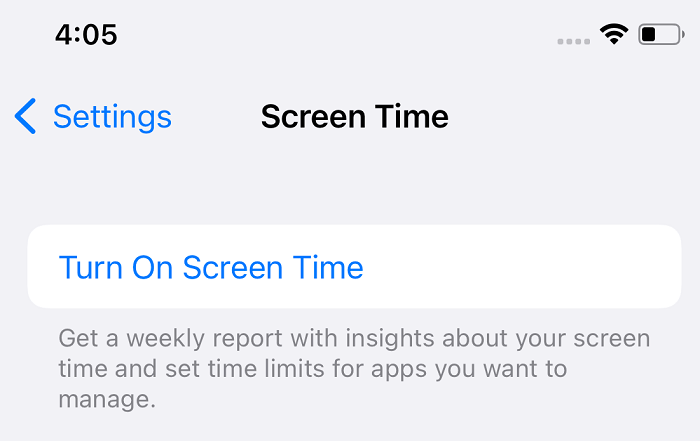
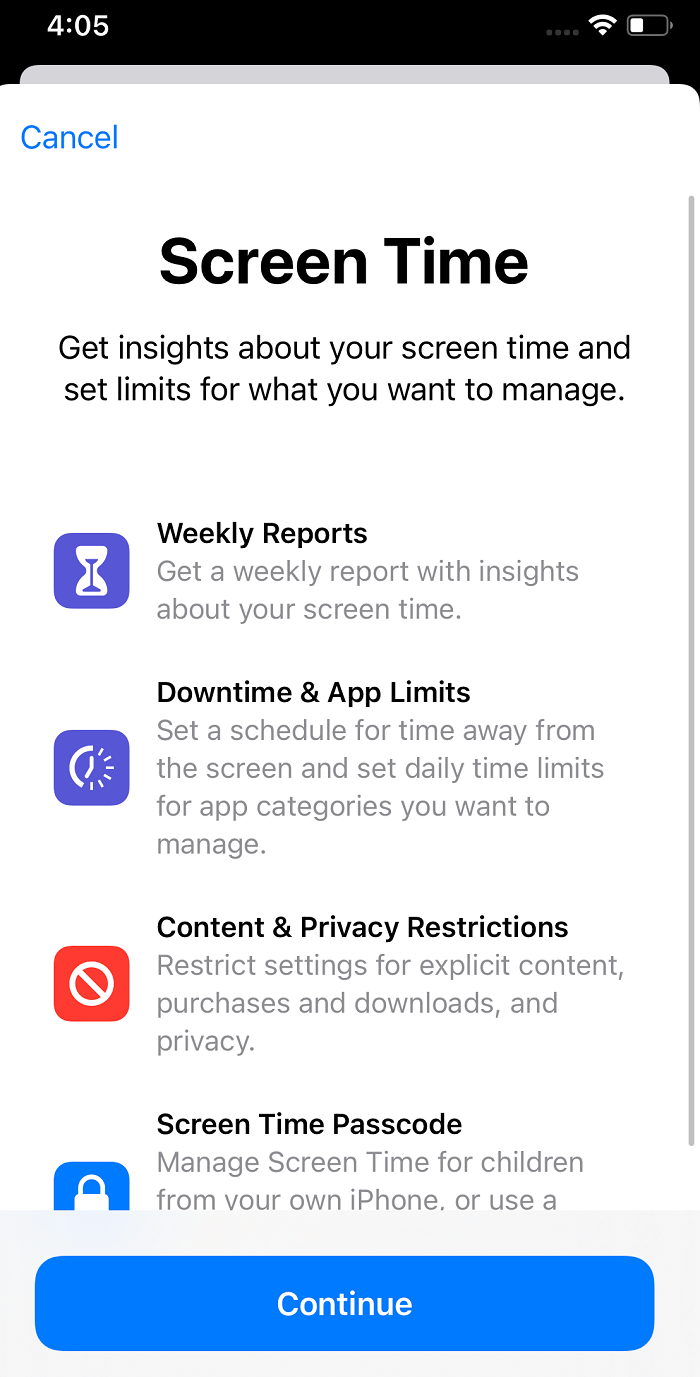
Step 2. To enable Screen Time, tap on "Turn On Screen Time" and follow the on-screen instructions. When prompted, select "This is My iPhone" or "This is My iPad." This will enable Screen Time. You can then set up specific restrictions, such as Downtime and App Limits, by navigating through the menu.
Step 3. To set up a passcode for Screen Time, go to Settings, select Screen Time, and choose "Use Screen Time Passcode". Enter and confirm your desired passcode, then enter your Apple ID and password to complete the setup. This adds an extra layer of security to prevent unauthorized changes to your Screen Time settings.
How to set up Screen Time on your child's iPhone
If you want to set up Screen Time for your child, the process is slightly varied. Let's check it below.
Step 1. To access the Screen Time settings on your iPhone or iPad, navigate to the Settings app, then select the "Screen Time" option.
Step 2. To start, tap on "Turn On Screen Time" and then select "Continue" and "This is My Child's iPhone" to begin the process.
Step 3. You can set up Screen Time on your device by tapping "Set Up Screen Time" and then following the prompts. You'll be asked to set downtime and app limits for the device, but you can skip this step for now and set it later in Settings. Tap "Continue" and create a Screen Time passcode, then confirm it by entering it again. Finally, you'll need to enter your Apple ID and password to complete the setup process.
Step 4. Now that Screen Time is set on the device of your child, you can set the limits for your child in Screen Time.
Step 5. To change the Screen Time passcode, go to Settings > Screen Time > [Your Name] > Password. Enter your current passcode, then tap "Change Screen Time Passcode". You'll be prompted to enter a new passcode and confirm it.
Part 2. How to Turn Off Screen Time
To turn off Screen Time limits on a device, go to the Settings app, select Screen Time, and toggle off the feature. If you've forgotten the Screen Time passcode, you can retrieve it by entering the Apple ID password used when setting up the passcode. If you're unable to remember your Apple ID password and can't reset it in time, consider using a third-party tool to bypass Screen Time.
Method 1. Turn Off Screen Time without Password using Qiling MobiUnlock
Qiling MobiUnlock is a helpful tool that can turn off Screen Time when you forget your passcode and can't reset it, deleting your passcode and disabling the feature.
Key features of Qiling MobiUnlock:
- If you've forgotten your iOS screen password, you can regain access to your device by using the built-in feature called "Forgot Passcode" or by connecting your device to a computer and using iTunes or Finder. If you've enabled two-factor authentication (2FA) or Face ID/Touch ID, you may need to wait 60 minutes before trying again.
- Sign out of Apple ID without password
- Remove Find My iPhone without Apple ID
- Remove Screen Time password to turn off Screen Time
- Delete iTunes backup encryption password
- Find saved passwords on iPhone
Step 1. Start Qiling MobiUnlock on your PC, then connect your iPhone to the PC with a USB cable. If asked, trust this computer on your device screen. Next, choose "Unlock Screen Time Passcode" to continue.
Step 2. Qiling MobiUnlock will recognize your iPhone/iPad and display its model. Click "Unlock Now" to proceed.
Step 3. To disable "Find My iPhone" or "Find My iPad" on your iOS device, go to the "Settings" app, tap on your name at the top of the screen, and select "Sign Out" from the menu. Tap on "Sign Out" again to confirm, and your device will be disconnected from your iCloud account, disabling the "Find My" feature. If you want to reactivate it, you can sign back into your iCloud account and toggle the feature back on.
Step 4. After using Qiling MobiUnlock, it will remove the Screen Time passcode and disable Screen Time on your iPhone. Once the process is complete, follow the on-screen instructions to set up your iPhone, and you'll find that Screen Time is no longer enabled in your Settings.
If you're unable to change your Apple ID, you can refer to this guide about how to change your Screen Time passcode if you forgot it. Then, you can follow the steps in the next part to disable Screen Time.
Method 2. Turn Off Screen Time with Passcode
If you remember your screen password, the steps to get rid of Screen Time on your iPhone or iPad will be much simpler. Here we go.
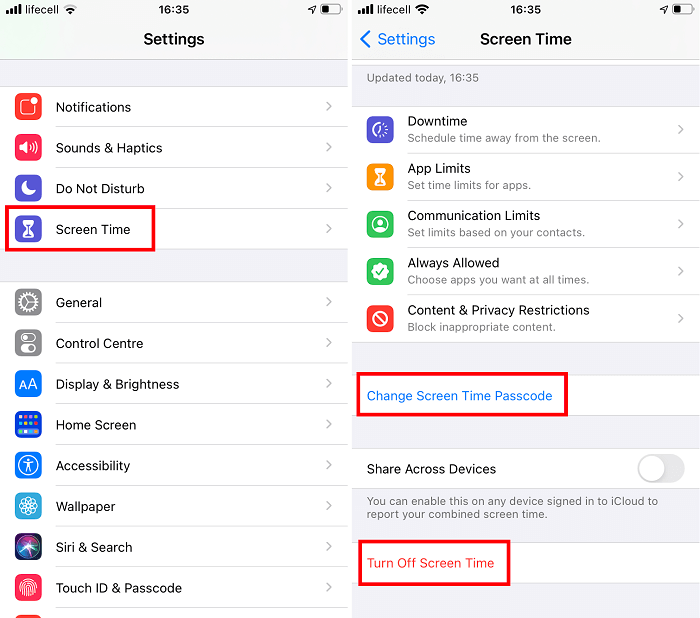
Step 1. Go to Settings > Screen Time.
Step 2. To turn off Screen Time, tap the "Turn Off Screen Time" option and enter your Screen Time passcode.
Step 3. To disable Screen Time on an iOS device, tap on "Turn Off Screen Time" again to confirm, which will disable the feature and remove restrictions from the device.
Wrap Up
We've shown you how to set up and turn off Screen Time, but it's equally important to learn how to put your iPhone away. As a useful tool, Screen Time can help you develop new habits and shape your life, so once you've reached your destination, you can turn it off and take a break.
Related Articles
- How to Factory Reset an iPhone Without a Computer
- Bootrec Fixboot Element Not Found in Windows 7, 8, 10- Fixed
Windows start problem has not been solved and the bootrec fixboot element not found error has arisen. You must be very upset. Click on this article and learn to fix it. - Best Free Cobian Backup Alternative
Are you looking for a free and reliable backup software as Cobian Backup alternative? Keep reading to get what you need. - Computer Won't Start after Windows Update
Is it urgent to solve the problem that the computer won't start after Windows update? Here are 5 quick fixes that can help you.
Products
Articles & Tutorials
- Data Recovery
- Data Backup
- File Recovery
- File Backup
- System Backup and Restore
- Disk and Partition Clone
- Technical articles
- Mobile articles
- Disk Master Help
- Windows Data Recovery Tutorials
- Windows Secure Delete Tutorials
- Windows Partition Management Tutorials
- Windows File Backup and Restore Tutorials
- Windows System Backup and Restore Tutorials
- Windows Disk Backup and Restore Tutorials
- Windows Clone Tutorials