How to Unlock an iPhone Without Passcode
Quick Navigation:
- Part 1. How to Unlock Any iPhone with Qiling MobiUnlock
- Part 2. How to Unlock iPhone Running iOS 8.0 to iOS 13 with Siri
- Part 3. How to Unlock Any iPhone with iTunes
- Part 4. How to Unlock Any iPhone with iCloud
- Part 5. Unlock Your iPhone with a Different Network Provider or Carrier
- The Final Words
To unlock your iPhone, first determine if you need to unlock a carrier or network, or remove a passcode. If you're locked out without a passcode, use a third-party service, iTunes, or iCloud. If locked to a carrier, use different solutions. Regardless, follow these steps to unlock your iPhone with ease.
Part 1. How to Unlock Any iPhone with Qiling MobiUnlock
Whether you want to unlock an older iPhone model like iPhone 5s, 6, 6s, and earlier or the latest iPhone models like iPhone 12, 11, XR, Qiling MobiUnlock can help you regain access to your locked device without hassle. This comprehensive iPhone lock remover can handle tasks like unlocking iPhone, removing the SIM lock, and bypassing the screen lock, making it a reliable solution for iPhone users who need to unlock their device.
- Fix a disabled iPhone/iPad/iPod touch
- Bypass passcode from iPhone
- Erase/wipe an iOS device without a passcode
- Factory reset an iPad without a passcode
To unlock your iPhone within minutes, download an iPhone unlocker on your computer and follow the instructions provided. This software can help you unlock your iPhone quickly and easily, allowing you to use it without any restrictions.
Step 1. Open Qiling MobiUnlock on your computer, select "Unlock Screen Passcode."
Step 2. Connect the iPhone, iPad, or iPod to the computer, and then click "Start" to begin the process.
Step 3. Check your device model and click "Next" to download the latest version of firmware for your device, or select the package if it has already been downloaded.
Step 4. After the verification process is finished, click on "Unlock Now". A warning window will appear, requiring you to enter the necessary information, and then click "Unlock" again to successfully unlock your iPhone, iPad, or iPod without a passcode.
Step 5. Once the tool has reset your device, you can set up and use your device again.
Part 2. How to Unlock iPhone Running iOS 8.0 to iOS 13 with Siri
While there are common solutions, such as Siri, that can unlock an iPhone running iOS 8.0 to iOS 13, they involve lengthy and complex steps, which may lead to failure if not executed correctly. Therefore, using Siri to unlock the device is not recommended for those who value convenience and don't want to spend too much time unlocking their iPhone.
But if you stick to Siri, you can follow these steps to unlock your device.
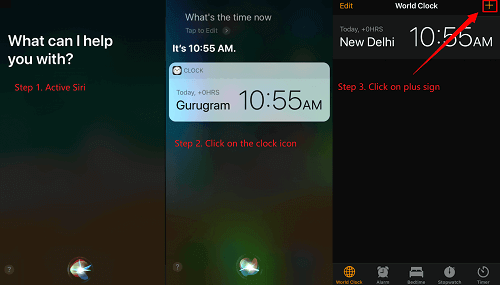
Step 1. To activate Siri on your locked iPhone, simply long press the Home button. This will initiate the voice assistant and allow you to interact with it.
Step 2. To open the iOS clock functionality, you can ask Siri “What time is it?” or use the built-in Clock app on your device. To do this, go to your home screen, find the Clock app, and tap on it to open it.
Step 3. To add a new clock, tap the clock icon and then tap the "+" icon.
Step 4. You can type any city name you want, and it will give you the current weather for that city. For example, if you type "Paris", it will give you the current weather in Paris.
Step 5. Double-tap on the gibberish you write and choose "Select All."
Step 6. Tap on the "Share" option from the menu displayed by your device.
Step 7. To open the Message app, select the Message icon from the share window.
Step 8. To send a message, tap anything in the "To:" field and tap the return button on the keyboard.
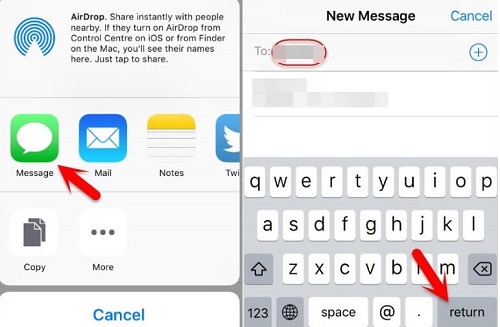
Step 9. To share a highlighted text, tap on the "+" icon that appears next to it. You will see a menu with options to share via messaging, email, or other apps.
Step 10. A new window will appear. Just choose "Create New Contact."
Step 11. On a new screen, tap on "Add Photos" and then "Choose Photos".
Part 3. How to Unlock Any iPhone with iTunes
Restoring your iPhone from iTunes allows you to unlock your device by removing all content and settings, including your passcode. If you've backed up your device, you can restore from the backup, ensuring no data loss. However, if you haven't made a backup, you'll lose everything on your iPhone.
To unlock your iPhone with iTunes:
Step 1. Put your iPhone in recovery mode.
To put your iPhone in recovery mode, the steps may vary depending on the specific model of your iPhone. You can check Apple's official website for instructions on how to put your device in recovery mode.
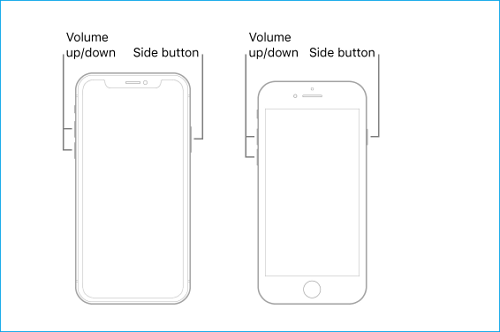
Step 2. Restore your iPhone.
After putting your iPhone in recovery mode, connect it to the computer. A popup window will appear saying there's a problem that requires a restore. Select "Restore" to erase the iPhone.
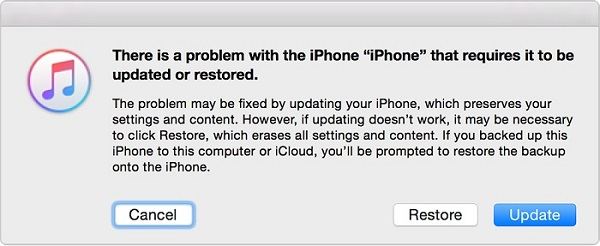
Step 3. Set up your device.
Once the setup process is complete, you can follow the on-screen instructions to set up and start using your device.
Part 4. How to Unlock Any iPhone with iCloud
You can also use iCloud to erase your content and settings and restore your iPhone to factory settings, but ensure that you have backed up your data beforehand using iCloud.
- The Find My iPhone feature has been enabled on your iPhone, which means that if your device is ever lost or stolen, you can use the Find My iPhone app on another device to locate it on a map, remotely lock or erase it, and even play a sound to help you find it. This feature also helps protect your personal data and prevents unauthorized access to your device.
- There is a stable internet connection on your locked device
- Your iPhone is fully charged
To unlock your iPhone via iCloud:
Step 1. To access your iCloud account on a computer, open icloud.com on your computer's web browser. Alternatively, you can also open the Find My app on another iPhone or iPad.
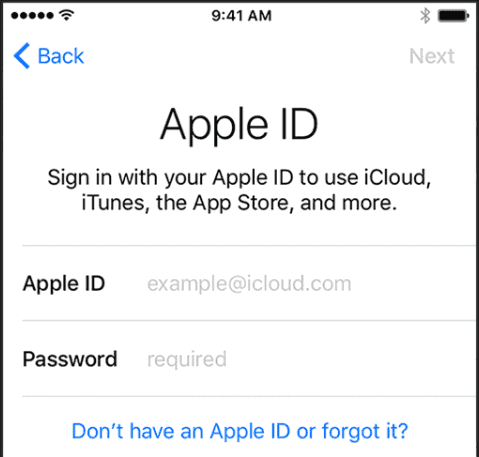
Step 2. Sign in to your iCloud account with your Apple ID and password.
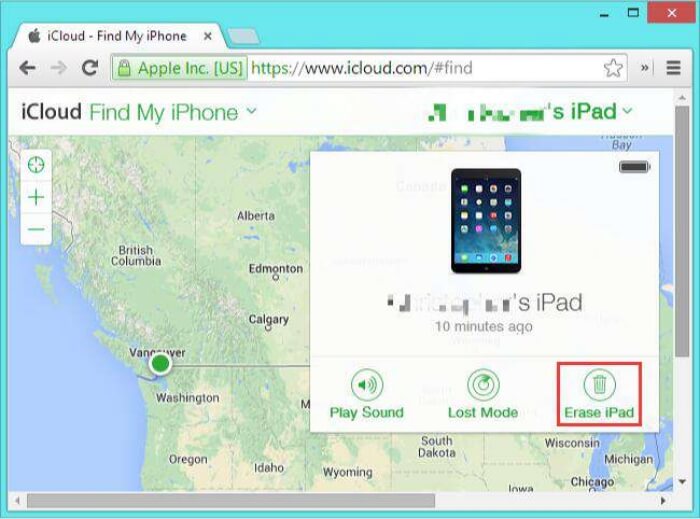
Step 3. To restore your device, click on "All Devices" at the top of your browser window and select the device you want to restore.
Step 4. Click "Erase [device]" to erase your passcode.
Step 5. To set up your iPhone and restore it from an iCloud backup, start by turning on your device and following the on-screen instructions to select your language, country or region, and Wi-Fi network. Next, tap "Restore from iCloud Backup" and sign in with your Apple ID and password.
Part 5. Unlock Your iPhone with a Different Network Provider or Carrier
If your device is locked to a carrier, contact your carrier to unlock it. They'll need you to meet their requirements, which may take a few days. Once unlocked, you can insert a new SIM card or back up your device, erase it, and restore from the backup if you don't have a new SIM.
The Final Words
For many iPhone users, it's a frustrating experience to deal with a locked device, requiring significant time and effort to find solutions to unlock it. Fortunately, with the methods outlined above, users can regain access to their iPhone. If you have any questions, feel free to ask.
Related Articles
- How to Backup Using Seagate Backup Plus Drives [OS & Files]
This article tells you how to backup using Seagate Backup Plus drive with built-in Seagate Toolkit, and alternative software with less limitations. - How to Retrieve Files from WD Passport Efficiently? (3 Ways)
How to retrieve files from WD Passport? Refer to this essay and solve this problem with three utilities - WD SmartWare, Recoverit Pro and Qiling Disk Master Standard. - Workaround: Initialize Disk MBR or GPT without Losing Data
This article tells how to initialize disk MBR or GPT without losing data when it becomes 'Not Initialized' accidentally. Also, it introduces how to protect data easily in the future. - Solved: Kingston SSD Toolbox Not Detecting SSD in Windows 10
How to deal with the problem of Kingston SSD Toolbox not detecting SSD? The best backup software – Qiling Disk Master Standard can give you a hand.
Products
Articles & Tutorials
- Data Recovery
- Data Backup
- File Recovery
- File Backup
- System Backup and Restore
- Disk and Partition Clone
- Technical articles
- Mobile articles
- Disk Master Help
- Windows Data Recovery Tutorials
- Windows Secure Delete Tutorials
- Windows Partition Management Tutorials
- Windows File Backup and Restore Tutorials
- Windows System Backup and Restore Tutorials
- Windows Disk Backup and Restore Tutorials
- Windows Clone Tutorials