How to Unlock iPad without Passcode with or without Computer [Updated]
If you set a strong password for your iPad, it may be difficult to remember, increasing the likelihood of forgetting it. If you repeatedly enter the wrong password, you may get locked out of your iPad, but don't worry, there are five solutions that can help you regain access within a few minutes, whether you have a computer or not.
- Part 1. How to Unlock iPad with Computer
- Solution 1. Easy and Quick Way to Unlock iPad without Passcode
- Solution 2. Unlock Disabled iPad without Passcode via iTunes
- Solution 3. Remove iPad Passcode via DFU Mode
- Part 2. How to Unlock iPad without Passcode or Computer
- Solution 1. Bypass iPad Passcode via Siri [for iOS 8 to iOS 10.1]
- Solution 2. Remove iPad Passcode via iCloud
Part 1. How to Unlock iPad with Computer
If you need to unlock your iPad with a computer, there are both easy and complex methods available. You can choose the most suitable approach based on your needs, and similar solutions can also be applied to unlock an iPhone without a password.
| Solutions | Pros | Cons | Ease of Use | Steps |
|---|---|---|---|---|
| MobiUnlock | Fast and easy | Need to install a program | Simple | Launch Qiling > Select an iOS version of your device...full steps |
| iTunes | Good integration with iOS device | Erase all settings and data; Running slowly | Medium | Install iTunes > Connect your iPad to the computer...full steps |
| Recovery Mode | Useful | Erase all settings and data | Complex | Install iTunes > Turn off your device...full steps |
Solution 1. Quickest Way to Unlock iPad Passcode Without Data Loss
Using Qiling MobiUnlock is the safest and fastest way to unlock your iPad without a passcode. This powerful tool can remove all iPad contents, including the passcode, at an extremely high speed and is compatible with all iOS devices, including iPhone, iPad, and iPod touch. The unlock process is easy - simply install Qiling MobiUnlock on your computer, press the unlock button, and your iPad passcode will be removed immediately.
You can download Qiling MobiUnlock to remove your iPad password.
Step 1. Open Qiling MobiUnlock on your computer, connect your device, and select "Unlock Screen Passcode" from the home page to proceed with the screen lock removal process.
Step 2. Once Qiling MobiUnlock recognizes your device, click "Start" to proceed.
Step 3. Check your device model and click "Next" to download the latest firmware version for your device. If you've downloaded the firmware before, you can click "Verify" to continue.
Step 4. After the firmware verification is complete, click "Unlock Now". This will prompt a warning screen where you need to enter the required information. Once you've entered the necessary details, click the "Unlock" button.
Step 5. To unlock your iPhone or iPad, press and hold the Sleep/Wake button on the top right side of the device. If you have Face ID, lift your face towards the camera.
Solution 2. Unlock Disabled iPad via iTunes
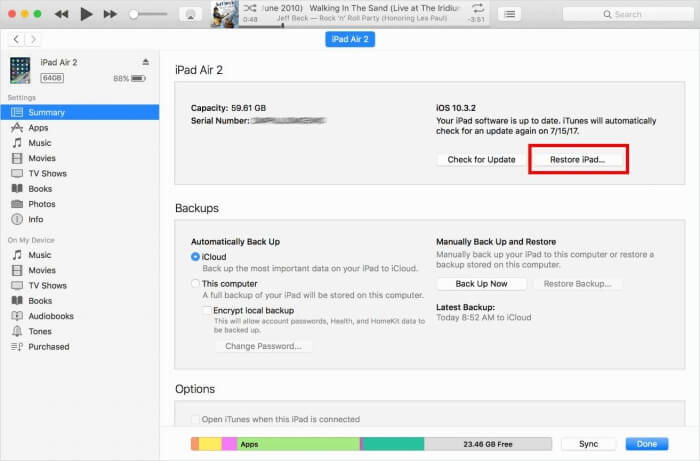
To unlock your iPad via iTunes, first, connect your iPad to the computer with which you synced it. Open iTunes on the computer and select your iPad from the top left corner. Click "Summary" and then click "Restore iPad" to restore your iPad to its factory settings. This will erase all data and settings on your iPad, including the passcode. Once the restore process is complete, you can set up your iPad as new and create a new passcode. This method allows you to bypass the iPad password, but it will result in data loss.
Step 1. Installed the latest iTunes on your computer > Launch it.
Step 2. Connect your iPad to the computer.
Step 3. To access the iTunes interface, click on your phone icon at the upper left corner of the screen.
Step 4. To restore an iPad, go to the left panel and select "Summary". Then, click on "Restore iPad" in the right panel.
Step 5. To confirm your option, tap on "Done" and it will start restoring.
If you find yourself unable to access your Apple account due to it being disabled or locked, you can refer to the guide on why your Apple account is disabled for assistance.
Solution 3. Remove iPad Passcode via DFU Mode
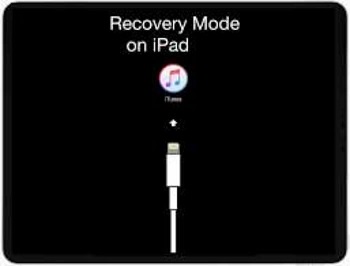
To remove the iPad passcode, put it into recovery mode, which will wipe out everything on the iPad, and then you can restore it from a backup or set it up as new. This method can also be useful in other situations like installing an update or resolving a device lock due to excessive passcode attempts.
Step 1. To get started, download and install the latest version of iTunes on your computer. This will ensure that you have the most up-to-date software for managing your digital media.
Step 2. Turn off your iPad and put it into recovery mode. The method to do this may vary slightly depending on your iPad model.
iPad models with Face ID: Quickly press and release the "Volume Up" button, then the "Volume Down" button, and finally hold the "Top" button until your device restarts and enters recovery mode.
iPad with Home button: To enter recovery mode on an iPhone, press and hold the Home button and the Top (or Side) button at the same time until the recovery-mode screen appears. Keep holding them until you see it.
Step 3. After that, you will see the option to "Restore" or "Update", choose Restore.
Step 4. After the restore is complete, you can set up your device as new.
Part 2. How to Unlock iPad without Passcode or Computer
You can unlock an iPad without a passcode and computer using two options, but it's a good idea to weigh the pros and cons of each method first.
| Solutions | Advantages | Disadvantages | Steps |
|---|---|---|---|
| Siri | Convenient and easy; No data loss |
The app only supports iPads running iOS 8 to iOS 10.1. |
To activate Siri, hold down the Home button on your iPhone. Once activated, you can ask Siri to open an app by saying "Open [app name]" or "Launch [app name]". For example, you can say "Open Safari" or "Launch Instagram" to open the respective app.full steps |
| iCloud | Support remotely unlock iPad | Internet is needed; Erasing all settings and data on iPad | Go to iCloud.com > Login with your Apple ID and password... full steps |
Solution 1. Bypass iPad Passcode via Siri without Data Loss [ for iOS 8 to iOS 10.1]
This solution allows you to bypass your iPad password without a computer, but it only works for iOS devices running from iOS 8 to iOS 10.1. The success rate is not high, but it's still worth a try.
Step 1. To activate Siri, hold down the "Home" button on your iPhone for a few seconds. However, asking Siri to open an app that doesn't exist on your device will not work as intended. Siri will not be able to open a non-existent app.
Step 2. Siri will inform you that the app does not exist, and then display the App Store icon to allow you to search for the app.
Step 3. To download or update an app on an iPhone, tap the App Store icon, and a window will appear where you can choose to download a new app or update other apps. Alternatively, you can also complete this process by double pressing the Home button.
Step 4. Once the preview appears, close the active front screen task, and you have already unlocked your device.
Solution 2. Remotely Bypass iPad without Passcode via iCloud
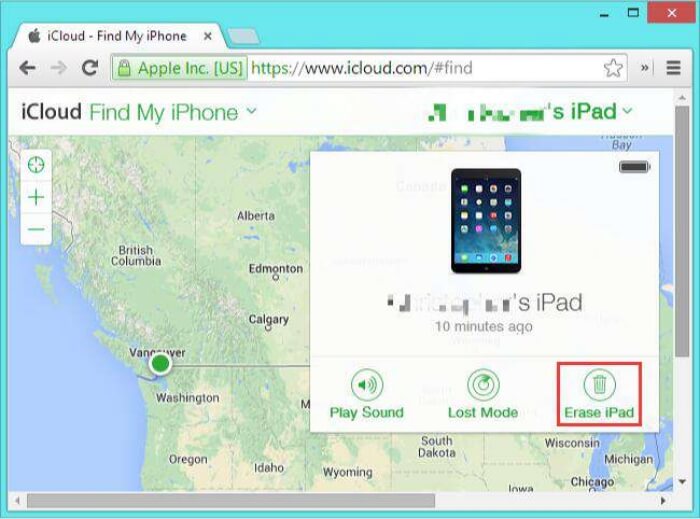
You can also remove your iPad passcode without a computer using Apple's iCloud service. To do this, link your iPad to your iCloud account and enable the "Find My iPad" feature via iCloud.com. This allows you to unlock your iPad remotely, eliminating the need to access a computer.
Step 1. To access your iCloud account, go to iCloud.com from any device, then log in with your Apple ID and password.
Step 2. Select "Find My iPhone" from the Apple ID account page, then tap on "All Devices" and choose your device.
Step 3. To erase an iPad, select the "Erase iPad" option, which will initiate the wiping process of all files on the device.
Conclusion
You can unlock your iPad without a password using several easy methods. These include using Face ID, Touch ID, or a passcode, as well as using Siri to unlock it. Each method has its own advantages and disadvantages, so you can choose the one that best suits your needs.
We recommend using Solution 1 from part 1, which can protect your device from viruses and bypass the passcode with a single click. This method is more reliable than using iTunes, which can be user-unfriendly and prone to crashing. If you don't have access to a computer, you can also try unlocking your iPad using iCloud or Siri.
Related Articles
- Why Is My Apple lD Locked or Disabled? Here Is How to Fix It
- How to Remove iCloud from iPhone with or Without Password
- 3 Simple Ways to Unlock iPhone Without Carrier [Safe & Reliable]
- How to Fix the Could Not Activate iPhone Problem
Products
Articles & Tutorials
- Data Recovery
- Data Backup
- File Recovery
- File Backup
- System Backup and Restore
- Disk and Partition Clone
- Technical articles
- Mobile articles
- Disk Master Help
- Windows Data Recovery Tutorials
- Windows Secure Delete Tutorials
- Windows Partition Management Tutorials
- Windows File Backup and Restore Tutorials
- Windows System Backup and Restore Tutorials
- Windows Disk Backup and Restore Tutorials
- Windows Clone Tutorials