iPhone Contacts Not Syncing with iCloud/Gmail/Mac in iOS 11? Fixes Here!
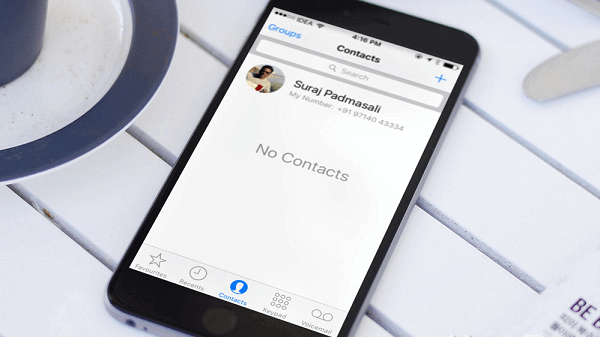
Syncing your iPhone contacts to iCloud allows you to keep contacts the same across all your iDevices as long as you're signed in to iCloud with the same Apple ID. You can also sync your iPhone contacts with Gmail or Outlook to use them on different devices. However, the "iPhone contacts not syncing" issue can occur, and this article provides quick fixes for the problem in iOS 11, including solutions for syncing issues with iCloud, Gmail, and Mac. (For more tips on using your new iPhone or solving common iPhone problems, visit the iOS & Mac Topics section.)
- Notice
- Part 1:Fixes to iPhone Not Syncing to iCloud
- Part 2: Fixes to iPhone Not Syncing with Gmail
- Part 3:Fixes to iPhone Not Syncing with Mac
To fix the "iPhone contacts not syncing" issue, first, ensure that your iPhone is connected to a stable internet connection. Then, go to Settings > [your name] > iCloud > iCloud Backup and toggle on "Contacts.
Part 1: Fixes to iPhone Not Syncing to iCloud
Tip 1: Check Apple ID on your iDevices
To sync iPhone contacts to other iDevices via iCloud, ensure you're signed in to iCloud on all devices with the same Apple ID and have turned on iCloud contacts on each iOS device. If your iPhone contacts aren't syncing to iCloud, check your iPhone's iCloud settings in iOS 11 by following these steps.
Step 1: To check your Apple ID, open the Settings app on your iPhone, tap on your name at the top of the screen, and then select "Apple ID" from the menu that appears. This will display your Apple ID, which is usually in the format of an email address.
Step 2: To sync contacts, open the Settings app, tap on your name, then tap on iCloud, and ensure that the Contacts option is turned on.
Tip 2: Check your network connection
To sync iPhone data to iCloud, a Wi-Fi network or cellular data connection is required. If your iPhone's network connection fails, you may experience the "iPhone contacts not syncing to iCloud" issue. To check your iPhone's network connection, simply open a browser and try to visit a website - if you can successfully open the page, your connection is working.
Tip 3: Check your iCloud storage
One difference between iTunes backup and iCloud backup is that iCloud storage is limited. If your iPhone contacts won't sync to iCloud, it might be because your iCloud storage is full - check your storage by going to Settings > [your name] > iCloud. Even if you have enough storage, there's another limit: you can only sync up to 50,000 contacts to iCloud. (Want to speed up your iCloud backup? Read this article for tips.)
Tip 4: Check for iOS update
To ensure your iPhone contacts sync to iCloud, update your iOS to the latest version by going to Settings, General, Software Update. If an update is available, tap Install Now to update your iPhone.
Tip 5: Set Date & Time on your iPhone correctly
When your iPhone contacts are not syncing to iCloud, the issue may be a wrong Date & Time setup on your device. To resolve this, set the Date & Time correctly based on your time zone by going to Settings > General > Date & Time, and then selecting the correct time zone from the list. This should resolve the syncing issue with iCloud.
Step 1: To access the Settings app on your iPhone X/iPhone 8/iPhone 7 in iOS 11, you can simply tap the Settings icon, which is represented by a grey box with gears inside, on your home screen. This will open the Settings app, where you can navigate to various options and settings for your iPhone, such as Wi-Fi, Bluetooth, and more.
Step 2: Go to General > Date & Time.
Step 3: Toggle on Set Automatically.
To fix the issue of contacts not syncing on iPhone or iPad, you can try the filter method. Navigate to Settings > Contacts > Accounts, and ensure that the account you want to sync contacts with (such as iCloud, Google, or Outlook) is added and enabled for Contacts syncing.
If your iPhone contacts aren't syncing to iCloud, you won't see the updates on iCloud.com. To troubleshoot this issue, you can try various tips.
- Clear the cache of your browser.
- To resolve the issue, sign out of iCloud.com by clicking on your account name in the top right corner, then select "Sign Out". Wait for a few seconds, then sign back in to iCloud.
- Clear History of your browser.
Part 2: Fixes to iPhone Not Syncing with Gmail
Tip 1: Add a Google account to your iPhone
To sync your iPhone contacts to Gmail, you need to add a Google account to your iPhone in iOS 11. To do this, go to Settings, then tap on "Accounts & Passwords", and tap on "Add Account". Select "Google" from the list of available accounts, then enter your Google account credentials to sign in.
Step 1: Go to Settings > Accounts & Passwords on your iPhone.
Step 2: Tap on Add Account and choose Google.
Step 3: Enter your Google account following the onscreen instruction.
Tip 2: Turn on Contacts
To sync your iPhone contacts with Gmail, make sure the Contacts option is turned on under Gmail settings. If it's not, go to Settings > Accounts & Passwords, select Gmail, and toggle on Contacts.
Tip 3: Set Gmail as default account
If your iPhone contacts aren't syncing to Gmail, check the default account on your iPhone by going to Settings > Contacts > Default Account and ensuring Gmail is selected.
Part 3: Fixes to iPhone Not Syncing with Mac
Tip 1: Check your Apple ID on Mac
When your iPhone contacts aren't syncing with your Mac, check if you're signed into the same Apple ID on both devices. To do this on your Mac, go to the Apple Menu, then System Preferences, and select iCloud. Ensure you're logged in with the same Apple ID on both your iPhone and Mac.
Tip 2: Turn on iCloud contacts on Mac
To check if Contacts syncing is enabled on your Mac, go to Apple Menu > System Preferences > iCloud, and verify if the Contacts option is toggled on. If it's already on, simply uncheck it and then check it again. This will refresh the syncing.
Tip 3: Restart your Mac
Restarting your Mac can resolve syncing issues with your iPhone, such as "iPhone contacts not syncing". By restarting your Mac, you may be able to resolve the problem.
If the problem persists after trying the suggested tips, you might need to consider an alternative method to sync your iPhone contacts, which involves transferring contacts from your iPhone to your PC for free.
Related Articles
- How to Fix iTunes Error 0xE8000015 - iPhone 8/iPhone 7
- [3 Situations]iTunes Could Not Connect to This iPhone | How to Fix
- [Fixed] The Selected Disk Has an MBR Partition Table
Encounter the error message 'The selected disk has an MBR partition table On EFI system, Windows can only be installed to GPT disks'? Learn how to fix it here. - What Is UEFI Boot Mode - UEFI vs BIOS
What're UEFI boot mode and Legacy boot mode? In this post, you'll learn the definitions of the 2 types of boot mode and the differences between them.
Products
Articles & Tutorials
- Data Recovery
- Data Backup
- File Recovery
- File Backup
- System Backup and Restore
- Disk and Partition Clone
- Technical articles
- Mobile articles
- Disk Master Help
- Windows Data Recovery Tutorials
- Windows Secure Delete Tutorials
- Windows Partition Management Tutorials
- Windows File Backup and Restore Tutorials
- Windows System Backup and Restore Tutorials
- Windows Disk Backup and Restore Tutorials
- Windows Clone Tutorials