How to Fix iPhone X/8/8 Plus Touch Screen Not Working in iOS 11/11.1/11.2
Quick Navigation:
- How to fix iPhone X/8touch screen not workingin iOS 11
- 1. Restart your iPhone X/8
- 2. Force restart iPhone X/8
- 3. Clean your iPhone screen
- 4. Reset your iPhone X/8 to factory settings
- 5. Restore your iPhone X/8 with iTunes
Q: "My new 256GB T-Mobile Space Gray iPhone X touch screen not responsive. After initial boot up, I could not swipe up to begin setup. After numerous resets using volume up, volume down and then holding side button, I was able to use the touchscreen and start the setup process. I then had numerous issues with setup (slowness, iCloud backup restore failure, freezing). After about 6 hours, the touch screen stopped working again. Have not been able to use the phone again even after a erase and restore in iTunes. Anyone else having iPhone X touch screen not working issues or is mine a one-off lemon?"
Many Apple fans are excited to upgrade to the latest iPhone X or iPhone 8/8 Plus with iOS 11, but some users are experiencing touchscreen issues, such as unresponsiveness, which is causing inconvenience. If you're one of them, this blog offers solutions to fix the problem.
How to Fix iPhone X/8 Touch Screen Not Working in iOS 11
Upgrading to iOS 11 brings many improvements, but also some unavoidable bugs, such as screen recording not working on iPhone 7/7 Plus or iPhone black screen issues. For iPhone X or iPhone 8 users, a common issue is an unresponsive touch screen, particularly on incoming calls or when trying to interact with the screen, which can be frustrating. Fortunately, there are solutions to fix these problems, regardless of the specific issue you're facing.
1. Restart your iPhone X/8
Restarting an iPhone can often resolve various software-related issues, including problems with notifications or unsupported accessories, by simply restarting the device.
Restart iPhone 8: To power off your iPhone, press and hold the Side button until the red slider appears, then drag the slider to power off. Wait 30 seconds, then press and hold the Side button again until the Apple logo appears, turning it back on.
Restart iPhone X: Press and hold the Side button and either volume button until the power off slider appears. Drag the slider to turn off your iPhone. Wait 30 seconds, then press and hold the Side button until the Apple logo appears to turn it back on.
2. Force restart iPhone X/8
If your iPhone X or iPhone 8 can't restart normally, try a force reset to fix the touch screen not working issue on iOS 11. To do this, quickly press and release the Volume Down button, then quickly press and release the Volume Up button, and finally press and hold the Sleep/Wake button until the Apple logo appears.
Force restart iPhone 8/X: Press and quickly release the Volume Up button, press and quickly release the Volume Down button, then press and hold the Side button until the Apple logo appears.
3. Clean your iPhone screen
If your iPhone 8 or iPhone X screen is unresponsive, check if there's something oily or liquid on the screen. If so, clean it with a soft cloth to get it working again.
4. Reset your iPhone X/8 to factory settings
If your iPhone X or iPhone 8 touch screen isn't working in iOS 11, it might be due to incorrect settings during the iOS update. To fix this issue, try resetting your iPhone to its factory settings without using iTunes.
- Notice
- iPhone factory resetting will cause all documents and data to be lost, so it's essential to back up your iPhone using iTunes, iCloud, or Qiling MobiMover Free, a 100% free iPhone data transfer software that allows you to easily export contacts, messages, photos, music, playlists, ringtones, videos, movies, books, and more to your computer.
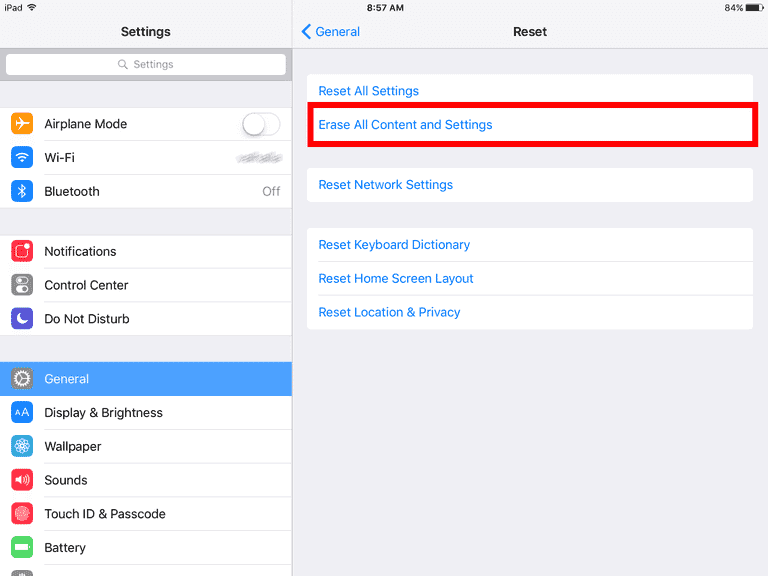
How to reset iPhone to factory settings: Go to Settings > General > Reset > Erase All Content and Settings > Erase Now.
5. Restore your iPhone X/8 with iTunes
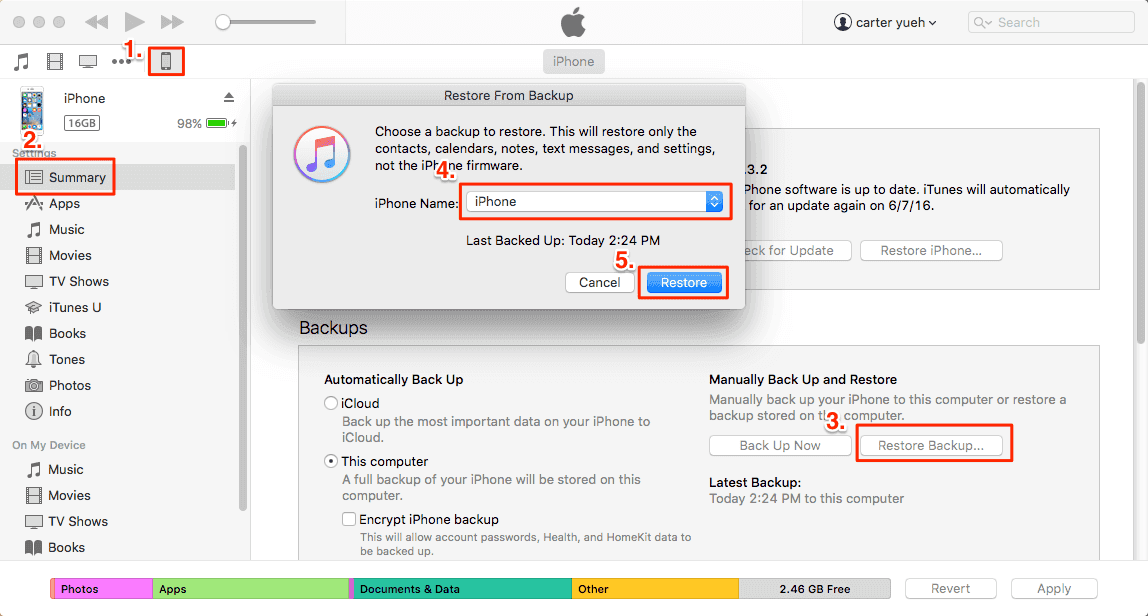
To restore your iPhone with iTunes, you need to have an existing iTunes backup, and if not, you can opt to restore from an iCloud backup if you have one.
- Download the latest version of iTunes and open it. Then, connect your iPhone X/8 to the computer with a USB cable.
- To restore your iPhone with an iTunes backup, click on the "Device" icon within iTunes, select "Summary", then click on "This computer". Next, click on "Restore Backup" and finally click on "Apply" to begin the restoration process.
Related Articles
- Connect iPhone to Computer with Qiling MobiMover Free
- Perform Two Synology NAS Server Synchronization Effortlessly
You will learn how to perform 2 NAS server synchronization with the best free NAS synchronization software - Qiling Disk Master. Just follow the steps to sync NAS to NAS safely. - Fix Amazon Cloud Drive Not Syncing Problem (3 Solutions)
This article introduces you to possible solutions for Amazon Cloud Drive not syncing issues and how to sync files to Amazon Cloud Drive automatically in Windows 11, 10, 8, 7. - 3 Ways to Backup Files on My Cloud Home to External Drive
Here are 3 ways to backup files on WD My cloud home to external drive, and one of which is automatic. Try it if you don't want to run it manually every time.
Products
Articles & Tutorials
- Data Recovery
- Data Backup
- File Recovery
- File Backup
- System Backup and Restore
- Disk and Partition Clone
- Technical articles
- Mobile articles
- Disk Master Help
- Windows Data Recovery Tutorials
- Windows Secure Delete Tutorials
- Windows Partition Management Tutorials
- Windows File Backup and Restore Tutorials
- Windows System Backup and Restore Tutorials
- Windows Disk Backup and Restore Tutorials
- Windows Clone Tutorials