How to Make iPhone Faster in Every Way
The iPhone has been a highly desirable device due to its creativity and quality, but like many other devices, it can't maintain its peak performance and may slow down with age. If you're experiencing this issue, you'll find the reasons and tips to make your iPhone run faster like new in the following text.
Why is my iPhone so slow
Your iPhone may be running slow due to various reasons, but the most common cause is a lack of storage space. Additionally, other factors such as low internal memory, a poor network connection, or an aging iPhone battery could also be contributing to the slow performance.
If your iPhone is running slowly, try following these tips one by one to speed it up. First, clear out any clutter on your home screen by deleting unused apps.
How to make iPhone faster in 9 Ways
If your iPhone, iPad, or iPod touch is running slowly, there are various solutions to boost its speed. Depending on the specific situation, you can try restarting your device, closing unused apps, deleting unused files and data, or updating your operating system to the latest version. Additionally, clearing the cache and cookies on your Safari browser, disabling animations, and turning off Background App Refresh can also help improve performance.
If your iPhone gets slow suddenly, there are some proven tips and tricks you should try first to speed up your iPhone.
Tip 1. Restart your iPhone
Restarting your iPhone can be a quick fix to clear its RAM and give your device a fresh start, which may help if it suddenly becomes slow and you can't determine the cause.
On iPhone X and later:
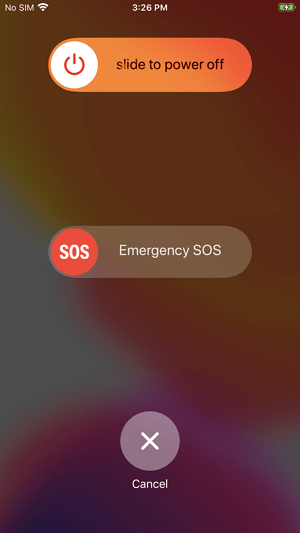
Step 1. Press and hold the volume down button and the side button at the same time until you see a slider on the screen. This will initiate the emergency shutdown feature, also known as the "Emergency Restart" or "Force Restart" on some devices.
Step 2. Toggle the slider to turn off your iPhone.
Step 3. To turn on your iPhone, press and hold the side button until the Apple logo appears on the screen.
On iPhone SE (2nd generation), iPhone 8, iPhone 7, and iPhone 6, follow the same steps to restart your device.
Step 1. Press and hold the side button until the slider appears.
Step 2. Drag the slider to turn off your iPhone.
Step 3. Press and hold the Sleep/Wake button on the top right side of your iPhone to turn it on.
On earlier models, use the top button instead.
Tip 2. Check your network conditions
If your iPhone becomes slow when using an app that needs a network connection, it's likely due to a poor network connection, whether Wi-Fi or cellular data. Try reconnecting to the network or switching to another available network to see if it improves performance.
Tip 3. Remove background apps
Using a computer or iPhone with too many programs or apps running simultaneously can lead to a slow response time. When multiple programs or apps are open at the same time, it can cause the device's memory to run out, resulting in a lagging device. This can make it difficult to use the device efficiently.
Closing background apps can help improve your iPhone's performance and speed by freeing up memory and reducing power consumption.
To close background apps:
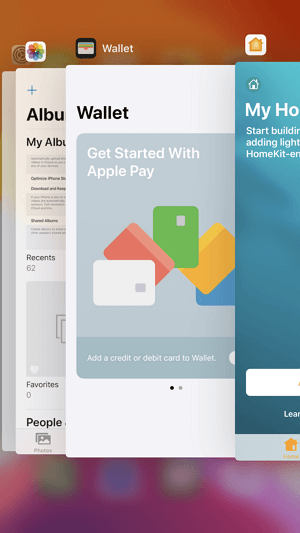
Step 1. On iPhone X or later, swipe up from the bottom of the Home screen and pause in the middle of the screen. On iPhone 8 or earlier, double-click the Home button.
Step 2. Swipe right or left to switch from apps.
Step 3. Swipe up on the app's preview to close the app.
Tip 4. Keep your device at a normal temperature
To resolve iPhone/iPad lag, try to get it to a normal temperature, as both high and low temperatures can slow it down. This means if your device is hot or cold, bringing it back to a comfortable temperature should help resolve the lag issue.
Tip 5. Disable Low Power Mode
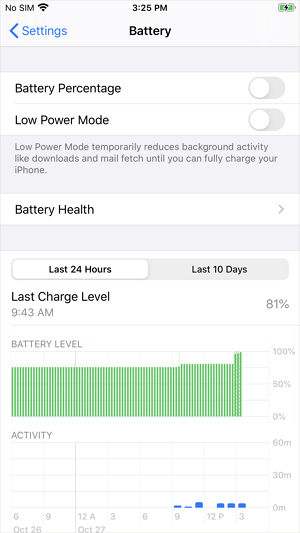
To extend your iPhone battery life, the Low Power Mode disables some features and slows down tasks, which may cause your device to run slow. If you've recently enabled this mode, disable it by going to "Settings" > "Battery" and turning the Low Power Mode off. This will help speed up your iPhone.
If your iPhone has been slow for a while, try the tips below to make your iPhone faster.
Tip 1. Clear your iPhone storage
To keep your iPhone's good performance, check your storage by going to "Settings" > "General" > [Device] Storage, and free up space by deleting unused apps, photos, and videos, or consider upgrading to a larger storage model if necessary.
- Offloading the app will free up storage space taken by the app, but won't remove the app's documents and data.
- Deleting the app will remove both the app itself and its data.
In most cases, you can't simply remove apps directly to free up space on your iPhone, as many apps, such as Photos, Videos, Music, Contacts, and Text Messages, store important data that users wouldn't want to delete without backing up first.
To transfer your iPhone files to a PC/Mac, I suggest using Qiling MobiMover, a reliable iPhone transfer software, to transfer your precious files, photos, videos, contacts, music, text messages, and more, and then safely delete files on your iPhone without worrying about data loss.
Step 1.To connect your iPhone to your computer, start by plugging it into your Windows or Mac OS system using a USB cable. Next, launch Qiling MobiMover and select the "Phone to PC" option. Click "Next" to proceed with the transfer process.
Step 2.To export iPhone data, choose the type of files you want to export, customize the destination for the exported files, and then click "Transfer" to copy the iPhone files to your computer at a fast speed.
Step 3.Once the transfer is complete, you can view, edit, keep, or delete the content as you see fit.
Clearing out unnecessary apps, photos, and files from your iPhone can help free up storage space and improve its performance, allowing it to run more smoothly and quickly.
Tip 2. Remove unused apps
You likely have unused apps on your iPhone that you downloaded before but no longer use, taking up valuable storage space. To free up space and potentially make your iPhone faster, follow the guide on how to delete apps on iPhone to remove these unnecessary apps.
Tip 3. Update iOS
Upgrading to a newer version of iOS can fix known bugs and improve the overall performance of your iPhone, making it faster. If a newer version is available for your iPhone model, updating to the latest iOS can enhance your device's quality and efficiency.
To update iOS:
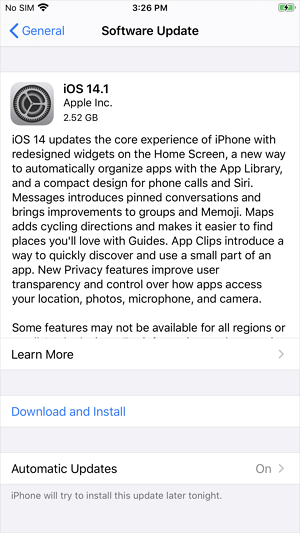
Step 1. Go to "Settings" > "General" and choose "Software Update".
Step 2. Tap "Download and Install".
Step 3. Tap "Install" to update now.
Tip 4. Replace your iPhone battery
As your iPhone battery ages, its performance will decrease, making it less effective. If you have an older model like the iPhone 6, it's a good idea to check your iPhone's health and replace the battery when necessary to maintain optimal performance.
The Bottom Line
Here are the main solutions to speed up an iPhone/iPad in brief: Clear Safari caches, disable automatic updates, and consider making a backup before erasing all content and settings to reset your device.
Hope this guide is helpful to you.
Related Articles
- How to Restore WhatsApp from Backup to Android & iPhone
- How to Transfer Photos from iPhone to iPhone Without iCloud
- Sync Files between Two Computers without Cloud | 2 Free Ways
How to sync files between computers without cloud? You could sync files between computers over internet with the help of 2 free and reliable file sync software. - Best Free Way to Sync Files between Desktop and Laptop
In fact, there are many ways to sync files between desktop and laptop in Windows 10, click on this article to learn more and sync files with the best free way.
Products
Articles & Tutorials
- Data Recovery
- Data Backup
- File Recovery
- File Backup
- System Backup and Restore
- Disk and Partition Clone
- Technical articles
- Mobile articles
- Disk Master Help
- Windows Data Recovery Tutorials
- Windows Secure Delete Tutorials
- Windows Partition Management Tutorials
- Windows File Backup and Restore Tutorials
- Windows System Backup and Restore Tutorials
- Windows Disk Backup and Restore Tutorials
- Windows Clone Tutorials