How to Delete Apps on iPhone 11 [iOS 11 and Newer]
Quick Navigation:
- Part 1. Delete One App on iPhone Through Tapping and Holding
- Part 2. Delete Apps without Deleting App Data
- Part 3. Simplest Way to Remove Single or Multiple Apps on iPhone with One-Click
- Part 4. What to Do If I Can't Delete Apps on iPhone 11/Pro/Pro Max
- The Bottom Line
To free up space on your iPhone 11 series, delete unnecessary apps, which can fix app-related issues and improve overall performance. Simply swipe left on the home screen, find the app you want to delete, and tap the "X" in the corner to remove it. This simple step can make your device more appealing to use and look at, and may even resolve issues like apps not working.
If you have no idea about handling this task, here are three methods for you to do it. Besides, to prevent any problem from occurring while deleting apps, a bonus tip listed in the final part can help you fix the "can't delete apps on iPhone" issue.
Part 1. Delete One App on iPhone Through Tapping and Holding
To uninstall programs on an iPhone 11, simply go to the Home screen, find the app you want to delete, touch and hold it until it starts to jiggle, then tap the "X" in the corner of the app icon, and confirm that you want to delete it. This method allows you to reinstall paid apps from the App Store without having to pay again, and you can also recover deleted apps via the App Store or iTunes if needed.
Step 1. Go to your iPhone home screen, find the app you want to delete, and press and hold on it until the icons start to jiggle, then tap the 'x' in the corner of the app's icon to delete it.
Step 2. To access additional features and settings for an app, press and hold the app icon on your device until a menu appears with options related to that app.
Step 3. You can either delete a single app by choosing "Delete App" or delete multiple apps by choosing "Edit Home Screen".
Step 4. To delete an app, simply tap "Delete App" and confirm with "Delete." Alternatively, go to "Edit Home Screen," tap the "X" button next to the app you want to delete, and confirm with "Delete."
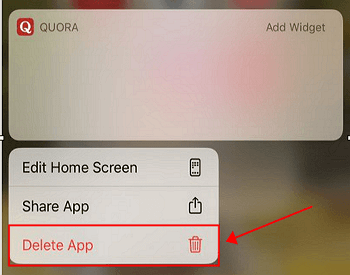
Note: To move your app icons, simply drag and drop them to the desired location on the home screen. You can also create folders by dragging one app icon on top of another, and then naming the folder as desired.
Part 2. Delete Apps without Deleting App Data
If you want to remove an app but retain its data, you can use the Offload App feature. Follow these steps to do it.
Step 1. Open the Settings app > Tap "General" > Choose "iPhone Storage."
Step 2. The system will display a list of all installed apps on the screen, along with the storage space each one is using.
Step 3. Choose the app you don't want and tap it.
Step 4. Press "Offload Apps" to uninstall apps without deleting their data.
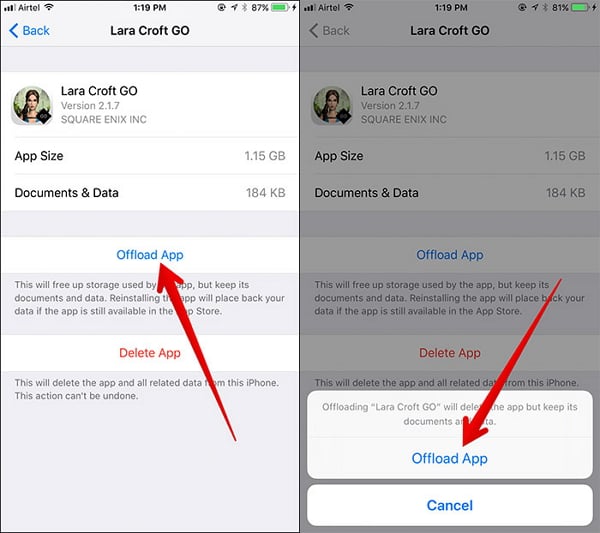
Tips: To automatically remove unused apps on your iPhone, go to Settings > General > iPhone Storage, and toggle on "Offload Unused Apps".
Part 3. Simplest Way to Remove Single or Multiple Apps on iPhone with One-Click
To delete multiple apps at once on iPhone, go to Settings > General > iPhone Storage, then select the app you want to delete and tap "Edit" at the top right corner, then tap "Delete App" in the bottom right corner. You can also go to Settings > General > iPhone Storage, then tap "Offload Unused Apps" to delete unused apps in batches. Additionally, you can go to the Home screen, long press on an app icon until the icons start jiggling, then tap the "X" on the app you want to delete.
You can easily delete multiple apps from your iPhone using the Qiling MobiMover tool, which allows you to clear apps without any limitations. Additionally, this tool also offers other features such as editing iPhone contacts, adding a ringtone to your iPhone, and downloading videos using a URL, among others.
You can download and install Qiling MobiMover on your computer to remove multiple applications from your iPhone with one click.
Step 1. Connect your iPhone to your computer, launch Qiling MobiMover, and navigate to "Content Management" > "Apps" to view all installed apps on your device.
Step 2. Choose the apps you want to delete by checking the boxes next to them. Then click the "Delete" button to remove the selected apps from your iPhone. Confirm the deletion when prompted.
Part 4. What to Do If I Can't Delete Apps on iPhone 11/Pro/Pro Max
When deleting programs, you may encounter issues such as faulty apps, apps stuck in a "waiting for status" loop, or insufficient space for app updates, preventing you from deleting the apps. To resolve these problems, we've gathered some helpful tips to assist you.
1. Restart & Force Restart iPhone 11
A restart or force restart on an iPhone can fix various issues without deleting any data, including issues with the screenshot preview, FaceTime live photos, brightness, and app deletion.
How to Restart iPhone 11
Step 1. Press-and-hold the "Sleep/Wake" button until the red slider shows up.
Step 2. Drag the slider to power off.
Step 3. Press the "Sleep/Wake" button on your iPhone for 3 seconds, then hold it until the Apple logo appears.
How to Force Restart iPhone 11
Step 1. Quickly press and release the "Volume Up" button.
Step 2. Quickly press and release the "Volume Down" button.
Step 3. Press and hold the "Power/Sleep/Wake" button on your Apple device until the Apple logo appears on the screen. This will turn it back on.
2. Disable Content & Privacy Restrictions in Screen Time
Disabling Content & Privacy Restrictions in Screen Time can also cause the "cannot delete apps on iPhone" issue. To fix this, go to Settings > Screen Time > Content & Privacy Restrictions and toggle it off.
3. Enable Restrictions for Deleting Apps
If you don't enable Restrictions for deleting apps, no one can remove apps from your iPhone, so you should check if you've allowed deleting apps.
Step 1. Go to Settings > General > Restrictions.
Step 2. Enter the password set for restrictions as required.
Step 3. Find the "Deleting Apps" and slide it to "On ."
The Bottom Line
To delete apps on your iPhone 11, 11 Pro, or 11 Pro Max, you can use one of three effective methods. You can simply delete apps from your home screen, use the "Edit Home Screen" feature, or go to the "Settings" app and select "General" and then "iPhone Storage" to find and delete unwanted apps. If you're having trouble uninstalling apps, refer to the troubleshooting tips for assistance.
Related Articles
- How to Save Videos from Twitter to iPhone
- 3 Top Ways to Import Photos from iPhone 8/8 Plus/X to Mac
- How to Back Up iPhone to Mac With/Without iTunes
- How to Put CDs onto iPod with or Without iTunes
Products
Articles & Tutorials
- Data Recovery
- Data Backup
- File Recovery
- File Backup
- System Backup and Restore
- Disk and Partition Clone
- Technical articles
- Mobile articles
- Disk Master Help
- Windows Data Recovery Tutorials
- Windows Secure Delete Tutorials
- Windows Partition Management Tutorials
- Windows File Backup and Restore Tutorials
- Windows System Backup and Restore Tutorials
- Windows Disk Backup and Restore Tutorials
- Windows Clone Tutorials