How to Transfer Photos from iCloud to PC
Quick Navigation:
- Method 1. How to Download Photos from iCloud to PC Selectively
- Method 2. How to Download iCloud Photos to PC All at Once
- Bonus Tip: How to Transfer Photos from iPhone/iPad to PC Directly
- The Bottom Line
You can wirelessly sync photos, videos, contacts, and more across your devices with iCloud, including iPhone, iPad, iPod Touch, Mac, and PC. However, if you want to view your iCloud photos on your PC, you can download them to your computer, freeing up space on your iCloud account.
Note: To access and view iCloud photos on PC, all the tips below are also applicable.
Method 1. How to DownloadPhotos from iCloud to PC Selectively
If you have enabled Photos apps in the "Settings" > "[Apple ID]" > "iCloud" > "APPS USING ICLOUD" on your iPhone, iPad, or iPod, all photos and videos will be synced to iCloud. To download some photos from iCloud to your PC, you can access iCloud.com.
On iCloud.com, you can view all your iCloud photos, download them to your PC, upload new photos to iCloud from your PC, or share your existing iCloud photos.
To move photos from iCloud to PC:
Step 1. On your PC, open a browser and visit iCloud.com.
Step 2. To access your iCloud photos, sign in with the Apple ID used on the device from which you sync photos, and allow two-factor authentication if prompted, entering the verification code received on your iPhone.
Step 3. After logging in, you'll see a list of options. Clicking "Photos" will load photos synced from iDevices to iCloud, including those in the "Recently Deleted" folder.
Step 4. To download photos from iCloud to your PC, select the desired photos and click the "Download selected items" icon, or use the shortcut keys "Ctrl+A" to select all photos in one folder. This will initiate the download process, allowing you to access the photos on your PC.
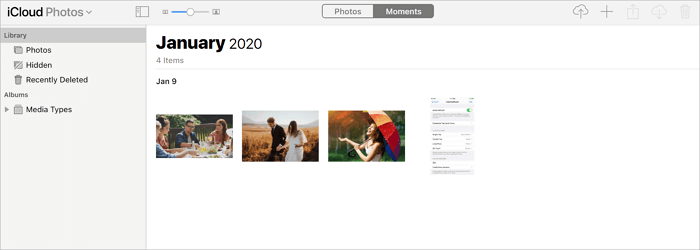
If you have limited iCloud storage, you can delete photos after downloading them to your PC to free up space and sync new photos and videos on your iPhone.
Method 2. How to Download iCloud Photos to PC All at Once
Having a large number of photos in different albums or folders can make it time-consuming to download all of them from iCloud to your computer. However, you can use the iCloud control panel (iCloud application on Windows) to move all your photos from iCloud to your PC at one time, making the process much faster and easier.
To download all photos from iCloud to PC automatically:
Step 1. Download and install iCloud for Windows on your computer.
Step 2. Open the iCloud control panel and sign in.
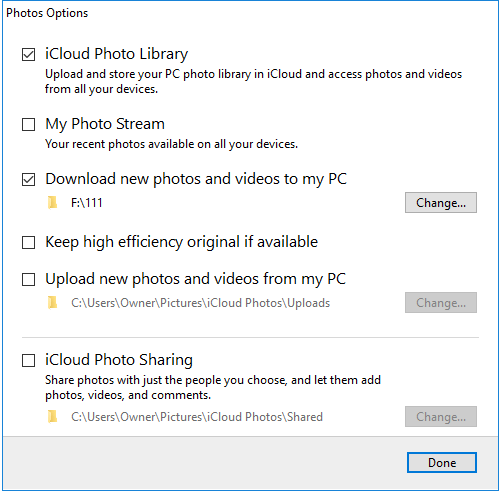
Step 3. To enable iCloud Photo Library on your computer, go to "Photos" and click on the three dots next to it. Select "Options" and check the box next to "iCloud Photo Library" and "Download new photos and videos to my PC." You can then choose the location where the photos will be downloaded. After selecting the location, click "Done" and "Apply" to save the changes.
Step 4.To download all your iCloud photos, right-click on the iCloud icon in the status bar and select "Download Photos". Then, click to choose all photos and start the download process. This will automatically download all new photos and videos to your PC, saving them to a location like "Pictures\iCloud Photos\Downloads".
If you encounter the issue "iCloud photos not syncing,"go to the related guide for workable fixes or follow the method below to transfer photos from your iPhone, iPad, or iPod directly without iCloud.
Bonus Tip: How to Transfer Photos from iPhone/iPad to PC Directly
To successfully sync and download photos from iCloud to PC, you need a stable and fast network connection on your device and sufficient iCloud storage. Alternatively, transferring photos directly from your iPhone/iPad/iPod to your PC might be a more straightforward option.
With Qiling MobiMover, a user-friendly iPhone transfer software, you can easily transfer photos and videos from your iDevice to your computer or vice versa, whether it's a select few or all of your media files. The software allows for fast and stable transfers, and once installed on your PC, you can complete operations without needing a network connection.
To transfer photos from iPhone, iPad, or iPod to PC directly:
Step 1. Connect your iPhone to a computer running Windows 7 or later, or Mac OS X 10.7 or later. Launch Qiling MobiMover, select "Phone to PC" on the main screen, and click "Next" to proceed.
Step 2. Select the "Pictures" category as you want to copy from your iPhone to your computer. This is the best option for you to transfer other supported file types along with photos from your iPhone to the computer, making a backup.
Step 3. To transfer photos from your iPhone to your computer, click the "Transfer" button. The time it takes to import pictures depends on the size of the files, so be patient. Once the process is complete, check the folder you selected to see the imported photos.
Transferring photos from an iOS device to a PC with Qiling MobiMover via USB is significantly faster and more stable than wireless syncing, and eliminates the issue of insufficient iCloud storage. This makes it a convenient solution for those who have struggled with transferring photos to a PC from their iPhone.
The Bottom Line
Syncing photos from iPhone to iCloud is convenient, but viewing them on iCloud can be cumbersome. A more practical solution is to download iCloud photos to PC, which can be done using the methods described above. Alternatively, for a more direct and efficient way to transfer photos from iPhone to PC, you can use the iPhone data transfer tool Qiling MobiMover.
Related Articles
- How to Transfer Files from Mac to iPhone with/Without iTunes
- How to Transfer Calendar from iPhone to Mac in 2 Ways
- How to Sync My Documents with Network Folder Easily
Are you looking for an easy way to sync My Documents with network folder? Click on this article and learn the detailed steps to sync my documents. - How to Sync Two Directories in Windows 10 Automatically
This article will show you how to automatically sync two directories in Windows 10 effortlessly. Click on to learn more!
Products
Articles & Tutorials
- Data Recovery
- Data Backup
- File Recovery
- File Backup
- System Backup and Restore
- Disk and Partition Clone
- Technical articles
- Mobile articles
- Disk Master Help
- Windows Data Recovery Tutorials
- Windows Secure Delete Tutorials
- Windows Partition Management Tutorials
- Windows File Backup and Restore Tutorials
- Windows System Backup and Restore Tutorials
- Windows Disk Backup and Restore Tutorials
- Windows Clone Tutorials