How to Recover Photos from A Locked Android Phone
Summary
Losing all photos on a locked Android phone can be a frustrating experience. However, there are solutions that can help you unlock the phone and recover your photos easily.
If you're an Android user facing the issue of accessing your photos due to a locked phone, don't worry - this guide is here to help. You can recover your photos from a locked Android phone by following a series of steps, which will be explained in detail.
Method 1. Unlock Android Phone to Access Photos
When you're locked out of a device, trying every possible passcode you remember is a natural first step. However, if you're unlucky, your device and its valuable data, such as photos, will be inaccessible forever, which is a frustrating and potentially devastating outcome.
If you've forgotten your password or PIN, don't worry - you can easily unlock your device and access your photos. Simply press and hold the power button until your device turns on, then use the emergency call feature to dial the last number you called or enter a new PIN. If you're still having trouble, try restarting your device in safe mode and see if you can access your photos from there.
Option 1. Use Google Account (Android 4.4 or Lower)
To use this method, you'll need to prepare your Google account. Then, follow these steps to unlock your device.
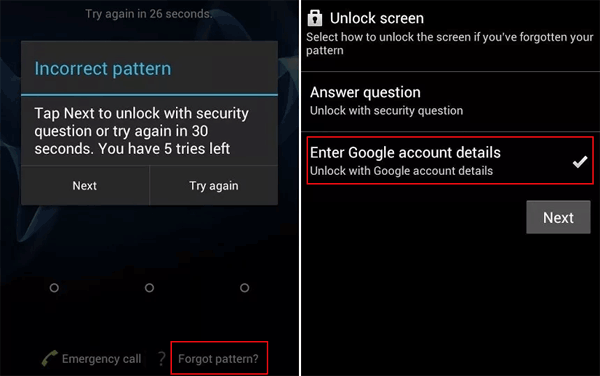
Step 1. Enter the wrong passcode five times on your Android phone.
Step 2. Then, a "Forgot pattern" button will appear. Tap it to proceed.
Step 3. To set up Google Voice, you'll need to sign in with your Google account credentials. This involves entering your Google account username and password, which will allow Google Voice to access your account and set up your voice number. Once you've entered your credentials, follow the prompts to complete the setup process.
Step 4. Go to the login page, enter your current password, and click "Reset Password". You will be asked to enter your new password and confirm it.
Option 2. Using Smart Lock (Android 5.0 and Up)
Smart Lock is a built-in feature for Android devices that allows you to control when and where your device unlocks. You can choose to keep your device unlocked while it's in your pocket or in specific locations you've designated beforehand, or when it's connected to certain Bluetooth devices. This feature gives you flexibility and convenience, allowing you to easily access your device without needing to enter a passcode or pattern every time. If you've previously enabled Smart Lock, you can also unlock your device by putting it in a specific situation you've set, such as when it's in your pocket. This feature can be particularly useful for people who frequently use their device in specific contexts or locations.
Option 3. Factory Reset Your Device Through Find My Device (Android 2.3 or Newer)
This is the last and least recommended way to unlock your device, as it will completely remove everything from your device. However, if you've made a copy of your important files, you won't have to worry about data loss. If you still prefer to use this method, follow these steps.
Step 1. Prepare a computer or another Android device.
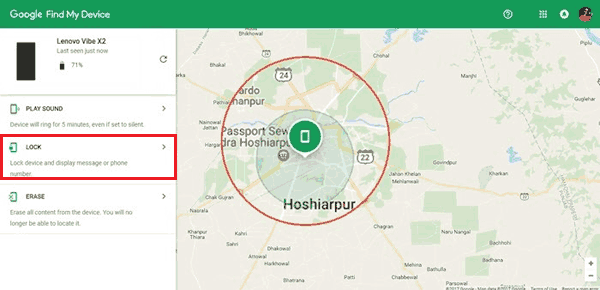
Step 2. Head to Google's Find My Device website, which is: https://www.google.com/android/find
Step 3. Log in with your Google account that's being used on your phone.
Step 4. From the left panel, select your phone from the list and tap "Erase Device."
Step 5. Then, your device will be unlocked, and you can set a new password.
Method 2. Recover Photos from a Locked Android Device with a Recovery Tool
If you've tried everything to unlock your Android phone but failed, you can try using professional data recovery tools like Qiling MobiSaver to recover your photos. This tool, designed for Android devices, can help rescue various types of data, including photos, messages, music, contacts, and more, even if your phone is locked.
Before taking advantage of this program, ensure that your device meets the following requirements:
- If you haven't previously connected your device to your computer and checked the "Always allow from this computer" option, your computer may not recognize your device.
- Our program can scan and read data from both rooted and non-rooted devices, including various types of data such as files, messages, and other information. This means that users don't need to have a rooted device to use our program, and they can still benefit from its capabilities.
To retrieve photos from your locked phone, you can use a program that can access your phone's storage without needing the passcode. This program will allow you to view and save your photos, even if your phone is locked. It's a helpful tool for retrieving important memories or photos you want to share with others.
Step 1. Connect your Android device to the computer and launch Qiling MobiSaver for Android. Click the "Start" button to initiate the software's recognition and connection with your device.
Step 2. This software quickly scans the device to find all existing and lost data, allowing you to easily locate and recover the lost files you want by selecting the correct file types.
Step 3. To recover deleted photos, preview all recoverable picture files one by one, select the desired data, and click the "Recover" button to export all the selected photos.
Wrapping Up
To avoid data loss in the future, it's a good idea to back up your Android data to your PC, cloud drive, or other devices. This way, you'll be able to recover your photos and other files even if you forget your password. If you have any other suggestions on how to prevent data loss, feel free to share them with us.
Related Articles
- All Data Recovery After Android 6.0.1 Marshmallow Update
- How to Get Back Data from Locked Android Phone
- Data Recovery Software for Android Phone Internal Memory
- How to Recover Data from Android Phone with Broken Screen
Products
Articles & Tutorials
- Data Recovery
- Data Backup
- File Recovery
- File Backup
- System Backup and Restore
- Disk and Partition Clone
- Technical articles
- Mobile articles
- Disk Master Help
- Windows Data Recovery Tutorials
- Windows Secure Delete Tutorials
- Windows Partition Management Tutorials
- Windows File Backup and Restore Tutorials
- Windows System Backup and Restore Tutorials
- Windows Disk Backup and Restore Tutorials
- Windows Clone Tutorials