How to Recover Deleted Telegram Chats, Messages & Photos
Quick Navigation:
- Is it possible to recover deleted Telegram messages & photos?
- Three possible ways to recover deleted Telegram messages & photos
- Recover deleted photos from Telegram images folder
- Recover deleted Telegram photos from cache folder
- Recover deleted files with Android data recovery software
Summary
If you've accidentally deleted Telegram conversations, there are two possible solutions to recover your data. Firstly, you can try using the built-in 'Saved Messages' feature on Telegram, which allows you to save and recover deleted messages. Alternatively, you can use a third-party data recovery software, such as Qiling MobiSaver for Android, to scan your device and recover deleted Telegram conversations, messages, and photos.
Unfortunately, Telegram doesn't have a built-in feature to recover deleted chats, messages, and photos. However, you can try using a third-party data recovery tool like Qiling MobiSaver for Android, which works by scanning your phone's storage for deleted files, including those from Telegram. Keep in mind that the success of recovery depends on various factors, such as how long ago the chat was deleted and whether the deleted data has been overwritten by new files. It's also worth noting that some recovery tools may require a rooted phone or a computer to work. If you're not comfortable using third-party apps or if you're not tech-savvy, you may want to try contacting Telegram's support team to see if they can assist you in any way.
Is it possible to recover deleted Telegram messages & photos?
Telegram, a popular messaging app, allows users to send messages, photos, and videos, but sometimes conversations can be mistakenly deleted or lost. Unfortunately, Telegram doesn't offer a data recovery solution to retrieve deleted messages, making it difficult to recover lost chats. However, data recovery is not impossible, and there are 3 possible ways to recover deleted photos and messages in Telegram. You can read on to learn more about these methods.
Three possible ways to recover deleted Telegram messages & photos
Recover deleted photos from Telegram images folder
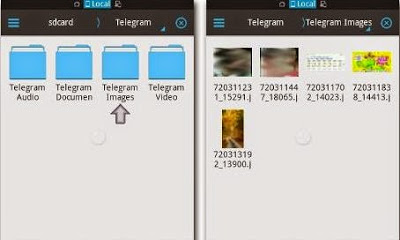
To recover deleted Telegram photos, try checking the "Telegram Images" folder on your device. When you receive a picture from Telegram, it is saved in this folder, and even if you delete it from the chat, it won't be deleted from the folder, making it a simple and easy method to recover your lost photos.
Recover deleted Telegram photos from cache folder
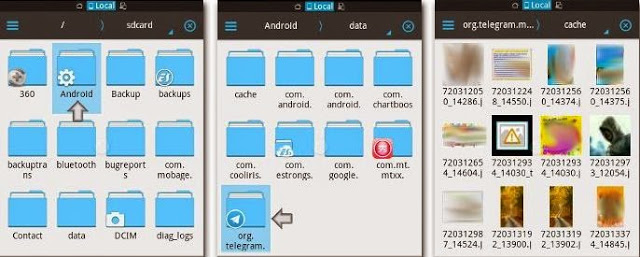
To recover deleted Telegram chats, you can also try to retrieve them from the cache folder on your phone's external SD card. This folder stores all the messages, images, videos, and other files from deleted conversations. To access it, navigate to the "Android" folder, then "data", followed by "org.telegram", and finally "cache". Opening this folder will reveal all the images deleted from Telegram conversations.
You can recover deleted photos from the Telegram app using two free methods. The first way involves using the app's built-in feature to recover deleted files, while the second method involves using a third-party app to scan your device for deleted files.
Recover deleted files with Android data recovery software
Here, to recover deleted files on your Android device, you can try Qiling Android data recovery software, which can scan for deleted files like text messages, contacts, documents, pictures, and video files. You can download a free trial version to scan for your deleted files, and if you find what you're looking for, you can purchase a license code to retrieve them. Otherwise, you won't pay for it. Note that it's not designed to recover Telegram data.
Step 1. To recover data from your Android device, connect it to your computer, launch the Qiling Android data recovery software, and click the "Start" button to initiate the connection and recognition process.
Before attempting data recovery, ensure that your rooted Android device is accessible by the software, as it can only recover data from a rooted device.
Step 2. The software quickly scans the Android device to find lost data, allowing users to easily locate and recover specific files by selecting the correct file types.
Step 3. Select the files you want to recover, click "Recover" to save them to your computer, and optionally only display deleted items to list the deleted files only.
Related Articles
- Failed to install the application to your device
- How to Root Your Android Device
- How to Recover Text Messages from Internal Memory on Android Devices
- How to Recover Deleted Kik Messages on Android
Products
Articles & Tutorials
- Data Recovery
- Data Backup
- File Recovery
- File Backup
- System Backup and Restore
- Disk and Partition Clone
- Technical articles
- Mobile articles
- Disk Master Help
- Windows Data Recovery Tutorials
- Windows Secure Delete Tutorials
- Windows Partition Management Tutorials
- Windows File Backup and Restore Tutorials
- Windows System Backup and Restore Tutorials
- Windows Disk Backup and Restore Tutorials
- Windows Clone Tutorials