How to Root Your Android Device
Summary
To recover lost data using Qiling MobiSaver for Android, you need to first root your Android phone. This is a necessary step in the process.
To recover lost data on Android using Qiling MobiSaver, you'll need to root your device first, but rooting can be a complex process that's not easily accessible to the average user, as one wrong move can lead to root failure or even a bricked phone. To help with this, we've created a detailed guide to walk you through the rooting process step-by-step.
Two options are available here for you to follow:
- Method 1. Root Android phone/tablets with Android SDK Root tool (Root Android devices without PC)
- Method 2. Root Android phone and tablets on PC
You can now easily root your Android devices securely by selectively following either of the offered methods.
Method 1. Root Android phone/tablets with Android SDK root tool
Before downloading the Android SDK root tool to root your Android phone or tablet, you need to prepare by taking care of a few tasks. These include installing the necessary software, such as the Android SDK and Java Development Kit (JDK), and setting up the necessary drivers and tools to ensure a smooth rooting process.
- Device shall be powered on.
- Leave at least 50% battery.
- Ensure Internet connection is all right; (WiFi network is suggested).
- Enable installation of apps from unknown sources by going to Settings > Security > Unknown Sources.
Step 1. Enable USB debugging and OEM Unlocking on Android Devices
- 1. To enable Developer Options, go to Settings, tap on About Phone, find and tap on the Build Number several times to bring up the Developer Options.
- 2. To enable Developer Options, tap on the Back key, then tap on Developer Options, and check to enable USB Debugging and OEM Unlocking.
Step 2. Download and install Android SDK root tool on Android phone/tablets
To root your Android device with one click, download and install the KinggoRoot.apk file, which is a simple and convenient way to root your device using the Android SDK.
If the install process is blocked with a "Install Blocked" error message, just follow these guidelines to get the problem fixed.
To install the KinggoRoot app, go to Settings, then Security, and enable Unknown sources. Then, press the back button and find the Downloads app, and click on the KinggoRoot.apk file to install it.
Step 3. Root Android devices with KinggoRoot.apk without PC
- 1. Launch the Kingo ROOT app and click on the "One Click Root" option to initiate the rooting process.
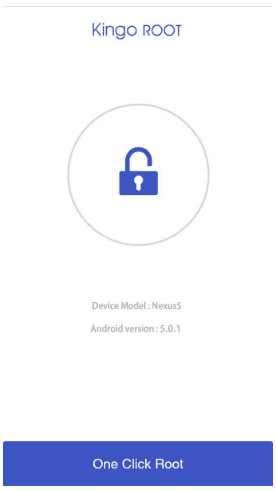
- 2. Wait for a few seconds till the result screen appears;
If the Android SDK root process is interrupted or uncompleted, try KinggoRoot several times. If KingoRoot APK still fails to root your device after multiple trials, you can refer to KingoRoot Android (PC Version) for guidance on how to root your Android phone or tablet on a PC.
Method 2. Root Android phones and tablets on PC
To root your Android phone or tablet on a PC or computer, you'll need to follow 4 steps. These steps will guide you through the process of gaining superuser access on your device, allowing you to customize and modify it to your liking.
Step 1. Free download and install Kingo Android Root on your computer.
Step 2. Enable USB debugging on your Android phone
- For Android 4.2 - 8.0 users:
- To enter developer mode on your phone, go to Settings, click on About Phone, then tap on Build number multiple times until you see a notification that you are now in developer mode.
- Go to Settings, then Developer options, and toggle on USB debugging.
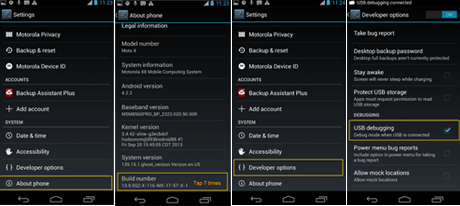
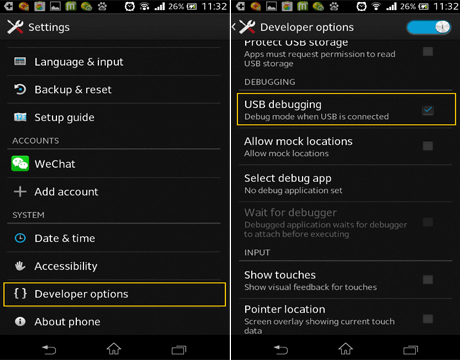
- For Android 3.0 to 4.1 Users: Enter "Settings" > Click "Developer options" > Check "USB debugging".
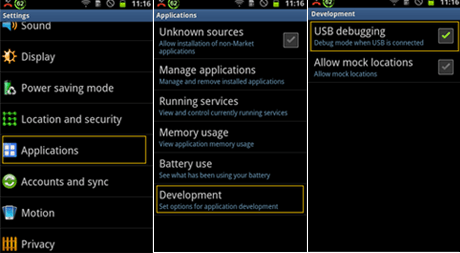
- For Android 2.3 or earlier: To enable USB debugging, go to Settings, then Applications, then Development, and check the box next to USB debugging.
Step 3. Run Android Root and connect your phone to PC
- Run Android Root and connect your phone to computer with its USB cable.
- When the software successfully connects your device, you can see the phrase "Connected" in the lower-left corner.
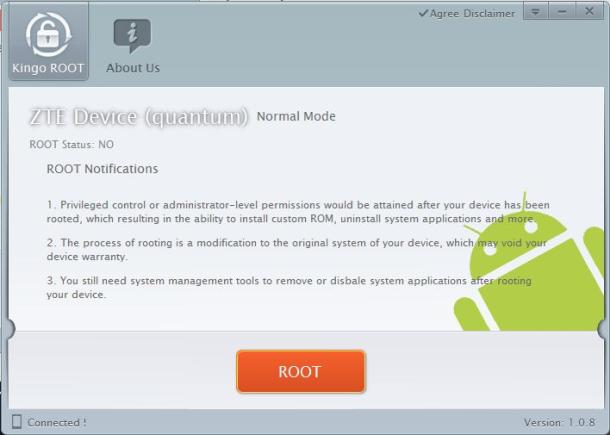
Step 4. Root your phone with one click
Click on the "Root" button and let the software complete the rooting process, which may take about 2 minutes and includes a device restart.
Related Articles
- How to Recover Lost Photos on Android Marshmallow
- How to Recover Photos After Formatting Android
- How to Recover Deleted Photos from Asus Zenfone
- How to Fix Boot Loop Issue on Android without Losing Data
- [SOLVED] Why Won't My iOS 15 Install? Fix the Error
Apple's iOS 15 update was released over 6 months ago, but many iPhone users are still unable to access it or make the most of its features. Despite this, there are steps that can be taken to update the phone to iOS 15 without unnecessary complications. - Downloads Folder Not Responding on Windows 10? Fix It Now!
If you're unable to access your Downloads folder or it's not responding in Windows 10, this article will guide you through two reliable solutions to fix the issue without losing any data.
Products
Articles & Tutorials
- Data Recovery
- Data Backup
- File Recovery
- File Backup
- System Backup and Restore
- Disk and Partition Clone
- Technical articles
- Mobile articles
- Disk Master Help
- Windows Data Recovery Tutorials
- Windows Secure Delete Tutorials
- Windows Partition Management Tutorials
- Windows File Backup and Restore Tutorials
- Windows System Backup and Restore Tutorials
- Windows Disk Backup and Restore Tutorials
- Windows Clone Tutorials