How to Remove Pattern Lock on Android
Summary
If you've forgotten your Android phone's password or pattern lock, don't worry - you can unlock it without needing to remember the password. To do this, follow the steps outlined in the guide, which will walk you through the process of removing the lock and regaining access to your phone.
If you've forgotten your Android password and want to access your locked device, follow these steps to regain access. Before proceeding, it's recommended to extract and back up your Android data to avoid any loss. However, if you don't mind losing your data, you can skip this step and directly proceed to unlock or remove the pattern lock/password from your Android phone.
Part 1. How to Extract/Back up Android Data Before Unlocking
As we stated earlier, you're very likely to lose all of your Android data by following the methods below, so it's strongly suggested to back up your Android data in advance using an Android data extractor, such as Qiling MobiSaver for Android, before proceeding.
Qiling MobiSaver for Android is a data recovery tool that helps users recover a variety of data from Android devices, but its ability to scan devices and find all files, including deleted and existing ones, also makes it a useful Android data extractor.
Note: This program requires enabling both Developer options and USB debugging on your Android device.
To extract data from a locked Android device:
Step 1. Connect your Android phone to the computer, launch Qiling MobiSaver for Android, click "Start", and ensure your phone is rooted in advance.
Step 2. Qiling MobiSaver scans Android phones to find existing and lost data, allowing users to select and extract specific files.
Step 3. Preview all the files one by one, select the items you wish to extract, and click the "Recover" button to extract them from your device.
With these steps, you'll successfully extract and backup important Android data, including contacts, text messages, photos, videos, or other more data, into PC with ease. You can then follow the next methods to solve the Android phone locked issue with ease.
Part 2. 4 Methods to Unlock Android Phone
If you're locked out of your Android phone, don't worry! There are some quick and simple ways to unlock it using built-in features like Forgot Pattern, Smart Lock, Google's Find My Device, or by putting your device in recovery mode. You can try any of these methods to remove the pattern lock on your Android phone.
Method 1. Use Forgot Pattern Feature [Android 4.4 Version and Earlier]
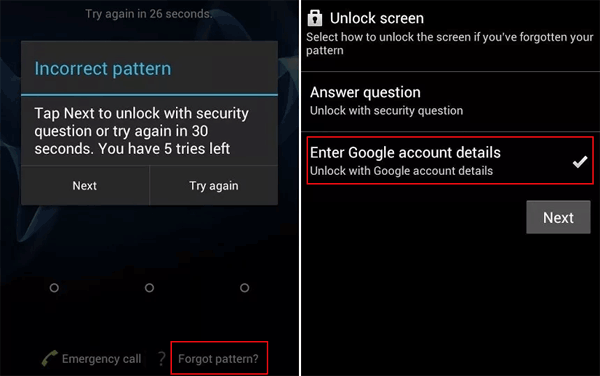
If you're using an Android running 4.4 and older system, you can use the "Forgot Pattern" lock feature to remove pattern lock. To do this, enter an incorrect pattern 5 times, and then you'll see a "Forgot Pattern" button appear on the screen. Tap on it, and you'll be prompted to enter a Google account password to reset the pattern lock. Once you've done this, you'll be able to set a new pattern lock.
Step 1. When you enter the wrong password 5 times on your Android device, you'll see the Forgot pattern screen. Tapping it takes you to a new page where you can select the way to unlock your screen, and choosing "Enter Google account details" is an option.
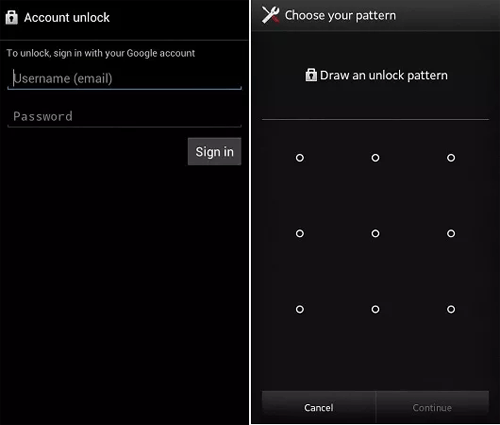
Step 2. To access your account, enter your information and proceed to a new page where you'll need to add a new pattern. Simply add one and confirm the operation, then you can use your device with the new password.
Method 2. Use Google's Find My Device Feature
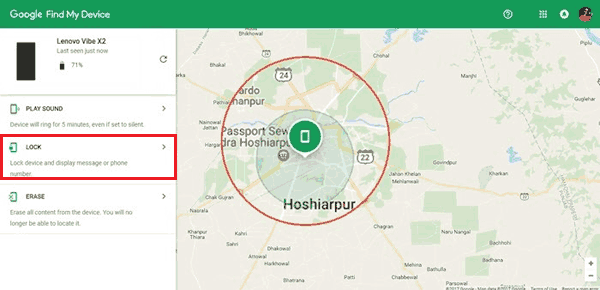
To unlock an Android device using Google's Find My Device feature, you can locate your device, lock it, or erase its data remotely, but if you have associated your device with a Google account, you can use the feature to unlock your device. Simply go to the Google Find My Device website, sign in with your Google account, and follow the prompts to unlock your device. If you are unable to unlock your device, you may need to perform a factory reset or visit a authorized service center for assistance.
Step 1. Open the Google Find My Device page on a web browser.
Step 2. You need to log in with your Google account, which should be the one that is linked to your device.
Step 3. After logging in, select your locked phone from the list.
Step 4. To lock your phone, you'll see several options: lock, ring, and erase. Just select "lock."
Step 5. To change your password, a new window will appear where you can set a new password.
Step 6. To update your Android device to the latest version, start by removing the SIM card and SD card from your device. Then, press and hold the Power button until the device turns off.
Method 3. Use Smart Lock Feature [Android 5.0 and Above]
The Smart Lock feature in Android 5.0 and above allows you to keep your device unlocked in trusted situations, offering five options: on-body detection, Trusted places, Trusted devices, Trusted face, and Trusted voice. If you've previously enabled Google Smart Lock, you can unlock your device without a password in these situations, such as when you put your device in your hand or pocket with on-body detection enabled.
Method 4. Put Your Android Device in Recovery Mode
If none of the above methods work and you're unable to unlock your Android device, putting it in recovery mode can be a last resort. This process will erase all data on the device, including the password, so it's essential to back up any important files before proceeding. If you do decide to go this route, you can extract your Android data using a recommended method to ensure you don't lose any essential information.
Step 1. First of all, turn off your phone.
Step 2. To put your device in recovery mode, press and hold the Volume Down key and the Power button simultaneously for a few seconds. This will boot your device directly into the recovery mode, bypassing the normal boot process.
Step 3. Press the Volume Down button two times to highlight Recovery Mode, and then press the Power button to select it.
Step 4. To enter recovery mode, you'll need to hold the Power key and press the Volume Up key simultaneously. Once you're in recovery mode, you can then hold the Power key and press the Volume Up key to perform the hard reset.
Step 5. To factory reset the device, press the Volume down key to select the Wipe data/Factory Reset option, then press the Power key to confirm the selection.
Step 6. Select OK, and your device will reset and restart.
Step 7. Once it's done, you should select "Reboot System Now" to restart your phone.
The Final Words
If you need to unlock your Android device's pattern lock, you can try using a third-party app, a Google account, or other methods. Regardless of the method you choose, be sure to back up your current data first to prevent losing any important information. If you have any further questions about this process, feel free to reach out to us.
Related Articles
- How to Recover Lost Photos on Android Marshmallow
- Download and Install Android 7.1.1 Beta without Losing Data
- How to Get Your Deleted Pictures & Videos from Android
- Samsung Note 4 Data Recovery
Products
Articles & Tutorials
- Data Recovery
- Data Backup
- File Recovery
- File Backup
- System Backup and Restore
- Disk and Partition Clone
- Technical articles
- Mobile articles
- Disk Master Help
- Windows Data Recovery Tutorials
- Windows Secure Delete Tutorials
- Windows Partition Management Tutorials
- Windows File Backup and Restore Tutorials
- Windows System Backup and Restore Tutorials
- Windows Disk Backup and Restore Tutorials
- Windows Clone Tutorials