How to Completely Retrieve Data from Bricked Android
Quick Navigation:
- How to Fix Your Bricked Android and Backup Data?
- How to Recover Data from Android After Flashing ROM
Summary
While a severely dead or broken Android phone may seem irreparable, it's often possible to recover data from it. Many users mistakenly assume a dead phone is "bricked," but this isn't always the case. In reality, a dead phone might still hold recoverable data, and attempting various solutions can often salvage important information.
You're experiencing issues with your Huawei G330, U8225-1, after attempting to adb push while receiving a "no space left on device" error. The phone boots in recovery mode, and you have root access, but the bootloader is locked. You're unable to push updates to the SDCARD/dload directory and adb shell access is restricted. To recover data from a bricked Android device, you can try using tools like ADB, Fastboot, or TWRP to access and extract data. If the device is completely unresponsive, you may need to use a data recovery service or contact the manufacturer for assistance.
Soft bricking occurs due to software errors, whereas hard bricking is caused by hardware malfunctioning, often resulting from physical damage, incompatible custom ROMs, or issues with data wipes and factory restores.
How to Fix Your Bricked Android and Backup Data?
The term "brick" implies that your Android phone won't turn on at all, suggesting it's completely unresponsive and unfixable. However, if it's stuck in a boot loop or recovery mode, it's not actually bricked, and you can still fix it by flashing a ROM.
One of the best things about Android is that if you're unhappy with the stock OS, you can install a modified version (ROM) on your device, which can bring you the latest version of Android, thus avoiding a frozen screen and endless looping system that can make your device look like a brick.
If you have an Android device with an operating system version under 8.0, you can flash a ROM yourself, but only if you're familiar with the process. If not, it's recommended to send the device to a maintenance center or follow online tutorials to do it yourself at home.
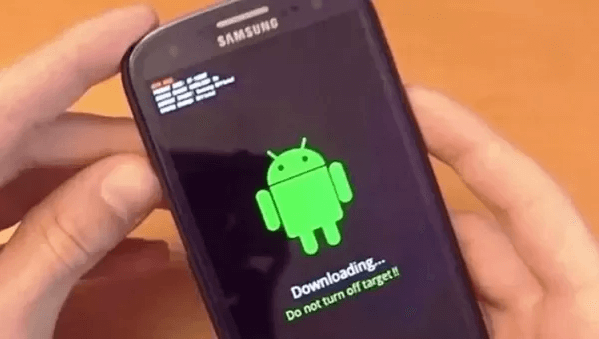
When flashing a ROM on your Android device, you'll be prompted to decide whether to keep your data. This decision should be made with caution, as attempting to fix a bricked phone during the flashing process can be tricky.
Follow a very useful article on Lifehacker about how to flash a ROM to your Android phone.
Here is the link address: https://lifehacker.com/how-to-flash-a-rom-to-your-android-phone-30885281
How to Recover Data from Android After Flashing ROM
When flashing a ROM, you have two options: "Wipe Data/Factory Reset" or "Wipe Cache Partition". If you didn't back up your data, flashing a ROM can result in varying degrees of data loss.
- The "Wipe Data/Factory Reset" option is selected when flashing a ROM different from the current one, resulting in the loss of all data.
- "Wipe Cache Partition" is used to flash a new ROM version, preserving some data, apps, and settings.
If you're just wiping data and cache instead of doing a factory reset, you can download Qiling MobiSaver for Android to recover data from Android after flashing ROM, although it can't guarantee a 100% recovery of lost data. It's still worth trying to get back most of the lost data.
- Notice
- To recover data, you'll need to root your Android first, and KingoRoot is a powerful and easy-to-use APK that can make this process quick and effective.
Step 1. Connect your Android phone to computer
To recover data from an Android device, install and run Qiling MobiSaver for Android on your computer, then connect your Android phone to the computer using a USB cable.
Click the "Start" button, and the software will immediately recognize and connect your device since it has been rooted.
Step 2. Scan Android phone to find the lost data
After connecting your Android phone to the software, it will quickly scan the device to find all existing and lost data, allowing you to easily locate the lost files you're looking for by selecting the correct file types.
Step 3. Preview and recover data from Android phone
Preview all the recoverable files one by one, select the desired ones quickly, and then click "Recover" to get them back. You can also turn on "Only display deleted items" to list deleted files only.
Related Articles
- How to Recover Data from Samsung Galaxy S7/S7 Edge
- How to Recover Hangouts Chat History/Messages
- Remove 'Your Device Has Been Blocked' Virus from Android Phone/Tablet and Restore All Android Data
- Easy Way to Recover Photos from Sony XPERIA Phone
Products
Articles & Tutorials
- Data Recovery
- Data Backup
- File Recovery
- File Backup
- System Backup and Restore
- Disk and Partition Clone
- Technical articles
- Mobile articles
- Disk Master Help
- Windows Data Recovery Tutorials
- Windows Secure Delete Tutorials
- Windows Partition Management Tutorials
- Windows File Backup and Restore Tutorials
- Windows System Backup and Restore Tutorials
- Windows Disk Backup and Restore Tutorials
- Windows Clone Tutorials