How to Recover Hangouts Chat History/Messages
Quick Navigation:
- Method 1. How to Recover Hangouts messages in Gmail
- Method 2. How to Retrieve Archived Hangouts Messages
- Download Android recovery app to recover other deleted files
- Conclusion
Summary
If you're looking to recover Hangouts chat history on your Android device, this guide is for you. It provides a step-by-step method to retrieve deleted Hangouts messages, allowing you to access your lost conversations again.
If you've accidentally deleted your Hangouts chat history, you may still have options to recover it. While Google does not keep deleted chats indefinitely, you can try checking your Gmail account where Hangouts history may be saved, or use the methods described below to retrieve your lost conversations.
If you've ever had to delete some Hangouts chat history only to later realize the deleted items were important, you can try two methods to recover them, as outlined in this guide.
To avoid data loss, it's recommended to back up your device regularly. If you frequently forget to do so, consider installing an Android data recovery tool on your computer, which will help you recover lost data in case of an emergency.
Method 1. How to Recover Hangouts messages in Gmail
If your Hangouts history is saved automatically in Gmail, you can review deleted messages by searching for them in Gmail, likely due to a mistaken deletion.
Step 1. To use Hangouts, open Gmail on your computer and ensure you're logged in with the same account you use for Hangouts.
Step 2. On the left side of the page, click "More" at the bottom of your Gmail labels list.
Step 3. To view your Hangouts chat history, click on the "Chats" tab.
Step 4. To find the Hangout you want to read, you can search for it by name, keyword, or browse through the categories. Once you find the Hangout you're interested in, click on it to open it.
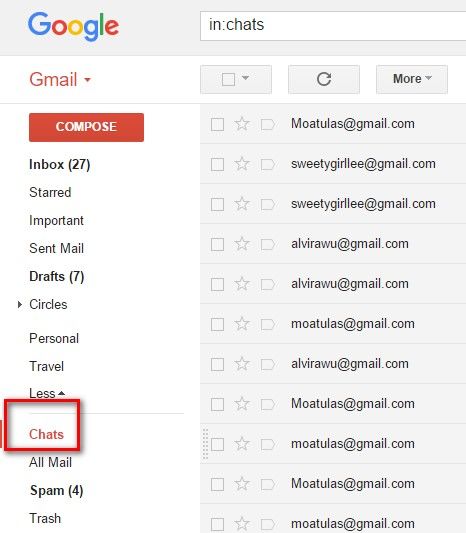
Tips: To view old Hangouts messages, open Gmail on your computer, type "in:chats" in the search bar, tap on "Search", and then check out all the Hangouts.
Method 2. How to Retrieve Archived Hangouts Messages
If you have archived Hangouts messages before, you can unarchive them to retrieve your deleted messages. To do this, follow the steps to restore your archived messages.
Step 1. To open a Hangout on your Android device, start by launching the Hangouts app, then tap the gear icon located at the top-right corner of the screen to access the settings.
Step 2. Click "Archive conversation." Then, all the messages will be archived.
Step 3. To unarchive a conversation, click the gear icon in the top right corner of the conversation window, then select "Unarchive conversation" from the dropdown menu. This will move the conversation back to your inbox, allowing you to view and interact with the messages again.
Download Android recovery app to recover other deleted files
If you've lost or deleted files like pictures, videos, documents, or text messages (excluding Hangouts messages or data), you can use a professional Android data recovery tool like Qiling to retrieve them. You can start by downloading the trial version, scanning your Android phone or memory card to see if you can find the lost files, and then purchasing a license code for real data recovery if needed.
To recover data from Android, you can:
Step 1. To recover data from an iPhone, plug it into a computer, launch Qiling MobiSaver for Android, and click "Start" to proceed. Note that this program only works with devices that have been rooted.
Step 2. This program will quickly scan your device and display all of the data in well-organized tables, allowing you to select the types that contain the deleted data.
Step 3. To recover deleted files, preview the deleted files, select one (ones) you wish to recover, and click "Restore."
Conclusion
This guide has discussed two possible ways to recover deleted Hangouts chat history on your Android, and we hope you can find your wanted Hangouts messages through reading our guide. Apart from Hangouts, there are many other files on your Android device that can be recovered using a tool like Qiling MobiSaver, which can help you recover any deleted data from your Android without worry.
Related Articles
- Recover Contacts from Android after Factory Reset
- How to Completely Retrieve Data from Bricked Android
- How to Get Deleted Snapchat Photos, Videos, and Messages Back
- Fix Error Unfortunately App Has Stopped on Android
Products
Articles & Tutorials
- Data Recovery
- Data Backup
- File Recovery
- File Backup
- System Backup and Restore
- Disk and Partition Clone
- Technical articles
- Mobile articles
- Disk Master Help
- Windows Data Recovery Tutorials
- Windows Secure Delete Tutorials
- Windows Partition Management Tutorials
- Windows File Backup and Restore Tutorials
- Windows System Backup and Restore Tutorials
- Windows Disk Backup and Restore Tutorials
- Windows Clone Tutorials