What is Screen Time Passcode and How to Set or Reset it
What is a Screen Time Passcode and Its Functions
Apple devices that support iOS 12 and later versions have access to Screen Time, a feature that tracks device usage and can be used as a parental control tool. A Screen Time Passcode is required to secure customized settings, preventing unauthorized changes.
With Screen Time, you can see how much time you spend using your iPhone, iPad, or iPod touch, and even set limits on specific activities. This feature also helps you track how much time you and your children spend on apps, websites, and other things, giving you valuable insights to make informed decisions about your gadget use. Additionally, you can use Screen Time to impose parental controls on a child's device, helping you regulate their screen time and ensure a healthy balance between technology use and other activities.
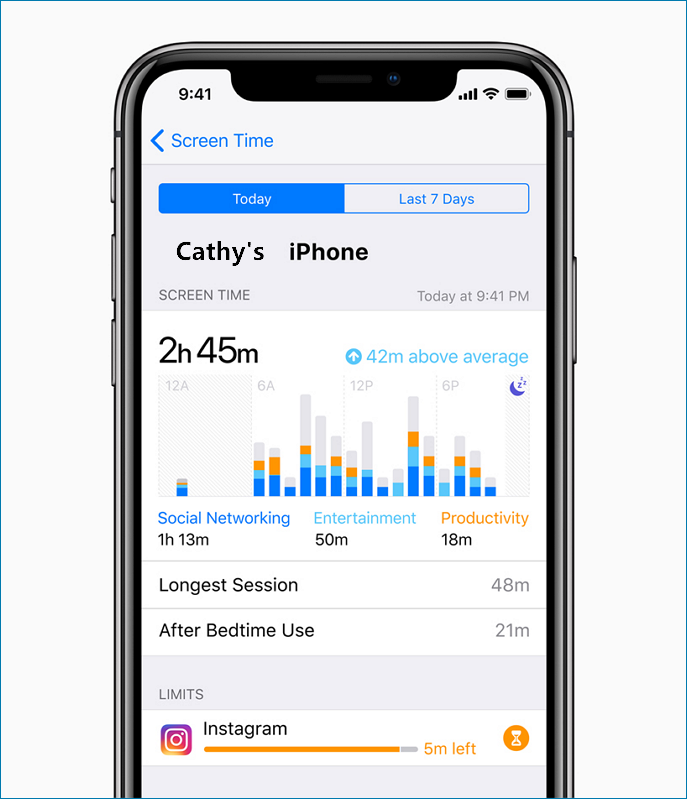
Screen Time Passcode is a feature that allows you to set a password for changing Screen Time settings, ensuring that only you can make changes and adjust time limits as needed. It also enables you to set content and privacy restrictions for your child's device.
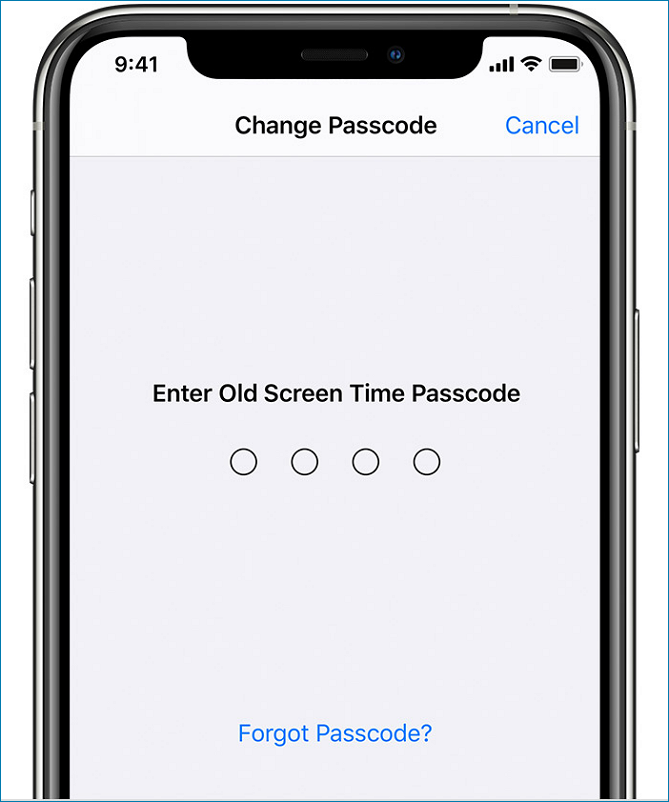
How to Set a Screen Time Passcode on iPhone & iPad
Unfortunately, there is no default Screen Time passcode for iPad or iPhone. However, if your iPhone asks for a Screen Time passcode that you haven't set, you can try using 1234 or 0000, as some users have reported success with these codes. It's also worth noting that if you enabled Restrictions before updating to iOS 12, your Screen Time passcode will be the same as your previous Restrictions passcode.
To turn on your screen time permission, go to Settings, then tap Screen Time, then tap Turn On Screen Time. Once you've done that, you can set a Screen Time Passcode to lock your screen time settings. This will prevent others from changing your screen time settings without your permission.
Turn on Your Screen Time Permission
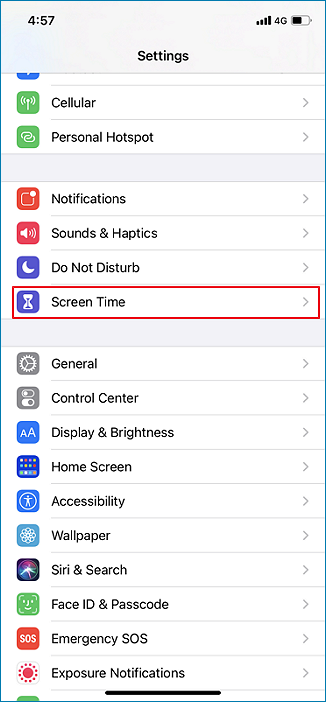
Step 1. Go to "settings" to find "screen time".
Step 2. Click "continue" to "Turn on Screen Time".
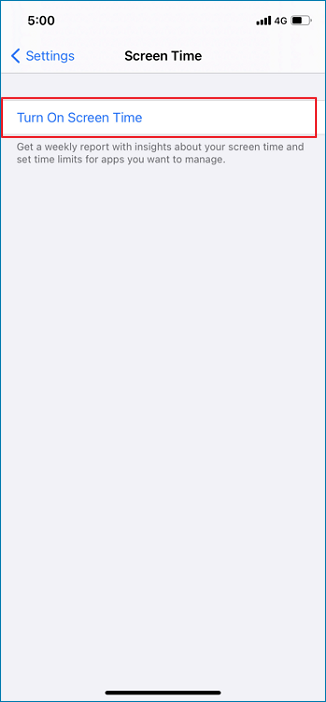
Set a Screen Time Passcode on iPhone & iPad
To set up a Screen Time passcode, go to Settings > Screen Time, then tap on the toggle switch next to "Turn On Screen Time Passcode" to enable it. If you're using Family Sharing, you'll be prompted to enter your Apple ID password. If you're not using Family Sharing, you can tap on "Set Up Screen Time Passcode" and enter a 4-digit passcode. Then, you'll be asked to confirm the passcode.
Step 1. Turn on Screen Time and then click continue.
Step 2. Select the option that accurately describes your situation. If you're using your own iPhone, choose [This is My iPhone]. If the iPhone belongs to your child, choose [This is My Child's iPhone].
If you're using the screen time for yourself, you should choose [This is My iPhone]. If you're using Family Sharing, you should select [This is My Child's iPhone].
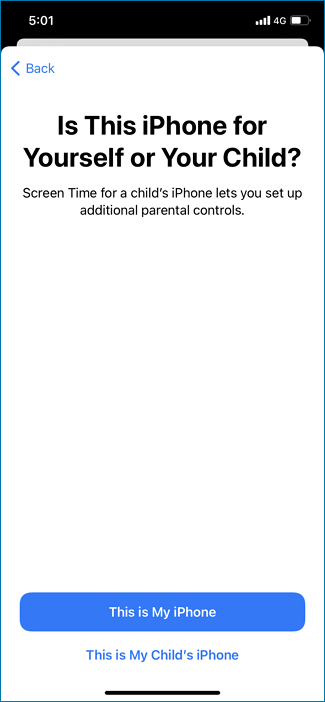
There are different steps for your other choice. Suppose you're using Family Sharing to manage a child account. You can refer to the following steps.
Step 3. Select the name of your child under Family as you scroll down.
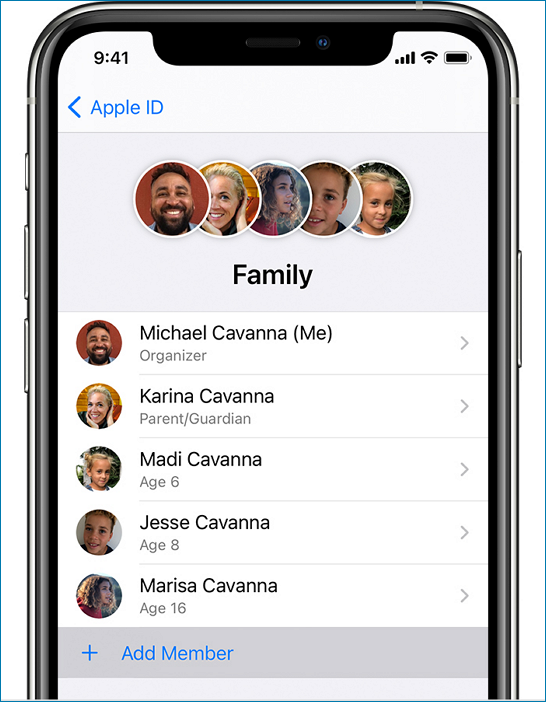
Step 4. After selecting Turn on Screen Time, select Continue.
Step 5. You can set restrictions for your child's downtime, app limits, and content & privacy, or choose Not Now.
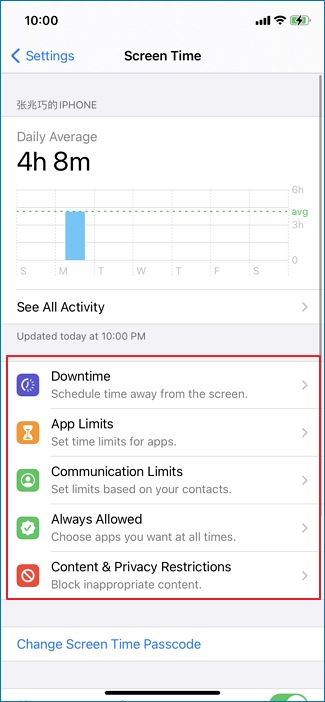
Step 6. To confirm the Screen Time Passcode, enter the passcode twice.
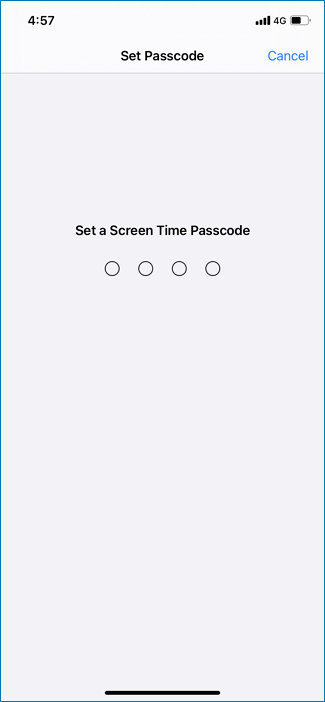
Step 7. If you forget your Screen Time passcode, you can reset it by entering the password and Apple ID you use. This will allow you to regain access to your Screen Time settings.
If you're not using Family Sharing, you can refer to the following steps.
Step 3. Once you set up your iPhone, you can use features like Downtime, App Limits, and Content & Privacy Restrictions to manage your screen time and online activity.
To set up Screen Time on your iPad or mac, click on the provided link to watch a tutorial, or visit the Apple website for more information. Additionally, a video is available to guide you through the process.
How to Reset Screen Time Passcode without Password
If you inadvertently lose or forget the Screen Time passcode on your child's iPhone or iPad, you can reset it without losing all of your settings. To do this, you will need access to your Apple ID, and then the process is relatively straightforward.
Step 1. Go to [Settings] from your iPhone's or iPad's home screen.
Step 2. Scroll down and tap [Screen Time] under [Settings].
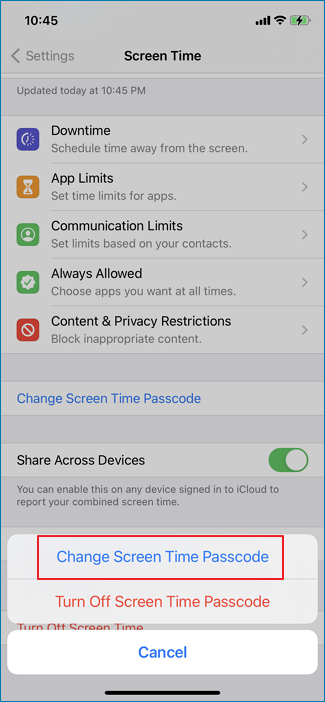
Step 3. Select [Change Screen Time Passcode] on [Screen Time].
Step 4. Choose the [Change Screen Time Passcode] option. This will allow you to change the current passcode to a new one, rather than turning it off completely. This is a good option if you want to keep the passcode feature enabled but update the current passcode to something new. Simply enter a new passcode and confirm it to complete the process.
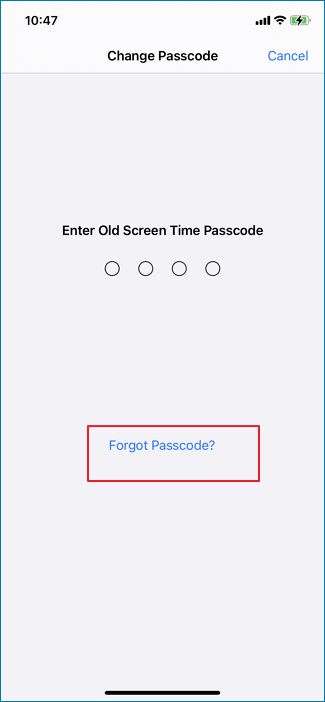
Step 5. To reset your passcode, you will be asked to enter your current passcode, and then tap [Forgot Passcode] on the screen.
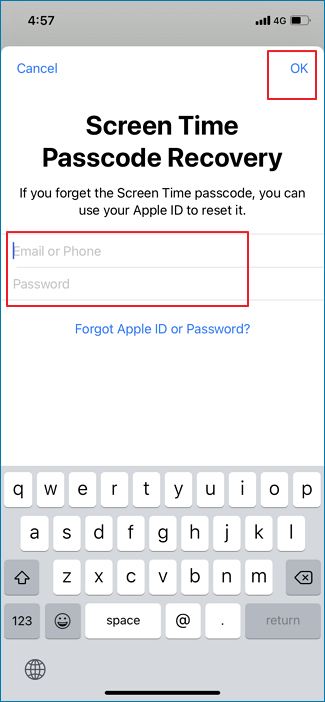
Step 6. To reset the passcode, enter your Apple ID login information at Screen Time Passcode Recovery, fill it out and then hit "OK" to proceed.
Step 7. You can now input a new Screen Time passcode.
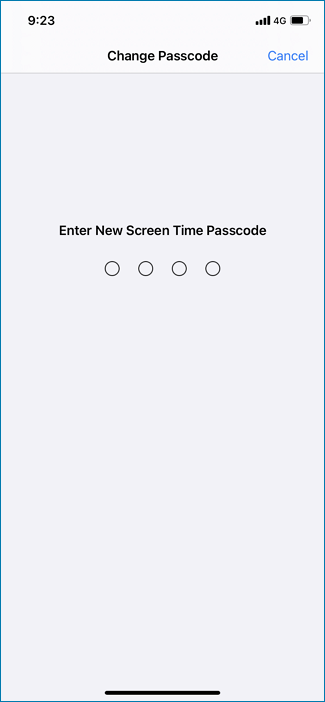
You can reset the Screen Time passcode on your iPhone or iPad by using the Screen Time Passcode Recovery feature. If you're unable to use this feature, you can still reset the passcode by setting up a new one and requesting your Apple ID. However, if you ignore this step when setting up a new passcode, you won't be able to use this method to reset the passcode on your device.
To secure your Screen Time settings, choose a strong and unique passcode that is difficult to guess, and update it periodically. Alternatively, you can turn off the Screen Time passcode or disable Screen Time altogether if you don't use it on your iPhone or iPad.
Screen Time Passcode Q&A
1. How many failed Screen Time passcode attempts iPhone?
If you fail to unlock your screen seven times, it will be locked out for five minutes. If you fail eight times, it will be locked out for fifteen minutes, and if you fail nine times, it will be locked out for an hour.
2. How to change the screen time passcode on a child's phone?
To change or disable the passcode on your child's device, go to Settings, then Screen Time, and select your child's name. From there, choose Change Screen Time Passcode or Turn Off Screen Time Passcode, and confirm the modification using Face ID, Touch ID, or your device passcode.
Related Articles
- How to Fix iPhone/iCloud Calendar Not Syncing with Mac in iOS 11
- How to Fix iTunes Error 0xE8000015 - iPhone 8/iPhone 7
- 3 Methods to Clear Space on iPad and iPhone
- Quick Solutions to Micro SD Card Not Detected in Windows 10
Find micro SD card not reading in Windows 10? Follow this guide to get it fixed. You can also get a way to protect your SD card data.
Products
Articles & Tutorials
- Data Recovery
- Data Backup
- File Recovery
- File Backup
- System Backup and Restore
- Disk and Partition Clone
- Technical articles
- Mobile articles
- Disk Master Help
- Windows Data Recovery Tutorials
- Windows Secure Delete Tutorials
- Windows Partition Management Tutorials
- Windows File Backup and Restore Tutorials
- Windows System Backup and Restore Tutorials
- Windows Disk Backup and Restore Tutorials
- Windows Clone Tutorials