Snapchat backup error while trying to backup snaps to Memories. How to solve?
Quick Navigation:
- Snapchat memories gone due to Snapchat backup error
- Snapchat backup error solution
- How to restore disappeared Snapchat memories with Snapchat backup extractor?
Summary
Are you experiencing issues with Snapchat, such as the toggle private status failing or Snapchat memories backup errors when trying to backup snaps, stories, photos or videos to Camera roll and memories? If so, this solution can help you fix the Snapchat backup failed problem, and a recommended Snapchat backup extractor can also assist in finding disappeared Snapchat memories with ease.
Snapchat memories gone due to Snapchat backup error
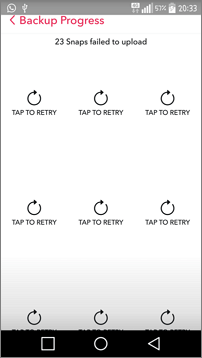
"I came back from a vacation today, and all my snaps from the vacation were saved to the memories. Today I plugged the phone to the computer and tried to download the memories onto it, only to find that the memories are missing. I get the message of 'Backup error' but I cannot backup the snaps for some reason. I am very frustrated because these snaps mean a great deal to me. Thanks in advance, Tom."
Many Snapchat users experience a backup error when trying to save snaps, stories, photos, and videos to their Camera roll & memories, resulting in lost memories. To resolve this issue, users should look for a solution to the Snapchat backup error and try various fixing methods to prevent their precious memories from disappearing.
Snapchat backup error solution
Snapchat's backup failed due to outdated app version, unstable Wi-Fi connection, or insufficient cloud space, causing backup errors while uploading snaps to Memories. To resolve this issue, update the Snapchat app to the latest version, ensure a stable internet connection, and free up cloud space to prevent backup errors.
- Keep your Snapchat app up-to-date;
- To resolve the issue, log out of your Snapchat account and then log back in. This will often refresh the app and resolve any connectivity issues.
- To clear Snapchat memories cache, go to your phone's Settings, find the Cache or Storage section, and clear all cache files related to Snapchat memories. This should resolve the issue.
How to restore disappeared Snapchat memories with Snapchat backup extractor?
If you're experiencing a "backup error failed to load" issue on Snapchat, try applying the solutions above to resolve the issue. If your Snapchat memories were lost due to this error, you can attempt to recover deleted Snapchat snaps.
Qiling MobiSaver for Android is a tool that can help retrieve deleted Snapchat memories, stories, photos, and videos that were stored on your phone's memory. Since Snapchat photos are automatically saved to your phone's camera roll, you can use this tool to recover them.
Step 1. Connect your Android phone to computer
Install and run Qiling MobiSaver for Android on your computer, then connect your Android phone to the computer with a USB cable. Click the "Start" button to initiate the software's connection to your device.
NOTE: Before proceeding, ensure that your Android device has been rooted, as the software can only access and recover data from a rooted device.
Step 2. Scan Android phone to find the lost Snapchat memories
After connecting your Android phone, the software quickly scans the device to find all existing and lost data, including your lost Snapchat local files.
Step 3. Preview and recover snaps from Android phone
After the scan is complete, you can easily recover lost Snapchat files by selecting the correct file types. You can also turn on the "Only displayed deleted items" option to list only the deleted files. Once you've found the files you want to recover, you can preview them one by one and then click the "Recover" button to get them back at once.
Related Articles
- How to Recover Deleted Line Chat History & Messages
- [Fixed] Android Error INSTALL_FAILED_INSUFFICIENT_STORAGE Without Losing Data
- How to Fix Android Error 'Process system isn't responding'
- How to Retrieve Deleted Text Messages on Android
Products
Articles & Tutorials
- Data Recovery
- Data Backup
- File Recovery
- File Backup
- System Backup and Restore
- Disk and Partition Clone
- Technical articles
- Mobile articles
- Disk Master Help
- Windows Data Recovery Tutorials
- Windows Secure Delete Tutorials
- Windows Partition Management Tutorials
- Windows File Backup and Restore Tutorials
- Windows System Backup and Restore Tutorials
- Windows Disk Backup and Restore Tutorials
- Windows Clone Tutorials