How to Sync Notes from iPhone to iPad with/Without iCloud
If you can't use iCloud, you can sync notes from iPhone to iPad using other methods, such as using a third-party note-taking app that allows cross-device syncing, or by manually transferring notes from iPhone to iPad through email or cloud storage services like Google Drive or Dropbox.
If you have an iPhone and an iPad, and you're having trouble syncing notes between the two devices, don't worry. Both Qiling MobiMover and Google have features that can help you sync notes between your iPhone and iPad, whether you use iCloud or not. You can use either of these services to follow the instructions and get your notes synced up.
- Part 1. How to Sync Notes from iPhone to iPad Without iCloud
- Part 2. How to Sync Notes from iPhone to iPad with iCloud
Part 1. How to Sync Notes from iPhone to iPad Without iCloud
If you've run out of iCloud storage and don't want to upgrade, you can use alternatives like Qiling MobiMover and Google to sync files across devices. For more detailed information, just keep reading our guide below.
Option 1. Using Qiling MobiMover
Qiling MobiMover is a powerful iOS data transfer tool that enables users to transfer various files between iDevices or between a computer and an iDevice with remarkable speed, often transferring large files within minutes. Unlike iCloud, which requires a stable Wi-Fi connection, MobiMover allows for data transfer even in environments with no internet access. Additionally, it features a built-in video downloader that allows users to download videos from any website.
If you're looking to transfer photos from your iPhone to your iPad, you can use Qiling MobiMover to do so without relying on iCloud. This tool also allows you to transfer notes from your iPhone to your iPad, making it a convenient option for syncing data between devices. To get started, simply download Qiling MobiMover on your computer and begin the syncing process.
Step 1. Connect your iPhone and iPad to your computer with two USB cables, launch Qiling MobiMover, unlock your devices, and click "Trust" to trust your computer. Next, click "Phone to Phone", specify the transfer direction, and then click "Next" to continue.
Step 2. To copy categories, select the desired categories and click the "Transfer" button. This will move the chosen categories to the desired location.
Step 3. After syncing your iPhone with your computer, open the "Notes" app on your target iPad and you will see the newly imported notes.
Option 2. Using Google
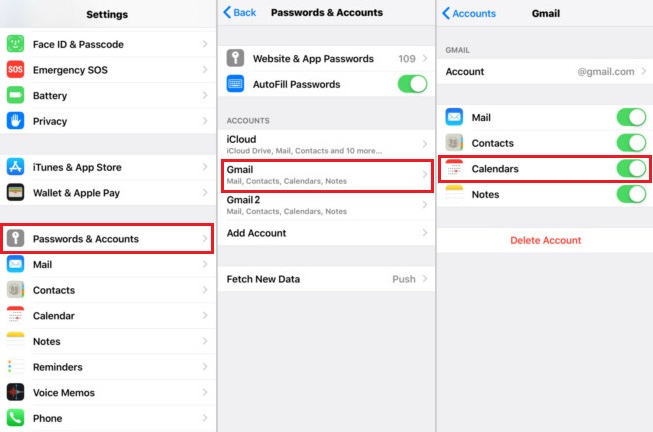
If you're familiar with syncing notes with iCloud, syncing notes with Google will seem like a breeze. To get started, ensure your Google account is already set up on your iPhone and iPad. This will allow for seamless syncing of your notes across devices.
Step 1. On your iPhone, open the Settings.
Step 2. Tap "Password & Account."
Step 3. Tap the Google account you'd like to use.
Step 4. Switch the "Notes" on.
Step 5. Repeat the same steps on your iPad.
Part 2. How to Sync Notes from iPhone to iPad with iCloud
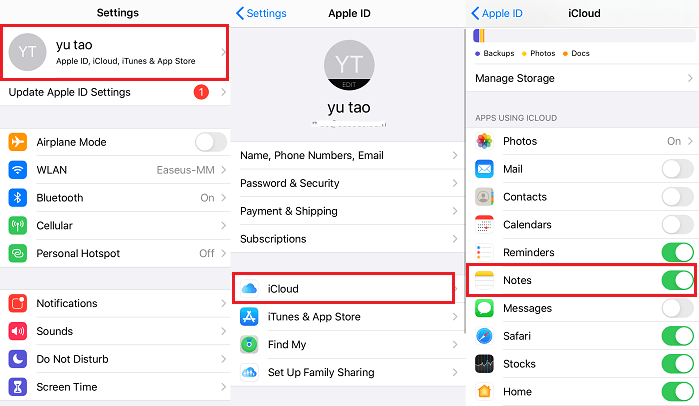
iCloud is the safest and easiest way to sync files between the iPhone and iPad. Before syncing notes, ensure your iCloud has enough storage space; if not, manage your storage by deleting unwanted files or upgrading your plan.
Step 1. On your iPhone, open the Settings app.
Step 2. Tap [your name].
Step 3. Tap iCloud.
Step 4. From the new page, turn on "Note."
Step 5. To sync your notes across devices, start by opening the Notes app on your iPhone. Tap the "Settings" icon on the bottom right corner, then scroll down and select "Notes" from the list. Next, toggle the switch next to "iCloud" to turn it on.
The Bottom Line
Syncing notes across iPhone and iPad can be easily done with Qiling MobiMover, Google, and iCloud. To prevent losing important notes, it's a good idea to regularly back up your notes to your PC. If data loss does occur, you can try finding your notes again with ease by following some helpful tips.
If you have any questions about our guide, don't hesitate to contact us. That's all about our guide.
Related Articles
- How to Print WhatsApp Messages Easily and Quickly
- How to Copy Windows 11 to USB and Make It Bootable (3 Cases)
Looking for solutions to make a copy of Windows 11 on a USB drive and make the drive bootable? Read this article carefully to learn 3 different ways. - How to Easily Factory Reset Windows 11 PC (2 Ways)
To factory reset Windows 11 PC, you can learn 2 useful methods in the article. And you can learn how to backup your important files before resetting as well. - [2 Simple Ways] How to Allocate a Hard Drive in Windows 11?
How to allocate a hard drive in Windows 11 when there's not enough free space? In this post, 2 easy ways will be introduced to help with the allocation.
Products
Articles & Tutorials
- Data Recovery
- Data Backup
- File Recovery
- File Backup
- System Backup and Restore
- Disk and Partition Clone
- Technical articles
- Mobile articles
- Disk Master Help
- Windows Data Recovery Tutorials
- Windows Secure Delete Tutorials
- Windows Partition Management Tutorials
- Windows File Backup and Restore Tutorials
- Windows System Backup and Restore Tutorials
- Windows Disk Backup and Restore Tutorials
- Windows Clone Tutorials