How to Transfer Data from Android to iPhone Using Computer
Quick Navigation:
- Method 1. Transfer Data from Android to iPhone Using PC via iPhone Transfer Software
- Option 1. Transfer Photos from Android to iPhone
- Option 2. Transfer Contacts from Android to iPhone
- Method 2. How to Transfer Data from Android to iPhone Using iTunes
- Method 3. How to Transfer Files from Android to iPhone Using iCloud
- The Bottom Line
"How to transfer data from Samsung to iPhone?"
When switching from an Android phone to an iPhone, it's essential to transfer your data from the Android device to the new iPhone before starting to use it. This ensures a seamless transition and allows you to access all your important information, such as contacts, photos, and apps, on your new device.
To transfer data from an Android device to an iPhone using a PC, you can use a computer to connect both devices and transfer data wirelessly or with a cable. This method allows you to transfer photos, videos, contacts, and more from your Android device to your iPhone using a PC as a middleman. You can use a USB cable or Wi-Fi to connect your devices to the PC, and then use a data transfer software or app, like Google's Move to iOS, to transfer your data from your Android device to your iPhone. This method is convenient and doesn't require any additional hardware or software, and it's also a good option if you want to transfer a large amount of data.
Method 1. Transfer Data from Android to iPhone Using PC via iPhone Transfer Software
Supports: Photos, videos, music, contacts, books
The Qiling MobiMover software allows you to transfer files between an iPhone/iPad/iPod and a computer, making it possible to move data from an Android device to a computer and then copy files from the computer to an iPhone. This enables you to transfer data from Android to iPhone using a PC.
Depending on the type of content you are looking to copy, the steps vary. Here I'd like to show you how to move pictures and contacts from Android to iPhone via Qiling MobiMover.
Option 1. Transfer Photos from Android to iPhone
First, move content from Android to PC.
Step 1. To connect your Android device to your computer with a USB cable, insert one end of the cable into the USB port on your device and the other end into a free USB port on your computer. This will establish a physical connection between the two devices.
Step 2. Make sure your phone is unlocked and choose "Transfer files" from the prompt asking you what to do with the device.
Step 3. To transfer files from your Android device to your iPhone, start by going to "This PC" on your computer, then select your device name and click on "Internal Storage". From there, navigate to the folder containing the files you want to transfer, such as the "DCIM" > "Camera" folder for your Android photos and videos.
Step 4. To copy items from the Android internal storage to a computer, you can use a USB cable to connect your Android device to the computer. Once connected, enable USB debugging on your Android device and install the necessary drivers on your computer.
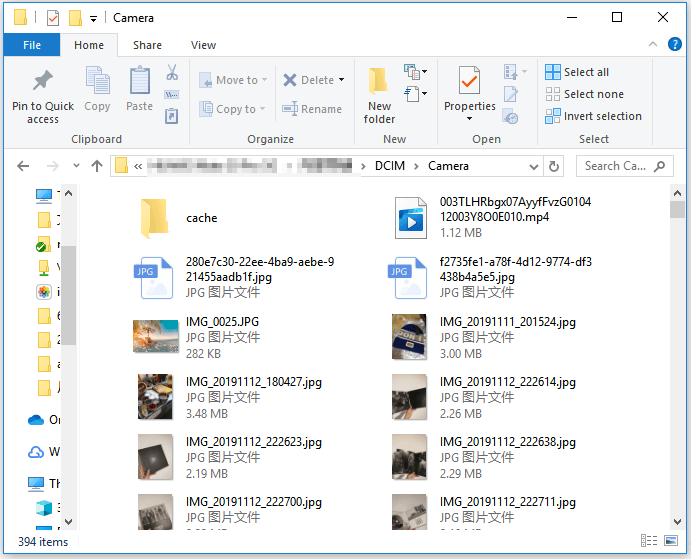
Then, transfer photos from PC to iPhone:
Step 1. Connect your new iPhone X or iPhone 8 to your PC with a USB cable, tap "Trust This Computer" on your device if a pop-up appears, and run Qiling MobiMover. On the main interface, navigate to "PC to Phone" and click "Select Files" to prepare for data transfer between your PC and iDevice.
Step 2. Open Windows Explorer, navigate to the exact disk location, select the files you want to transfer, and click "Open".
Step 3. Selected files will be displayed on the right side with detailed file names and sizes. You can add more files to transfer by clicking "Add Contents" or dragging them to the designated area. Once ready, click "Transfer" to start the process, and do not disconnect your iPhone until it's finished. After completion, access the corresponding app on your iPhone to verify the transferred data.
Option 2. Transfer Contacts from Android to iPhone
Transferring contacts from Android to iPhone requires a different approach than transferring data from one iPhone to another. Since you can't access and copy contacts directly from the Android device's internal storage, you'll need to export them to a computer as a vCard file first. Once you have the vCard file, you can then import it from your computer to your iPhone using a tool like Qiling MobiMover.
To export contacts from Android to computer:
Step 1. On an Android device, go to the Contacts app, select "More", then "Settings", and finally "Export vCard".
Step 2. Connect the Android device to your computer.
Step 3. To transfer files from an Android phone, unlock the device and select the "Transfer files" option from the prompt. This will allow you to share files with other devices.
Step 4. To access the internal storage of your device, navigate to "This PC" on your computer, click on the name of your device, and then select "Internal Storage" from the list of options.
Step 5. Enter vcf in the search box.
Step 6. Copy the VCF file to your computer
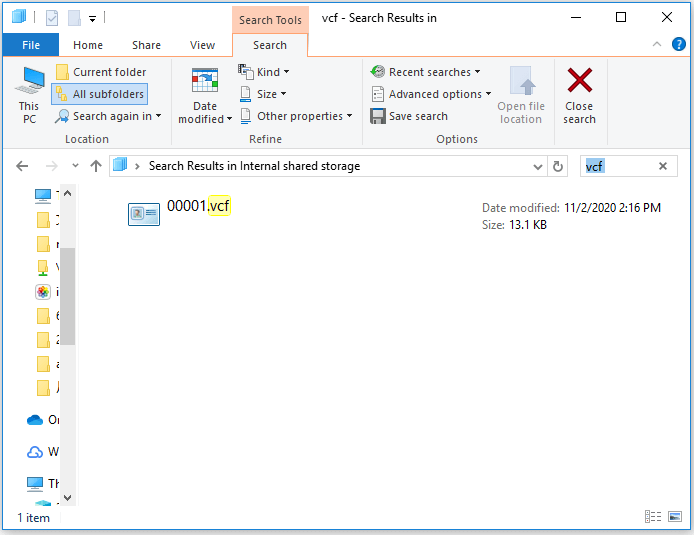
To import Android contacts from computer to your iPhone:
Step 1. To connect your iPhone to your PC, use a USB cable and start Qiling MobiMover. Unlock your iPhone and click "Trust" on the PC. Next, go to the "PC to Phone" section and select the files you want to transfer.
Step 2. To transfer contacts, select the desired contacts from your device, and click the "Open" button. This will initiate the transfer process.
Step 3. To transfer contacts from your PC to your iPhone, click the "Transfer" button to initiate the process.
There are desktop programs available that allow you to transfer data directly from an Android device to an iPhone, if that's the kind of tool you're looking for. You can search for and use the one that suits your preferences.
Method 2. How to Transfer Data from Android to iPhone Using iTunes
Supports: Photos, videos, books
If you have iTunes installed on your PC, you can sync data to your iPhone by transferring files from Android to computer first. To do this, simply connect your Android device to the computer, then copy the files from the internal storage to the computer. Once you have the files on your PC, you can use iTunes to sync them to your iPhone.
To sync data from your PC to your iPhone using iTunes, follow these steps: For example, to transfer music, connect your iPhone to your PC and open iTunes. Select the music you want to transfer by checking the boxes next to the songs, then click "Sync" to transfer the music to your iPhone. You can also transfer other types of content, such as files, by following the guide on how to transfer files from PC to iPhone.
Step 1. Connect your iPhone to your PC using a USB cable, unlock your device, and trust the computer.
Step 2. After iTunes launches automatically, add the exported songs to the iTunes library by going to "File" > "Add File to Library".
Step 3. Tap the "Device" button and choose "Music".
Step 4. To transfer music from your old phone to your new one, simply check the "Sync Music" option and select the items you want to transfer, ensuring a seamless music experience on your new device.
Step 5. To transfer Android songs to your iPhone, click "Apply" then "Sync" to initiate the transfer process.
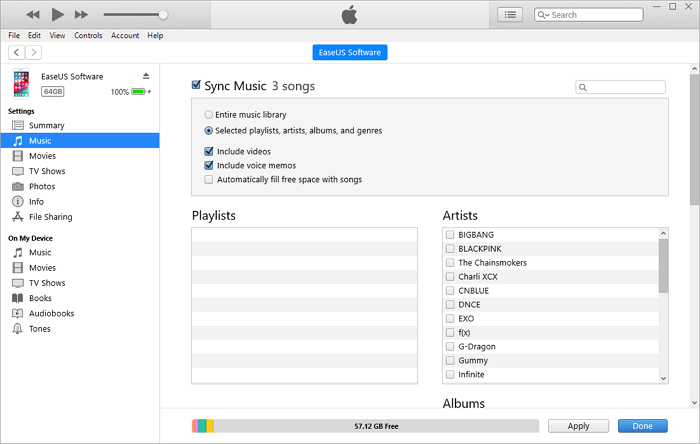
Method 3. How to Transfer Files from Android to iPhone Using iCloud
Supports: Photos, videos, contacts, documents, and more
With the help of a PC, you can access iCloud.com and transfer data from your Android device to your iPhone. After copying files from your Android device to your PC, upload them to iCloud.com, then turn on iCloud on your iPhone. Once data syncing is complete, access and download your photos, videos, contacts, or documents to your iPhone over Wi-Fi.
Since the steps to move files from Android to computer have been detailed above already, here I'll show you how to transfer data to iPhone using iCloud.
Step 1. Go to iCloud.com on your PC, sign in with the Apple ID you use on your iPhone.
Step 2. Select the category you want to transfer, e.g. photos.
Step 3. To upload photos from Android to iCloud, click the "Upload" button and upload the exported photos to iCloud.
Step 4. To enable iCloud Photos on your iPhone, go to Settings, then your name, followed by iCloud, and finally Photos, where you can toggle iCloud Photos to the "on" position.
Step 5. After syncing your data, you can access the photos on your iPhone.
To transfer files from Android to iPhone, upload files like Word documents or PDFs to your iCloud Drive on your Android device, then enable iCloud Drive on your iPhone and the files will be synced to your iOS device.
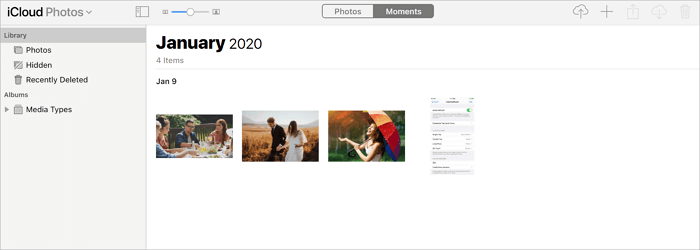
If the issue "iCloud Photos not syncing" occurs, learn how to fix it from the troubleshooting guide.
The Bottom Line
This guide shows you how to transfer data from Android to iPhone using PC, or you can opt for wireless solutions like the Move to iOS app or cloud-based services like Dropbox to copy data from Android to iPhone over Wi-Fi. Specify your needs and choose the method that suits you best to transfer Android data to iPhone within minutes.
Related Articles
Products
Articles & Tutorials
- Data Recovery
- Data Backup
- File Recovery
- File Backup
- System Backup and Restore
- Disk and Partition Clone
- Technical articles
- Mobile articles
- Disk Master Help
- Windows Data Recovery Tutorials
- Windows Secure Delete Tutorials
- Windows Partition Management Tutorials
- Windows File Backup and Restore Tutorials
- Windows System Backup and Restore Tutorials
- Windows Disk Backup and Restore Tutorials
- Windows Clone Tutorials