How to Transfer Messages from iPhone to iPhone
Quick Navigation:
- Method 1. Back up Messages from iPhone to Another via iCloud Sync
- Method 2. Transfer Messages to a New iPhone
- Method 3. Sync Messages from iPhone to iPhone with iTunes
- Bonus Tip--How to back up text messages on iPhone
- Conclusion
This information applies to various iPhone models, including the iPhone 13 Pro Max, 13 Pro, 13, 13 mini, iPhone 12 Pro Max, 12 Pro, 12, 12 mini, 11 Pro Max, 11 Pro, 11, iPhone XS Max, XS, XR, iPhone X, iPhone 8, 8 Plus, iPhone 7, and iPhone 6.
1) when you want to transfer data from an old iPhone to a new one, and 2) when you want to transfer data from one iPhone to another iPhone that you already have.
- To transfer messages from your old iPhone to your new one, you can use the built-in feature called "Move Data from iPhone to iPhone" or use a third-party app like Move to iOS. The process is relatively straightforward and can be completed in a few steps.
- You can use the "Share with" feature to send a message to another iPhone. To do this, go to the Messages app, compose a message, and then tap on the "Share with" option.
- You could consider using a messaging app that allows offline messaging, such as Signal or WhatsApp, which can store messages locally until network coverage is restored. Alternatively, you could use a physical method such as sending a postcard or letter, or even using a physical messenger service if available.
This guide will walk you through the process of transferring text messages from iPhone to iPhone. Before proceeding, it's a good idea to back up your iPhone as some of the methods may cause data loss, regardless of your reason for transferring the messages.
Method 1. Back up Messages from iPhone to Another via iCloud Sync
iCloud provides an easy way to back up and sync your messages. Once you've turned on Apple's Messages in the iCloud service, all of your messages will be automatically backed up to the cloud and synced to different iOS devices signed in to the same iCloud account. This means that you can access your messages from any of your devices, and they will be safely stored in case you lose or replace a device.
Unfortunately, Messages can only be enabled on iOS devices running iOS 11.4 or a later version, which can be checked by going to Settings > General > Software Update. If your device meets this requirement, you can proceed with enabling Messages.
Step 1. Open your iPhone and go to the Settings.
Step 2. To access your iCloud, click on your Apple ID and then click on the iCloud icon.
Step 3. Find the Messages and turn on it.
Note: If you need to download text messages from iPhone to PC, there are several methods you can use, as outlined in the post.
Method 2. Transfer Messages to a New iPhone
To sync your new iPhone with the latest iCloud backup, you should have previously enabled iCloud backup on your old iPhone. This means that your old iPhone should have been regularly backing up its data to iCloud, including your messages. Additionally, your new iPhone should be connected to the same iCloud account as your old iPhone.
- Make sure your iCloud has enough storage space on your new iPhone, otherwise messages that exceed the storage limits won't sync to your new iPhone.
- Keep your old iPhone in charge and connected to a stable and reliable Wi-Fi network.
If everything is ready, you can follow these steps to transfer messages to a new iPhone via iCloud backup. To start, make sure your old iPhone is connected to Wi-Fi and has enough battery life.
Step 1. Turn on your new iPhone.
Step 2. To reset your iPhone, go to "Settings" > "General" > "Reset" > "Erase All Content and Settings" which will erase all data and settings, allowing you to set up your iPhone again and reach the Apps & Data screen.
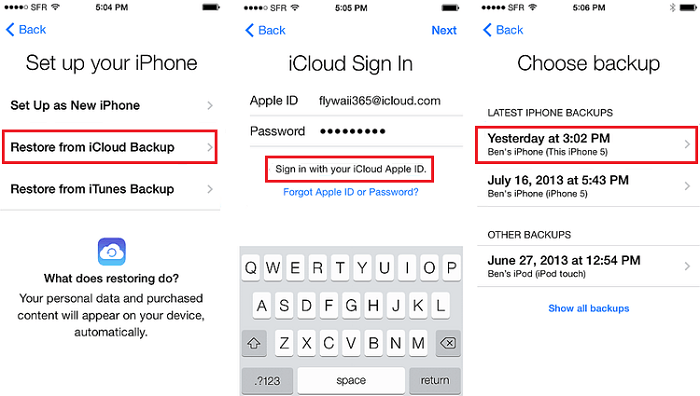
Step 3. When you get to the "Set up your iPhone" page, tap on "Restore from iCloud Backup".
Step 4. To restore your iPhone, enter your Apple ID and password, and select the most recent backup from the list of available backups. This will restore your device to its previous state, including all data, settings, and apps.
Step 5. When you set up your new iPhone, you'll be prompted to restore from a previous backup. If you choose to restore from iCloud, your new iPhone will connect to your iCloud account and download all of your backed-up data, including text messages, contacts, photos, and more.
Step 6.You can view messages backed up in iCloud on your old iPhone on your new iPhone, signifying a successful transfer of messages from one device to another. This allows you to see the messages together with other files that were also backed up in iCloud.
Method 3. Sync Messages from iPhone to iPhone with iTunes
You can also use iTunes to transfer messages between iPhones. The process is similar to iCloud, starting with backing up your old iPhone's content via iTunes, then restoring your new iPhone from the iTunes backup. Note that this method may overwrite all data on the new device with files synced from iTunes, so proceed with caution if you don't want to lose existing data. If you're okay with this, follow the detailed steps to complete the transfer.
Step 1. Connect your old iPhone to the computer via a USB cable and launch iTunes.
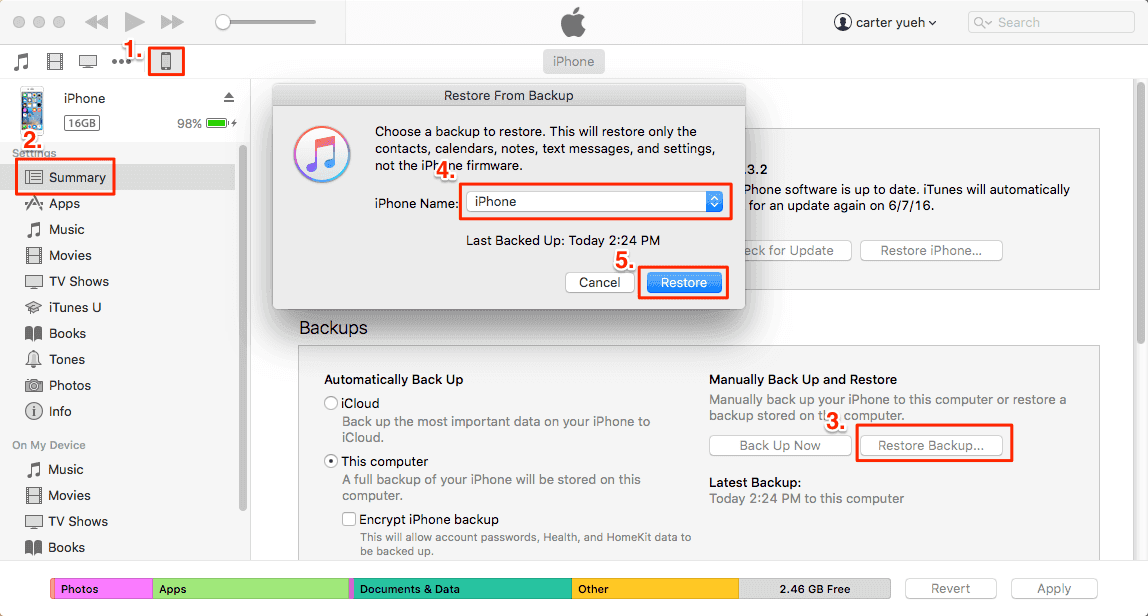
Step 2. To access the device information in iTunes, click on the "Device" tab and select "Summary" from the dropdown menu. This will display the device's summary information, allowing you to view and manage various settings and data related to the device.
Step 3. On the left side of the panel, click "This computer" and "Back Up Now" under the Backups section, then choose "Apply" to complete the iTunes backup, including text messages.
Step 4. To switch from an old iPhone to a new one, you should first disconnect the old iPhone from the computer. Then, reconnect the new iPhone to the computer and run iTunes again.
Step 5. To restore a backup on your new device, go to the "Summary" section and click "Restore Backup..." to restore the previous backup created on your target device, and then view the messages from your old iPhone on your new device.
With one of the two methods, you can copy messages from one iPhone to another within minutes. Choose the one that you think is better to get things done. If necessary, learn how to make a backup of your iPhone messages to computer from the methods below. (If you want to print text messages from iPhone, the following steps are a major part of the process).
Bonus Tip--How to back up text messages on iPhone
If you want to access and view your iPhone text messages, using iCloud or iTunes for backup is not the best option as the backup is not accessible to you. To save your iPhone text messages to your computer and view the backup anytime you like, you can use Qiling MobiMover, a professional software for iOS data transfer, file management, and video download.
To back up your iPhone text messages to your computer with MobiMover, follow these four steps: first, connect your iPhone to your computer via a USB cable and launch MobiMover on your computer; second, select the type of data you want to transfer, including text messages; third, MobiMover will detect your iPhone and display all the transferable data, including text messages; and fourth, click the "Transfer" button to start the transfer process, which may take a few minutes depending on the size of your data.
Step 1. To get started, connect your iPhone to your computer (Mac or PC) and click "Trust" on your iPhone to confirm the connection. Then, launch Qiling MobiMover and navigate to the "Content Management" section, where you can select "Messages" to manage your iPhone's messages on your computer.
Step 2. To transfer items, go to the settings and choose a folder to save the items that will be transferred.
Step 3. To save text messages from your iPhone to your computer, select the messages you want to save, including text messages (SMS) and iMessages, and click the "Transfer to PC" button. MobiMover will then automatically download the messages from your iPhone to your computer, where you can view them in a selected folder, saved as an HTML file that can be opened in a browser.
Conclusion
Transferring text messages from one iPhone to another can be done in a few ways. Using iTunes or iCloud will cause data loss on the target iPhone, but these methods are suitable for a new iOS device without setup. However, if you've already set up your device and have stored data on it, using Qiling MobiMover is a better option. This method allows you to transfer messages and other data to your new iPhone without causing any loss.
Related Articles
- Contacts Didn't Transfer to New iPhone? Fixes Here!
- How to AirDrop Photos from iPhone to iPad in iOS 14
Products
Articles & Tutorials
- Data Recovery
- Data Backup
- File Recovery
- File Backup
- System Backup and Restore
- Disk and Partition Clone
- Technical articles
- Mobile articles
- Disk Master Help
- Windows Data Recovery Tutorials
- Windows Secure Delete Tutorials
- Windows Partition Management Tutorials
- Windows File Backup and Restore Tutorials
- Windows System Backup and Restore Tutorials
- Windows Disk Backup and Restore Tutorials
- Windows Clone Tutorials