7 Ways to Transfer MP3 to iPhone from PC or Mac
If you want to transfer music to your iPhone but are unsure how to do it, you have options beyond using iTunes. This step-by-step guide can help you explore more flexible transfer solutions and find the one that suits your needs.
- Transfer MP3 to iPhone with iTunes/Finder
- Transfer MP3 from Computer to iPhone Without iTunes
- Put MP3 on iPhone with Music App on Mac
- AirDrop MP3 to iPhone from Another iOS Device Wirelessly
- Save MP3 to iPhone with Dropbox
- Download MP3 to iPhone with Free Audio Downloader
- Other Solutions to Move MP3 to iPhone
Part 1. How to Transfer MP3 to iPhone with iTunes/Finder
While iTunes or Finder may be a convenient way to transfer music between a computer and an iOS device, it's not the best solution for everyone, especially those who find iTunes restrictive due to its limitations and requirements for third-party software.
- The synced songs will get your iPhone's existing songs replaced
- Some items in your iTunes library may not be available for syncing due to unknown errors. This can occur when there are issues with the item itself, such as a corrupted file, or with the iTunes library, such as a database error.
- Improperly configured settings of iTunes sync
If you don't want to lose existing music on your iPhone, go to Part 2 to add MP3 to the iPhone without erasing. If you're using iTunes or Finder on Mac, you have two options, but the choice depends on your system.
If you're using a PC:
Step 1. Connect your iPhone to your computer via a USB cable, then launch the latest version of iTunes on your computer.
Step 2. Hit "Trust This Computer" on your iPhone screen if asked.
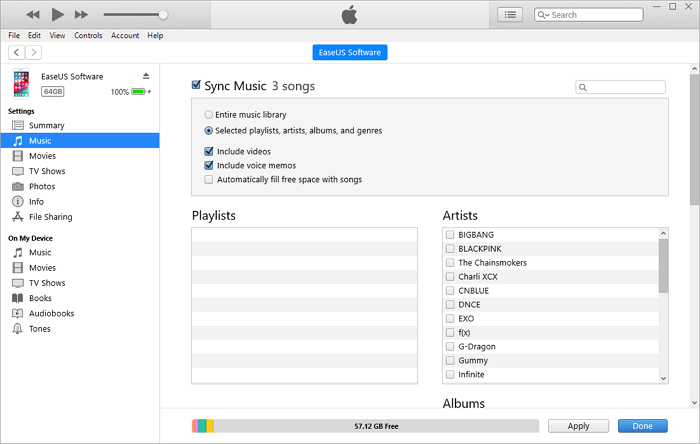
Step 3. Once iTunes detects your device, click your device icon in the upper left menu.
Step 4. To sync music, go to Settings, click on Music, and check the box next to "Sync Music XX songs." You can also choose to sync entire or selected items, and decide whether to sync videos and voice memos. Select your desired option and click "Apply."
If you're using a Mac:
Step 1. Connect your iPhone to your Mac using a USB cable, then open the Finder on your Mac.
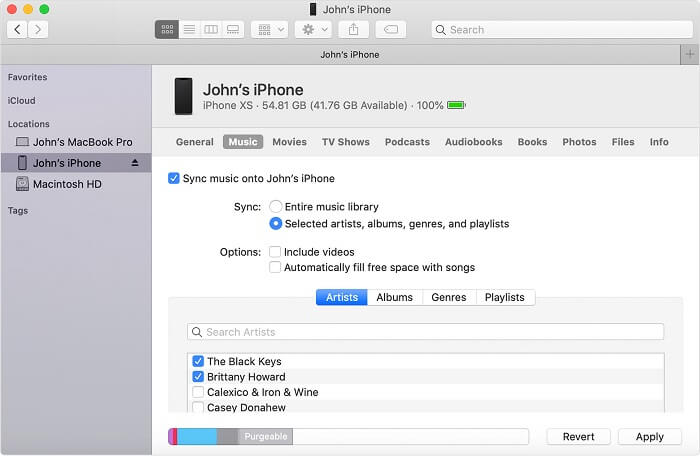
Step 2. To find music on your device, click on your device in the Finder sidebar, then click on the "Music" tab at the top of the window. This will show you all the music stored on your device.
Step 3. To sync music onto your iPhone, check the box next to "Sync music onto [your iPhone]" and select whether to sync your entire music library or only specific items.
Step 4. Select the MP3 files you want to transfer and click "Apply" to add music to your iPhone.
Part 2. How to Transfer MP3 from Computer to iPhone Without iTunes
If you find it too complicated to add MP3 files to your iPhone using iTunes, you can try alternative solutions like using Qiling MobiMover, an iOS data transfer tool. This program allows you to transfer MP3 files to your Apple Music library in just a few clicks, whether it's one file or multiple files, and ensures that no data is lost throughout the process.
This tool can be used for a variety of tasks, including but not limited to, generating text, answering questions, and providing information on a wide range of topics.
- Transfer file between iPhone and Mac or PC
- Copy files from iPhone/iPad to computer
- Transfer data from one iPhone/iPad to another
- Download Twitch clips, save YouTube videos, and more
With these functions, you can personalize your iOS devices by adding ringtones, downloading favorite tracks, converting videos to audio files, etc. It's a good iPhone manager that deserves a try.
Step 1. Connect your iPhone to your computer and run Qiling MobiMover. Navigate to the "PC to Phone" section on the main interface, then click "Select Files" to prepare for transferring data from your computer to your iPhone.
Step 2. To transfer MP3 files to your iPhone, select the desired files by browsing your computer and choosing the files you want to transfer. Then, click "Open" to proceed.
Step 3. The selected file will be displayed on the right side, showing its file name and size. You can add more files to transfer by clicking "Add Contents" or dragging items to the area. Once ready, click "Transfer" to start moving MP3 files to your iPhone, and make sure to not disconnect your iPhone until the process is complete. After the transfer finishes, launch the Music app on your iPhone to access the transferred MP3 files.
Tips: You can edit MP3 files before transferring them, which is useful if you want to replace default ringtones with a song you love.
Part 3. How to Put MP3 on iPhone with Music App on Mac
Mac users can use the Music app to transfer music from their computer to their iPhone, and Apple Music subscribers can use iCloud to automatically sync their music.
Step 1. Connect your iPhone to the Mac and launch Apple Music.
Step 2. Unlock the iPhone and trust the computer.
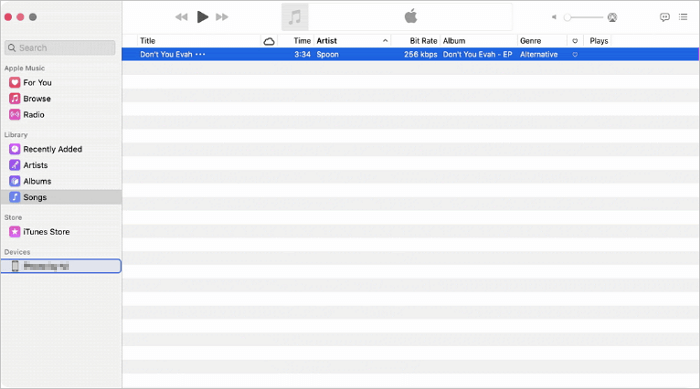
Step 3. To access the Apple Music feature on your Mac, ensure your iPhone is recognized by the device. Once your iPhone is detected, navigate to the "Songs" tab in Apple Music.
Step 4. To put MP3 files on your iPhone, select the desired MP3 files and drag and drop them onto your iOS device.
Part 4. How to AirDropMP3 to iPhone from Another iOS Device Wirelessly
To transfer data from one iOS or macOS device to an iPhone, you can use AirDrop, an official transfer solution provided by Apple. Ensure both devices are within Bluetooth and Wi-Fi range, then turn on AirDrop on both your iPhone and Mac. This method allows you to transfer contacts, photos, MP3 files, and more between Apple devices.
To airdrop MP3 to iPhone from Mac:
Step 1. Locate the MP3 file you wish to export on your Mac.
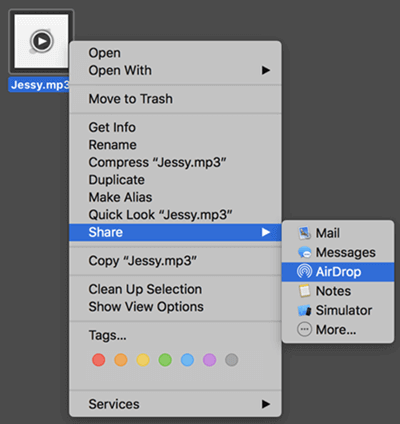
Step 2. Right-click it and select "Share," then choose "AirDrop."
Step 3. In the pop-up, select your iPhone.
Step 4.Click "Accept" on your iPhoneto receive the MP3 file.
You can also transfer music from iPhone to iPhone using AirDrop, but note that this method only transfers song information, not the actual music file.
To airDrop MP3 from one iPhone to another:
Step 1. Turn on Airdrop on both of your devices.
Step 2. To send an mp3 file from your iPhone, go to the "Music" app, and find the mp3 you want to send. Tap on the song, then tap the "Share" icon, which looks like a box with an arrow coming out of it.
Step 3. To access the Airdrop feature on your iPhone, simply tap the screen to wake it up, and then locate the "Airdrop" button at the bottom of the screen, in the middle.
Step 4. To share files from your iPhone, tap the "Airdrop" icon, which looks like a box with an arrow coming out of it, and select the name of the target iPhone from the list that appears. This will allow you to send the files to the other iPhone.
Step 5. To start transferring music to your iPhone, tap "Accept" on the other iPhone.
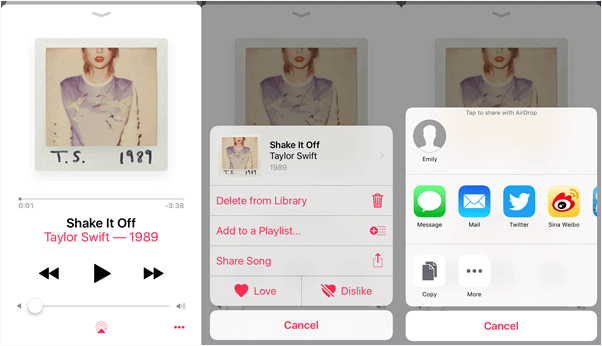
If you're having trouble using AirDrop to transfer music to your iPhone, consider alternative methods to get your MP3 files onto your device.
Part 5. How to Save MP3 to iPhone with Dropbox
Cloud storage services like Dropbox, Amazon Music, and Google Play Music allow you to stream music without downloading files, share files across devices, and transfer files between devices, making it easy to access and share music and files on your iPhone from another device.
To add music to iPhone with Dropbox:
Step 1. Download and install Dropbox on both devices, then sign in to the same account on both of them.
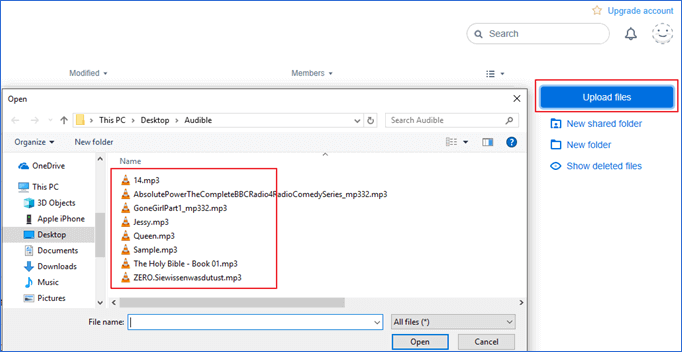
Step 2. Upload the MP3 files to Dropbox from the source device.
Step 3. To access and download files from Dropbox on your iPhone, simply open the Dropbox app, and you will see the items you've uploaded. From there, you can browse and download the files you need to your iPhone.
Part 6. How to Download MP3 to iPhone with Free Audio Downloader
You can transfer existing music files from a computer to your iPhone, or download MP3 files directly to your iPhone from a music site using a free video downloader.
If you want to download MP3 to your iPhone, you can use the iOS data transfer tool Qiling MobiMover, which also allows downloading online audio files using a URL.
To download MP3 to iPhone using Qiling MobiMover, follow the guide on how to download music from SoundCloud for more details.
Part 7. Other Solutions to Move MP3 to iPhone
In addition to transferring MP3 to an iPhone from another device, you can also add MP3 to your iPhone by downloading music directly on the device.
To download music on iPhone, you can either subscribe to Apple Music or purchase music from the iTunes Store, which will add to your iPhone's music library.
The Bottom Line
Now that you know the workable ways to add music to an iPhone, you can apply these methods to put audio files in other formats on your iPhone or put music on an iPad/iPod Touch. To quickly transfer music to your iPhone, simply carry out one of the tips above.
FAQ
1. How to play MP3 on iPhone?
Here are the steps to play MP3 on your iPhone: You can play MP3 on your iPhone, but first, you need to import the MP3 files from a Windows PC or Mac using iTunes or a third-party app like iMazing. Once the MP3 files are on your iPhone, you can play them using the Music app or any other music player app. Alternatively, you can also use a streaming service like Spotify or Apple Music to access and play MP3 files.
Step 1. Download and launch iTunes on your computer, then connect your iPhone to your computer to proceed with the process.
Step 2. To import music into iTunes, tap the Music icon in the top left corner and select the file to import, or drag the music files directly to the blank space in the iTunes interface.
Step 3. To access the music library on your iPhone, click on the iPhone icon, then click Open. After that, click on the Music icon at the top of the screen.
Step 4. To sync music to an iPhone, click on the Music icon, select the MP3 file, and click Synchronize. iTunes imports the music to the iPhone.
You can also play MP3 music on your iPhone by searching for the music from the Apple Music app and playing it directly.
2. How to add MP3 to iTunes in 2022?
To add music to iTunes, simply drag and drop the desired songs or albums from your computer into the iTunes window, or click the "File" menu and select "Add to Library" to browse and select music files from your computer. Alternatively, you can also import music from CDs by inserting the CD into your computer's CD drive and clicking "Import CD" in iTunes. Additionally, you can also purchase music directly from the iTunes Store and have it added to your library.
Step 1. To get started, download and install the latest version of iTunes on your computer.
Step 2. To add MP3 files to the iTunes library, click on "Files" and select "Add File to Library" from the drop-down menu. This will allow you to browse and select the MP3 files you want to add.
Step 3. Connect your iPhone to your computer and click on your device icon within iTunes.
Step 4. Select Music, then Sync Music, choose your MP3 files, and click Apply.
3. How to transfer MP3 to iPhone Music App?
You can transfer music to your iPhone's Music app in two ways. One way is to use iTunes to sync music to your iPhone by following the steps in Question 2. Alternatively, you can use a third-party tool like Qiling MobiMover to directly send music to your Music app from your computer.
Related Articles
- How to Save Videos on iPhone/iPad from the Internet
- How to Download Music from Computer to iPhone 13/12/11
- How to Connect iPhone to iPad
- How to Transfer Music from iPhone to iPhone in 6 Ways
Products
Articles & Tutorials
- Data Recovery
- Data Backup
- File Recovery
- File Backup
- System Backup and Restore
- Disk and Partition Clone
- Technical articles
- Mobile articles
- Disk Master Help
- Windows Data Recovery Tutorials
- Windows Secure Delete Tutorials
- Windows Partition Management Tutorials
- Windows File Backup and Restore Tutorials
- Windows System Backup and Restore Tutorials
- Windows Disk Backup and Restore Tutorials
- Windows Clone Tutorials