Transfer Notes from iPad to Computer with 4 Easy Methods
Apple users often take notes using the Notes App on their iPad or iPhone to record memories or keep important information. If you've taken notes on a working plan on your iPad, but forgot to bring it to the office where you only have a computer, you may feel frustrated. To avoid this, you can transfer notes from your iPad to your computer. In this tutorial, we'll show you some ways to accomplish this task.
- Way 1. How to Send Notes from iPad to PC via Qiling MobiMover
- Way 2. How to Transfer Notes from iPad to PC via Email
- Way 3. How to Export Notes from iPad/iPhone to PC via iCloud
- Way 4. How to Copy Notes from iPhone/iPad to Computer via iTunes
Way 1. Send Notes from iPad to PC via Qiling MobiMover
Compared to other methods, this approach supports the largest number of notes, covers the widest range of data types, offers the highest transfer speed, and provides more choices for transferring notes. To take advantage of these benefits, simply download the powerful iOS data transfer software, Qiling MobiMover, on your PC. With it installed, you can enjoy seamless data transfer.
- Move data between iPhones or iPads.
- Import videos from iPhone/iPad to the computer.
- You can download videos from a wide range of video-sharing websites, including YouTube, Twitter, Facebook, Instagram, and over 1000 others.
- Unlock your iPad/iPhone screen lock without a passcode.
Now, you can get this powerful software downloaded on your computer and start to send notes from iPad to PC.
Step 1. To transfer notes from your iPad to your computer, connect your iPad to your computer, launch Qiling MobiMover, unlock your iPad and click "Trust" in the prompt, then choose "Phone to PC" and select "Next".
Step 2. To transfer notes, select "Notes" among the options and click the default path to set a custom storage path if needed, then click "Transfer".
Step 3. Once the transfer process is complete, you can access your notes on your computer.
Tips: If you want to transfer photos from your iPhone to your computer, you can follow the same steps.
Way 2. Transfer notes from iPad to computer via Email
You can use Email to transfer a couple of notes, but the transfer speed depends on your network situation and the number of emails you transfer.
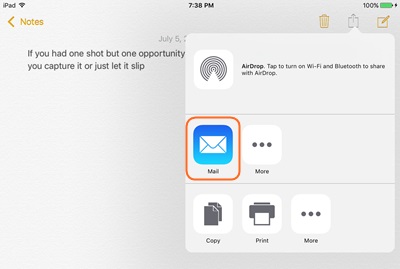
Step 1. Open yourNoteApp on the iPad.
Step 2. Choose which are the notes you want to transfer.
Step 3. To share the menu, tap on the share icon at the top right and select Mail.
Way 3. Export Notes from iPad to PC via iCloud
If you have fewer than 5GB of notes on your iPad, you can export them to your computer using iCloud. Make sure iCloud is enabled on your iPad and iCloud for Windows is installed on your computer. This method also works for backing up notes on iPhone or iPad.
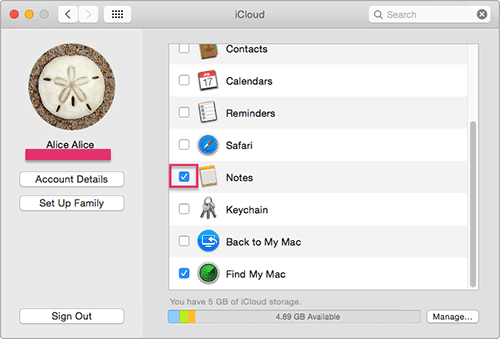
Step 1. To access your iCloud settings on an iPad, go to the Settings app, then select iCloud from the list of options. You will then be prompted to enter your Apple ID and password to authenticate and access your iCloud settings.
Step 2. To access your notes on your iPad, enable the Notes option, and iCloud will automatically sync and upload them. This way, you can access your notes on iCloud whenever you want.
Step 3. To access your iCloud notes on a computer, log in to your iCloud account on the computer using the same Apple ID that you used on your iPhone or other device. Once logged in, select the "Notes" option from the iCloud dashboard.
Way 4. Copy Notes from iPhone/iPad to Computer via iTunes
To copy notes from iPad to computer using iTunes, you'll need to have an Outlook account. This method allows you to sync your notes from your iPad to your computer using iTunes.
Step 1. To transfer data from your iPad/iPhone to a computer, connect your device to the computer using a USB cable. Next, launch iTunes on your computer, which will allow you to access and transfer your device's data.
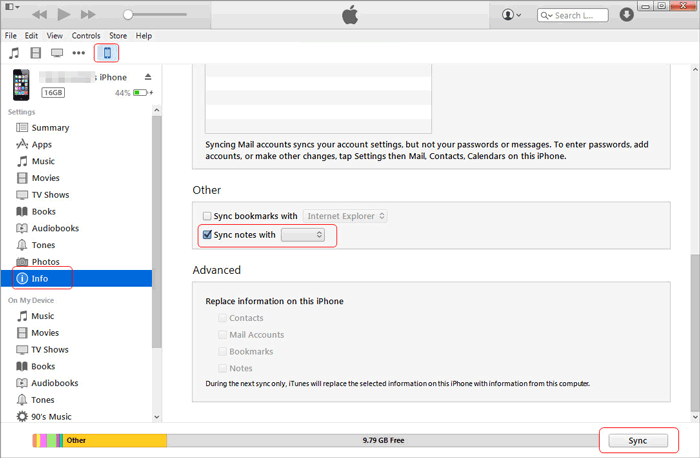
Step 2. To find the Apple ID associated with your device in iTunes, click on the device icon on the left side of the iTunes window, then scroll down to find the "Info" option and click on it.
Step 3. Select the "Sync notes with Outlook" option from the right panel, then click the "Sync" button to initiate the transfer process.
Conclusion
You can quickly transfer notes from iPad to PC using one of four methods. Choose the one that suits your needs, but Qiling MobiMover is the most ideal option due to its high transfer speed, simple operation, and safe transfer way, making it stand out from the other three methods.
Related Articles
- How to Back Up Line Chats on Android and iPhone
- How to Fix iCloud Photos Not Syncing
- How to AirDrop Photos from iPhone to Mac
- How to Get Back Deleted WhatsApp Messages on Computer/iPhone
You can recover deleted WhatsApp messages, making it easy to get back what's been lost.
Products
Articles & Tutorials
- Data Recovery
- Data Backup
- File Recovery
- File Backup
- System Backup and Restore
- Disk and Partition Clone
- Technical articles
- Mobile articles
- Disk Master Help
- Windows Data Recovery Tutorials
- Windows Secure Delete Tutorials
- Windows Partition Management Tutorials
- Windows File Backup and Restore Tutorials
- Windows System Backup and Restore Tutorials
- Windows Disk Backup and Restore Tutorials
- Windows Clone Tutorials