Can Formatting Fix Bad Sectors? What to Do First
Formatting does not turn damaged media into healthy media. It can rebuild a file system and may help after certain logical errors, while a physically failing disk can continue losing data even after a successful format.
Separate Logical Errors from Physical Failure
A file-system inconsistency can make a healthy drive appear unreliable. Physical media faults, rising reallocated-sector counts, pending sectors, I/O errors, or repeated disconnects point to hardware trouble. A quick format primarily rebuilds file-system structures; a full format checks more of the surface but still does not repair a damaged HDD or SSD. Do not repeatedly run long scans on a drive that is already failing.
Step 1: Save Data and Check Health
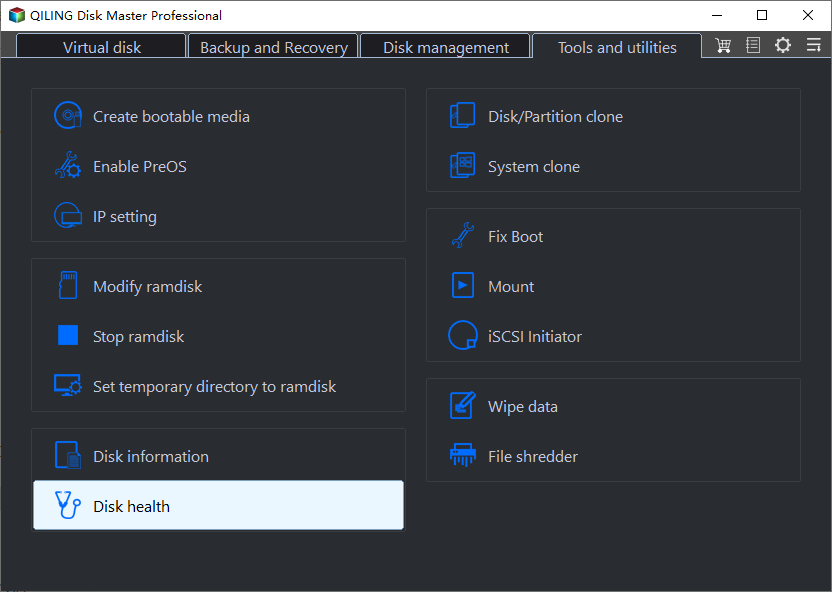
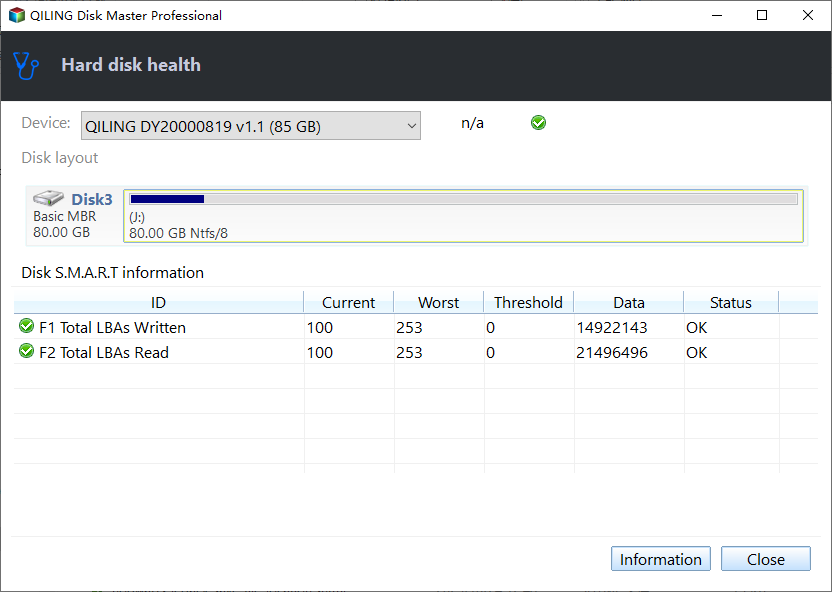
Stop writing to the suspect disk. Copy readable files to another drive; if reads stall or the data is irreplaceable, consider a specialist rather than repeated DIY scans. Check SMART status in Qiling Partition Master's Disk Health view, and compare it with the drive maker's diagnostics. A warning or rapidly increasing error count is a replacement signal, not a reason to format.
Step 2: Try File-System Repair Only on a Stable Drive
If hardware health is normal and the problem appears limited to file-system metadata, back up first. Open an elevated Command Prompt and run chkdsk X: /f, replacing X with the confirmed data-volume letter. This attempts logical file-system repair. Do not run it against the wrong drive, and do not use repeated /r scans on a disk showing physical failure. Recheck files after the repair.
Step 3: Format a Verified Data Partition If Repair Does Not Help
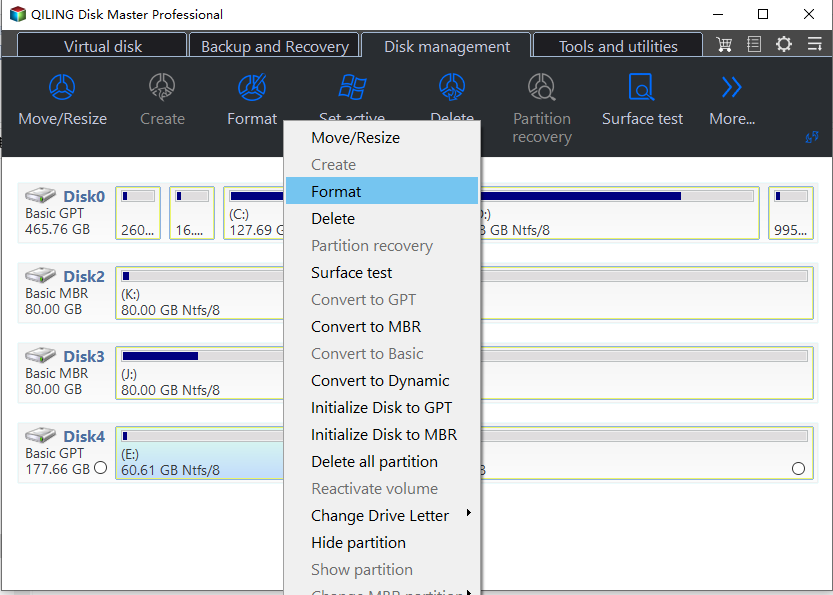
Step 1. Format only after the wanted data has been copied and verified elsewhere. In Qiling Partition Master, identify the target data partition by disk number, capacity, and label. Select Format; never select the Windows C, EFI, or Recovery partition as a trial.
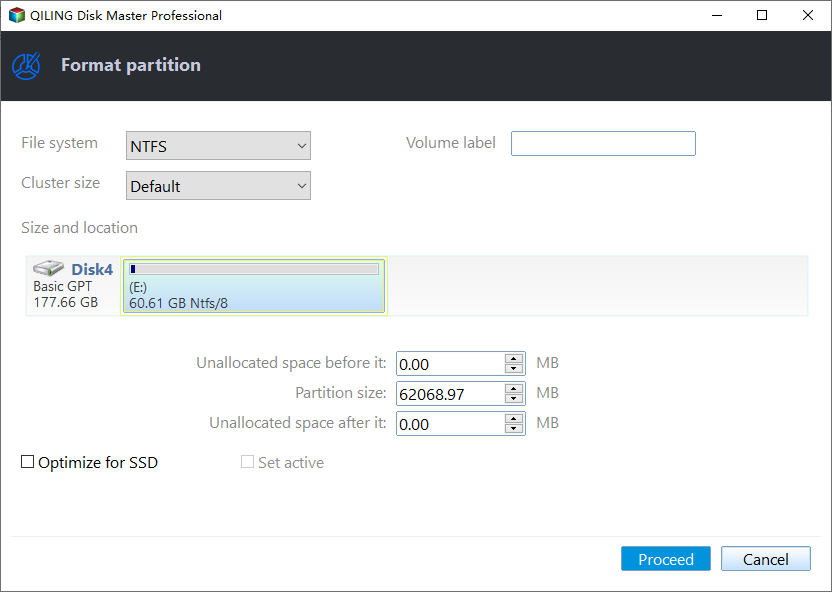
Step 2. Choose a suitable file system, such as NTFS for Windows-only storage, and set a label. Check the selected partition one more time. Click Proceed, read the data-loss warning, and confirm it only if the backup is complete.
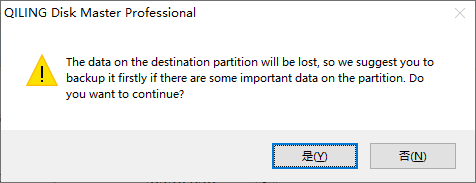
Step 3. Wait for completion. Recheck health and copy a small test file to the drive. If I/O errors or health warnings return, stop using the disk and replace it.
When to Replace Instead
Replace the drive when SMART reports failure, sectors continue to be reallocated, the drive disappears intermittently, or errors recur after repair. On an SSD, formatting cannot revive worn flash cells. For a failing boot disk, make a recoverable image or seek professional help before attempting an operating-system reinstall.
Conclusion
Use formatting only to rebuild a file system on a drive that has passed health checks. For physical bad sectors, prioritize data recovery and replacement.
Related Articles
- Check Disk Health in Windows
Read drive-health information before making changes. - Can a Format Remove Bad Sectors?
Understand the limits of formatting and surface checks.
Products
Articles & Tutorials
- Data Recovery
- Data Backup
- File Recovery
- File Backup
- System Backup and Restore
- Disk and Partition Clone
- Technical articles
- Mobile articles
- Disk Master Help
- Windows Data Recovery Tutorials
- Windows Secure Delete Tutorials
- Windows Partition Management Tutorials
- Windows File Backup and Restore Tutorials
- Windows System Backup and Restore Tutorials
- Windows Disk Backup and Restore Tutorials
- Windows Clone Tutorials