How to Check Western Digital Hard Drive Health in Windows
A Western Digital drive can appear in File Explorer while it is already developing read errors. Health checks are most useful when you combine symptoms, SMART information, and a verified backup rather than trusting a single green status icon.
Recognize Warning Signs First
Repeated clicking, disappearing from Windows, very slow reads, bad-sector warnings, or recurring file corruption call for immediate backup. If the drive is mechanically noisy or repeatedly disconnects, stop long diagnostic tests; extra reads can worsen a failing HDD. A surface scan is not a repair and cannot make damaged media reliable again.
Identify the exact disk model and serial number in Windows or on its label. For an external WD drive, check the USB cable and power supply, then try a known-good port before concluding that the media itself has failed. Do not initialize, format, or run a write test just to see whether the drive responds.
Read SMART Data in Qiling Disk Master
Step 1. Copy irreplaceable files to a different physical device. Open a sample of the copied files so the backup is not only a completed progress bar.
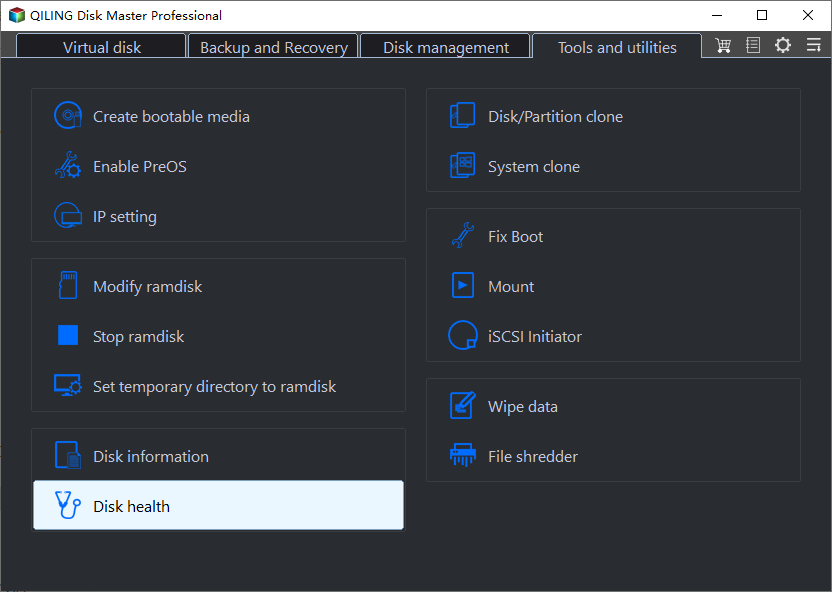
Step 2. Open Qiling Disk Master and choose Tools and utilities > Disk health. The menu image shows where this diagnostic starts.
Step 3. Choose the WD device by model and capacity in the Device list. Review the disk map and SMART attributes. Look for increasing reallocated, pending, or uncorrectable sectors on HDDs, and media or wear indicators on SSDs where exposed. Attribute names and raw values vary by model; a single value is not a universal pass/fail threshold.
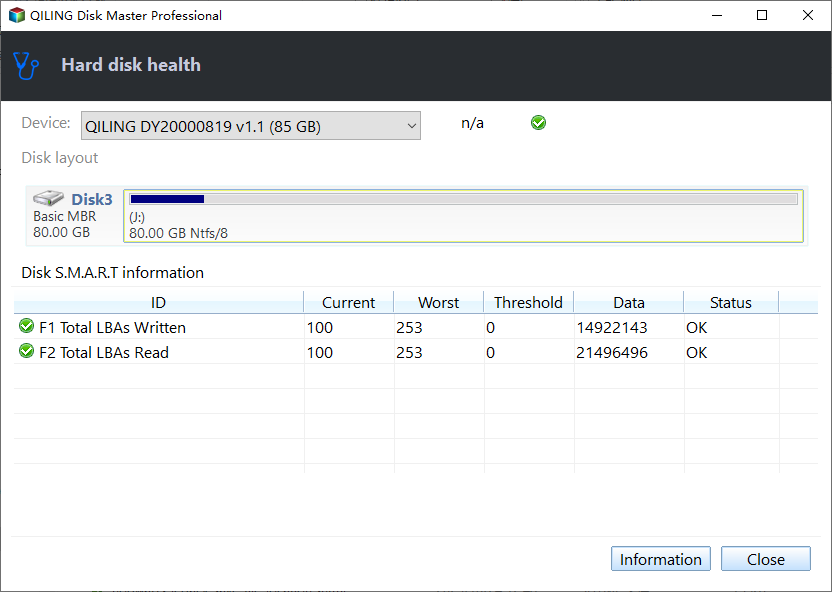
Step 4. Record the date and important values, then compare later readings only if the drive is stable. A worsening trend or read errors matters even when the summary status says OK.
Cross-Check with Other Methods
Use the current WD or SanDisk support resources for your exact drive model if a manufacturer diagnostic is offered; availability and tools change. Windows Event Viewer > Windows Logs > System can show disk or controller errors, although USB bridge failures can produce similar symptoms. Running chkdsk checks file-system structure; it is not a substitute for SMART or a backup.
After your data is safe, a read-only surface test may help locate problem areas. Start Qiling's Surface test for the identified disk and watch for reported errors. Stop if the disk starts disconnecting, becoming unusually slow, or making new mechanical noise. Do not use a write-based test on the only copy of valuable data.
Decide Whether to Replace the Drive
Replace a drive that develops new bad sectors, recurring read failures, or unstable connections after cable and power checks. For an SSD, declining health estimates need interpretation alongside errors and warranty terms. Cloning a failing disk is not guaranteed; copy the most important files first, and consider professional recovery if the data is valuable and the drive is physically failing.
Conclusion
Back up first, read model-specific SMART information, cross-check symptoms, and replace a drive that continues to show errors rather than relying on a single clean test.
Related Articles
- How to Check Disk Health in Windows
Compare SMART, Windows diagnostics, and backup decisions. - Hard Drive Clicking but Still Works
Know when continued testing can put data at risk.
Products
Articles & Tutorials
- Data Recovery
- Data Backup
- File Recovery
- File Backup
- System Backup and Restore
- Disk and Partition Clone
- Technical articles
- Mobile articles
- Disk Master Help
- Windows Data Recovery Tutorials
- Windows Secure Delete Tutorials
- Windows Partition Management Tutorials
- Windows File Backup and Restore Tutorials
- Windows System Backup and Restore Tutorials
- Windows Disk Backup and Restore Tutorials
- Windows Clone Tutorials