EaseUS Partition Master 10.8 Crack Risks and Safe Alternatives
A cracked copy of an old partition manager can modify the most sensitive structures on a disk while bypassing the software's update and support path. A 'free serial' may also be malicious or simply not work. Treat this as a data-safety decision, not a download shortcut.
Why Old Keygens Are a Bad Disk-Repair Plan
A partition manager can alter the partition table, boot records, and file-system boundaries. Modified installers or keygens may contain malware, inject code into storage operations, or use outdated drivers on current Windows builds. Even if the program launches, a failed move or resize can leave Windows unbootable. An unsupported release is not a reliable way to handle a modern encrypted SSD or GPT layout.
Check the publisher's official free edition and license terms, or use built-in Windows Disk Management for simple create, shrink, and extend tasks. A paid feature should be obtained through an authorized license; no legitimate article should distribute a cracked executable or serial key. Qiling Disk Master is another option only when its installed edition supports the desired operation.
Prepare Before Any Partition Change
Step 1. Copy important files to another physical disk and open sample files. For a system partition change, also create a full system or disk image and test that recovery media can see it.
Step 2. Open Disk Management and record disk number, partition style, partition order, drive letters, and adjacent unallocated space. Confirm the disk has no SMART warnings and stable power.
Step 3. Decide the exact operation. Extending C: into space on another physical disk is not a simple basic-disk resize, and deleting an EFI partition to gain capacity can break boot. If the layout is unclear, do not proceed.
Example: Resize a Data Partition with Qiling
This example is for a healthy data volume after backup; it does not assume every disk layout can be changed safely. Use an official Qiling installer and the edition licensed for partition management.
Step 1. Open Qiling Disk Master's Disk management map, select the exact data volume, and choose Move/Resize. Check the displayed source disk and partition.
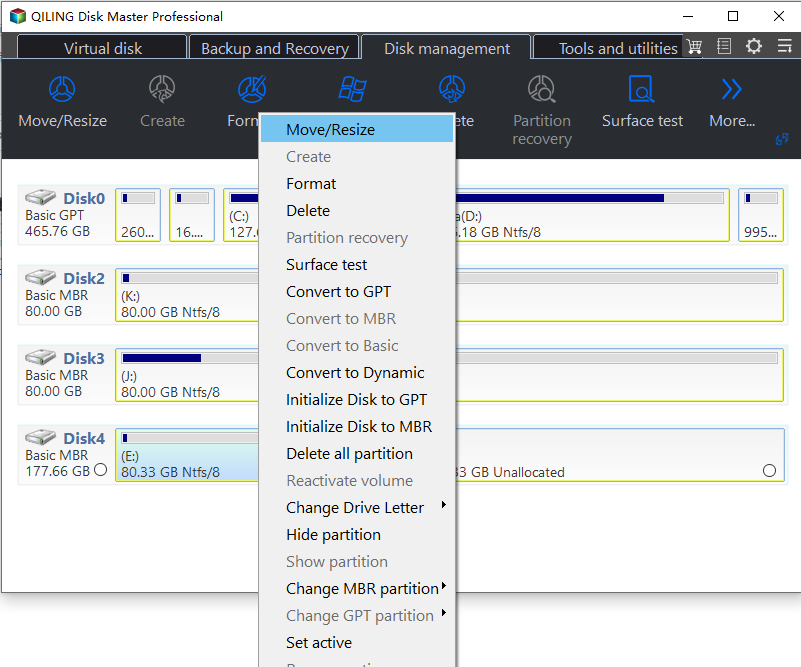
Step 2. Move the left or right boundary only into adjacent unallocated space, or shrink the volume by entering a smaller partition size. Inspect the resulting unallocated space before and after the volume; do not move a boot or recovery partition as part of this example.
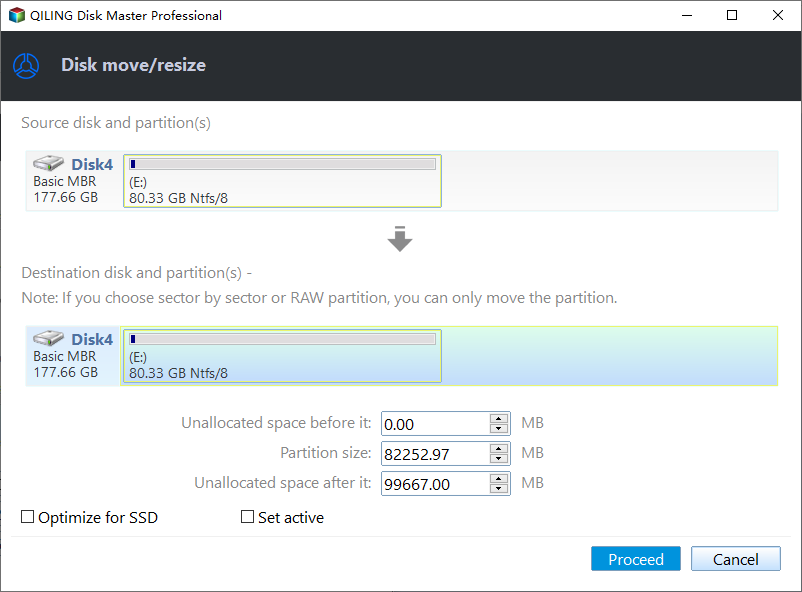
Step 3. Click Proceed after checking the target and proposed size. Keep the PC powered and do not cancel while data is moving. Wait for success, then reopen the volume and verify files and free space.
If You Already Ran an Untrusted Build
Stop using it for disk operations. On a clean device, obtain a legitimate installer and update your security software. Back up readable data before further partition work, scan the system, and check account security if credentials were entered into the keygen. If Windows no longer boots, restore from a verified image or use official Windows Recovery rather than repeatedly rerunning the modified tool.
Conclusion
Use supported tools and a verified backup, not a cracked partition manager. A careful, licensed operation is cheaper than recovering a corrupted disk.
Related Articles
- Partition Manager Crack and Keygen Risks
Review malware and disk-corruption risks. - Portable Partition Manager Software
Understand licensed bootable-tool options.
Products
Articles & Tutorials
- Data Recovery
- Data Backup
- File Recovery
- File Backup
- System Backup and Restore
- Disk and Partition Clone
- Technical articles
- Mobile articles
- Disk Master Help
- Windows Data Recovery Tutorials
- Windows Secure Delete Tutorials
- Windows Partition Management Tutorials
- Windows File Backup and Restore Tutorials
- Windows System Backup and Restore Tutorials
- Windows Disk Backup and Restore Tutorials
- Windows Clone Tutorials